

Stock Tracking
Stock tracking on the product form is built into Fuze Store. You do not need the Inventory Management add-on to turn on manage inventory, set quantity, set a low-stock level, or let the register deduct stock when you sell.
When you need the Inventory add-on
The Inventory drawer module (stock levels across locations, transfers, purchase orders, suppliers, stock counts, and audited stock adjustments) requires the Inventory Management add-on. Basic product stock does not.
Setting initial stock quantities
You set the starting stock quantity when you create a product (or edit an existing one).
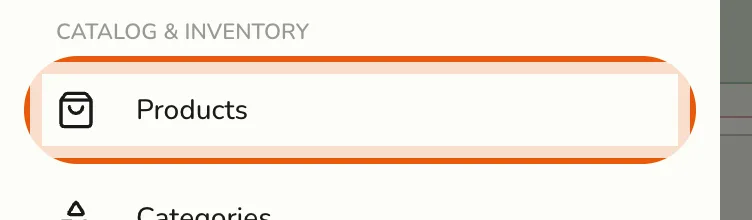
- Go to Products from the sidebar menu.
- Tap Add Product or edit an existing product.
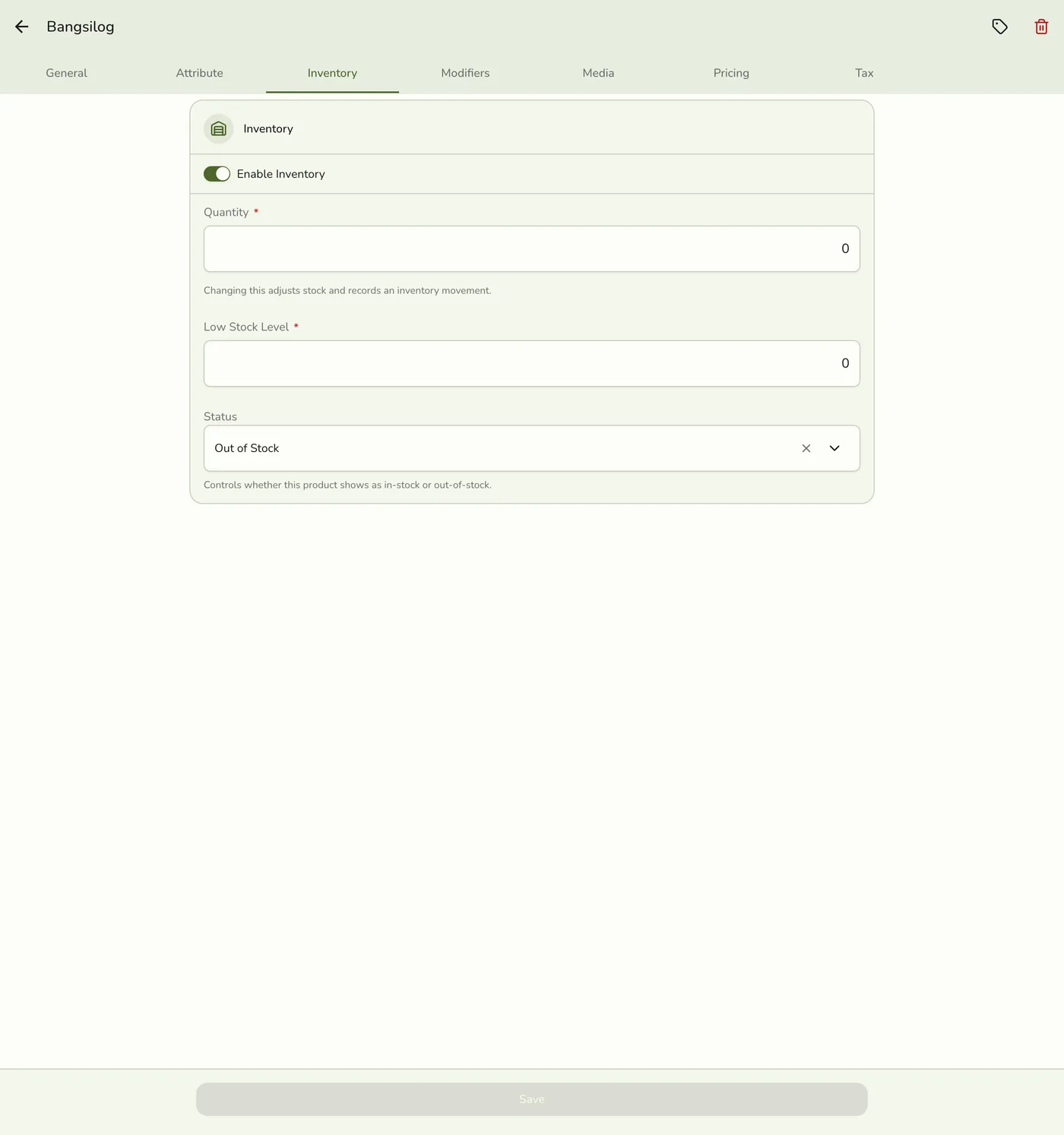
- Open the Inventory tab.
- Turn on Manage Inventory.
- Enter the quantity on hand (and optionally a low-stock level).
- Save the product.
Services hide the Inventory tab — stock tracking applies to products, not timed services.
Viewing current stock
- Go to Products from the sidebar menu.
- Tap the product you want to check.
- View the stock quantity on the product detail screen.
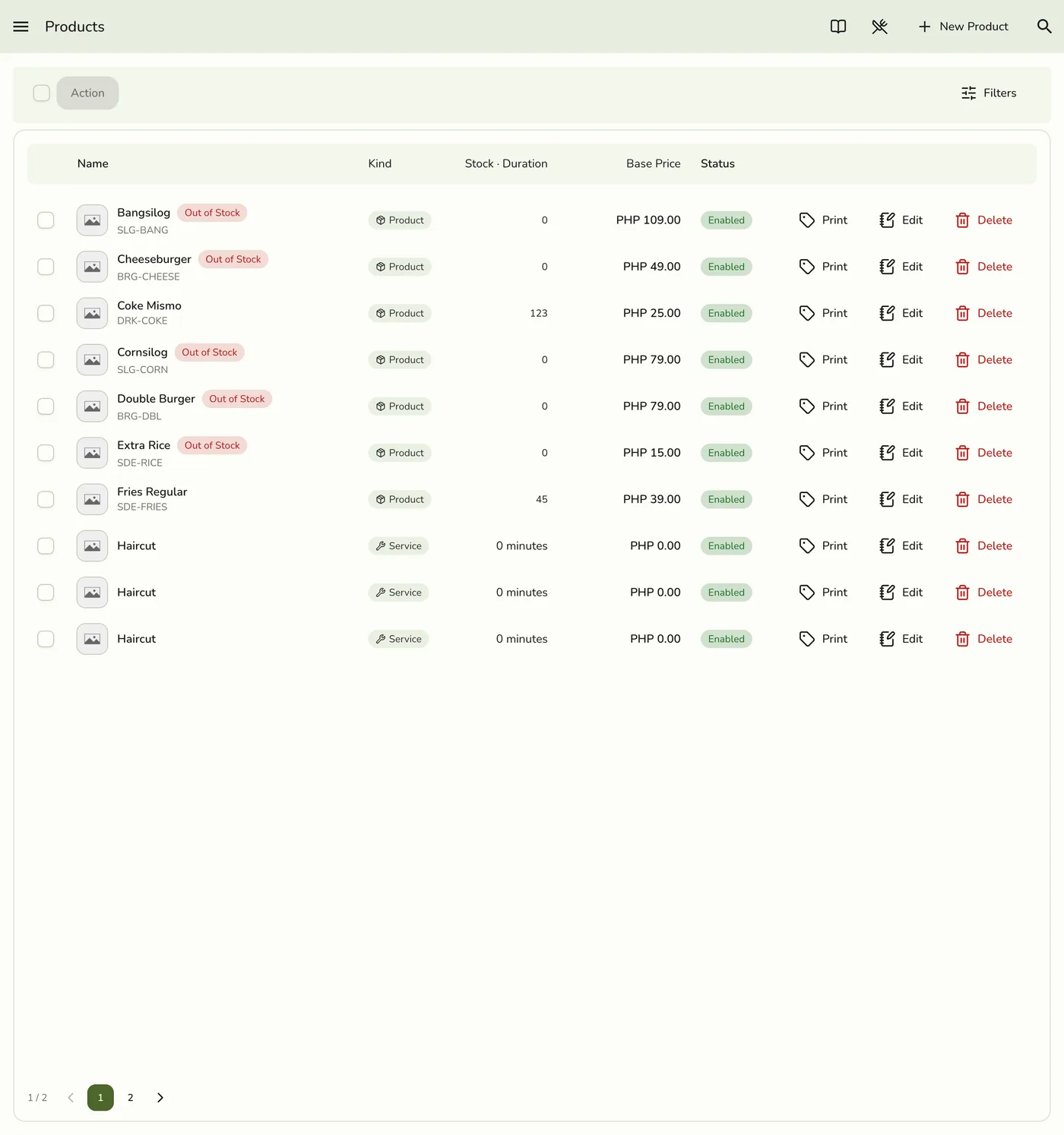
Products at or below their low-stock level are highlighted on the product list so you can spot them quickly.
How automatic deduction works
The system adjusts stock for you. By default:
- A cashier rings up an order that includes the product.
- The system subtracts (or reserves) the ordered quantity from stock at the default sale location.
- Completing the order later does not re-deduct — the sale already moved stock at create time.
If your store turns on stock reservation under Preferences → Product, stock is reserved first and finalized according to that preference. You do not need to update stock manually after each sale.
Setting low-stock thresholds
- Edit the product.
- On the Inventory tab, set the Low Stock (threshold) value.
- Save your changes.
Optional email digests and auto-reorder are covered in Low-Stock Alerts & Auto-Reorder.
Tips for accurate stock tracking
- Set quantities carefully when first adding products.
- Use low-stock levels so popular items are flagged before you run out.
- With the Inventory Management add-on, run regular stock counts and adjustments so system numbers match the shelf, and use transfers when you have more than one location.