

Stock Transfers
Stock transfers move inventory between locations of the same store (for example, back room → front counter, or warehouse → floor). For moving stock between different stores in an organization, see Cross-Store Transfers.
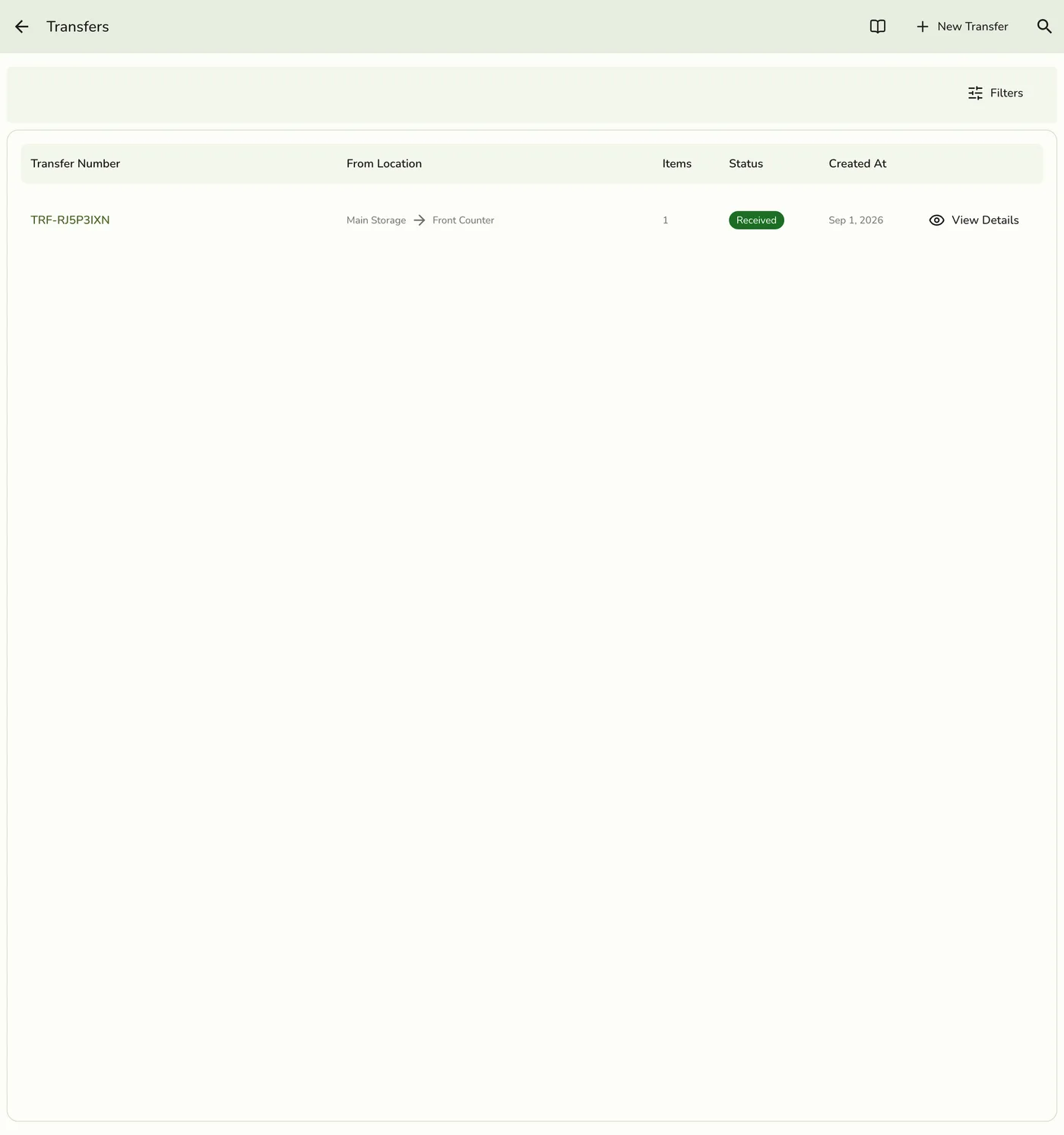
When to Use Stock Transfers
- One location is low on a product while another location in the same store has extra.
- You are stocking a new location inside the store and need to redistribute inventory.
- You want to balance stock levels across your store's locations.
Transfer lifecycle
| Status | What It Means |
|---|---|
| Draft (shown as Pending in the app) | The transfer is prepared. You can still edit lines. |
| Shipped / Partially Shipped | Stock has left the source location (fully or in part). |
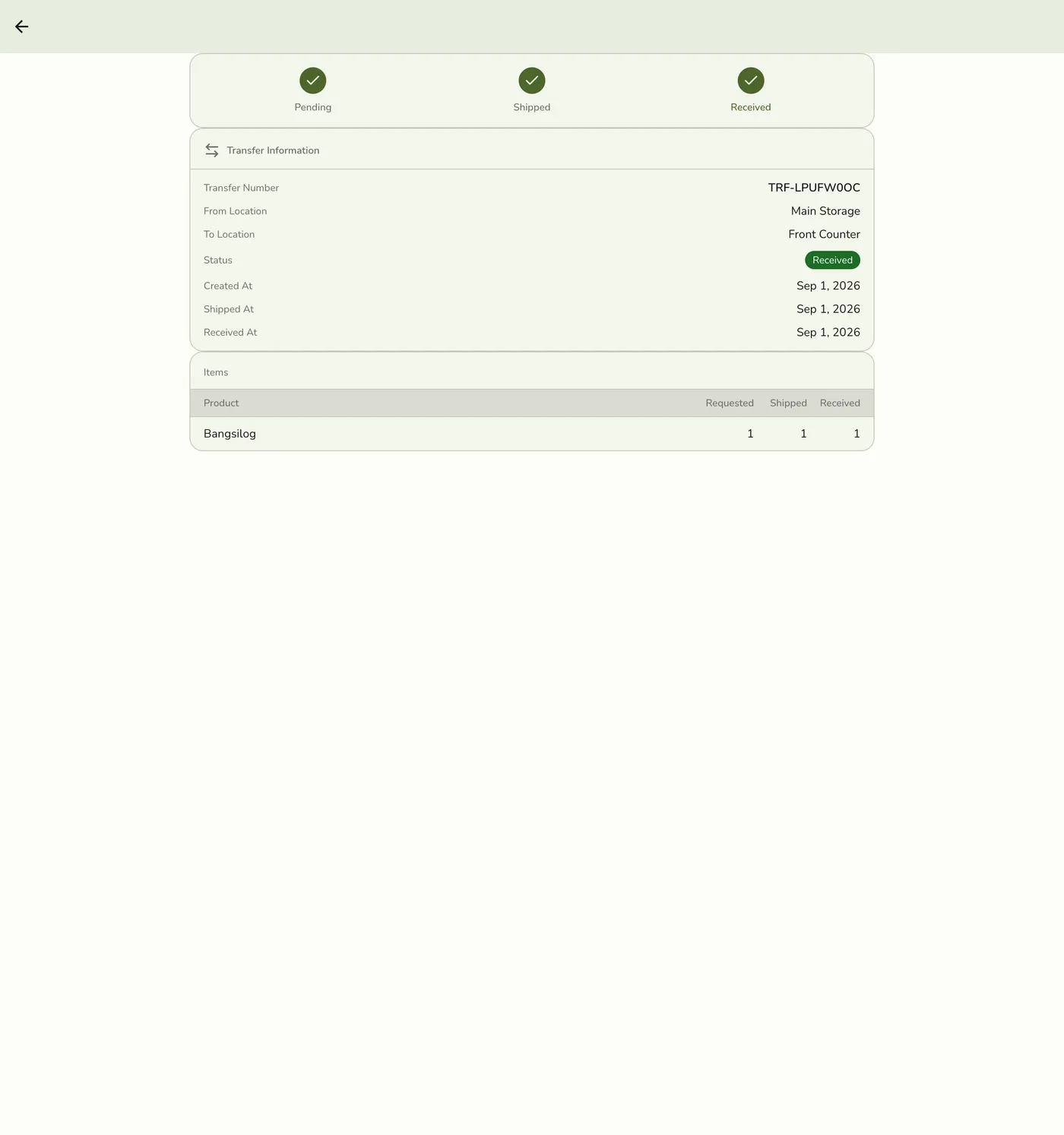
| Received | The destination has confirmed receipt; stock is on hand there. |
| Cancelled | The transfer was cancelled before completion. |
Manager approval for inventory is separate: it applies to placing purchase orders and stock adjustments when Staff Operations is active — not to the transfer ship/receive steps. See Approvals & Permissions.
How to Create a Transfer
Open Transfers
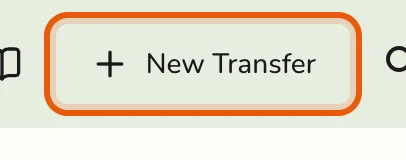
Go to Inventory → Transfers from the sidebar and tap New Transfer.
Choose locations and add items
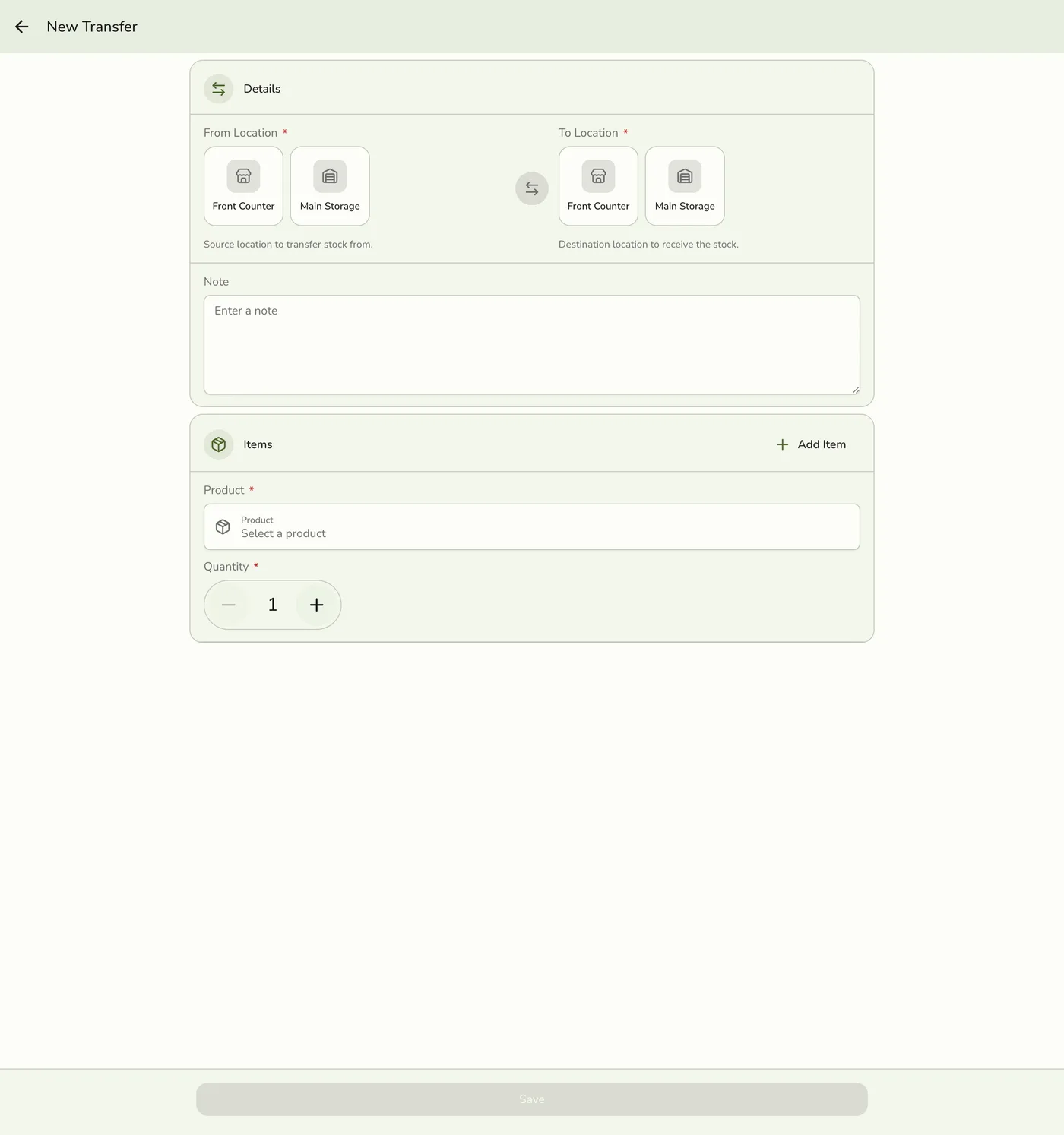
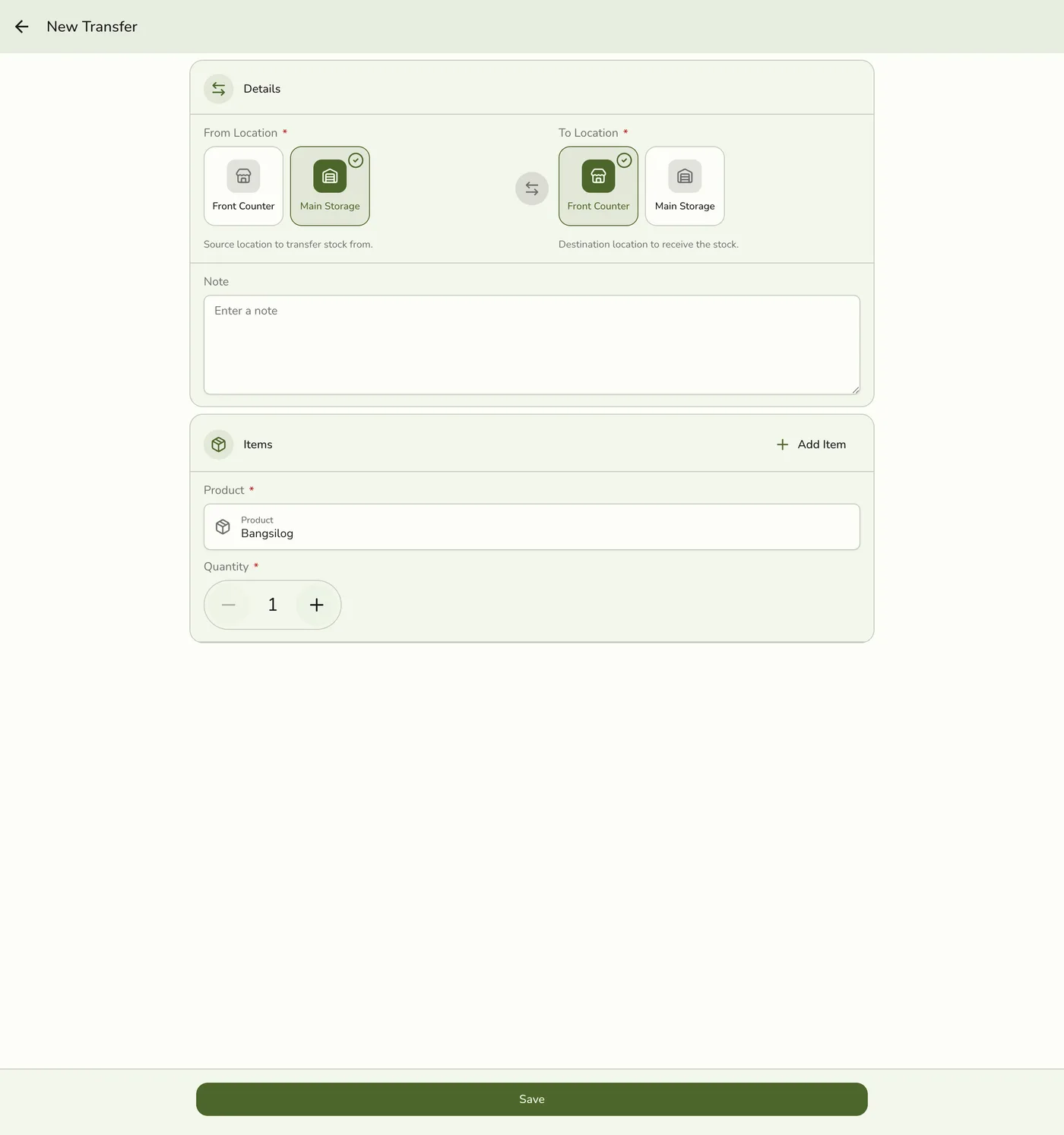
Select the source location (where stock is coming from) and the destination location (where stock is going), then add the products and quantities you want to transfer.
Save the draft
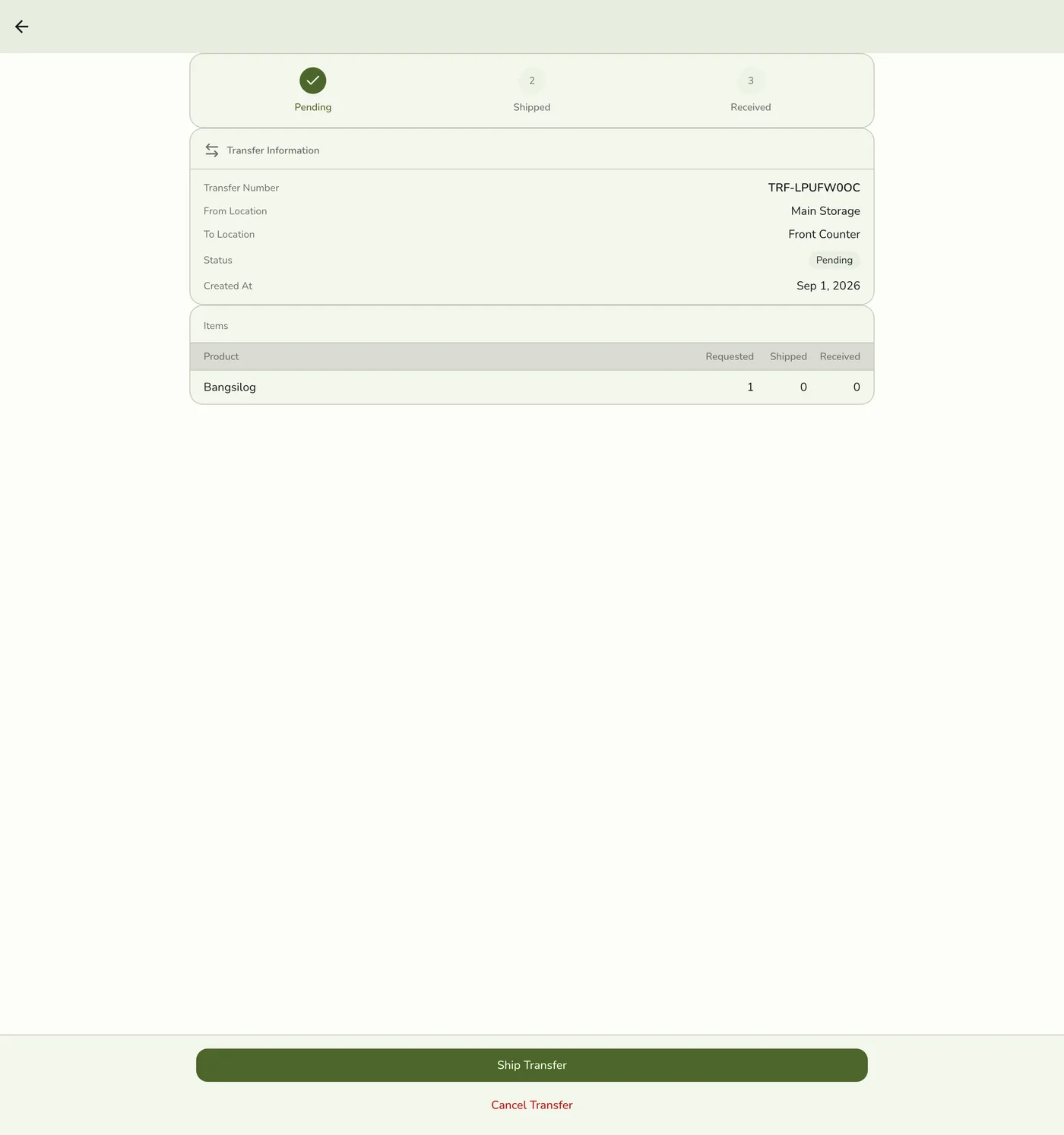
Save. The transfer is created in Pending status.
Shipping and Receiving
Stock does not move until you ship, and it is not available at the destination until you receive.
Open the pending transfer
Open the draft (Pending) transfer from the list and review the products, quantities, and locations.
Ship
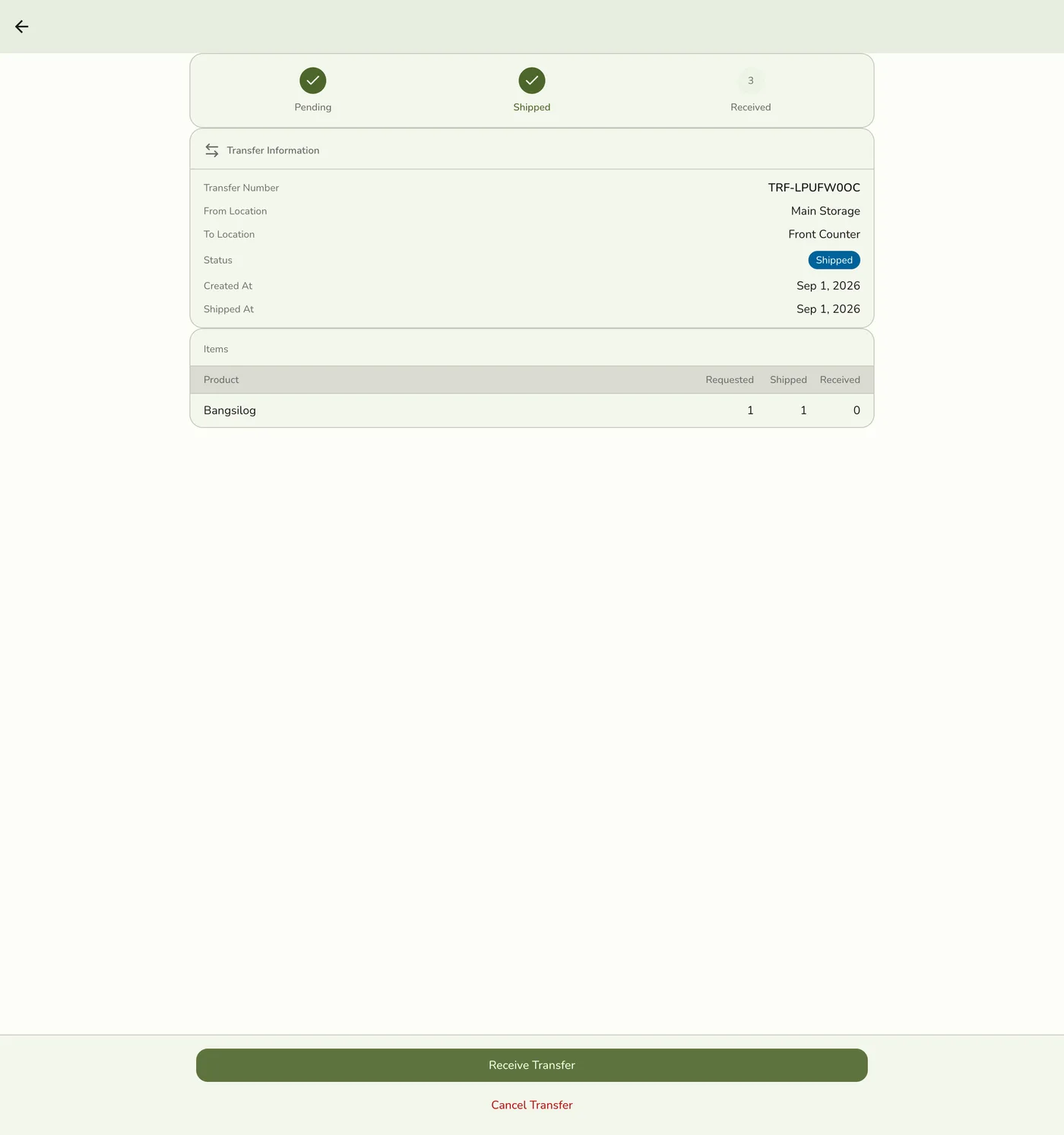
Tap Ship Transfer to deduct stock at the source. You can ship partially if needed.
Receive at the destination
At the destination, open the shipped transfer and tap Receive Transfer to add stock there.
If a transfer is no longer needed before it is fully received, Cancel it. Cancelling a draft does not change stock; cancelling after a ship may reverse or leave partial movement depending on what was already shipped/received — review the document before cancelling.
Tracking Transfer History
You can view past transfers from the Transfers list. Each record shows:
| Detail | Description |
|---|---|
| Transfer ID | A unique reference for the transfer. |
| Date | When the transfer was created. |
| Source | The location that sent the stock. |
| Destination | The location that received the stock. |
| Items | The products and quantities. |
| Status | Draft/Pending, Shipped, Partially Shipped, Received, or Cancelled. |
Tips for Managing Transfers
- Ship and receive promptly so on-hand counts stay accurate at both locations.
- Use transfer history to spot patterns in how stock moves inside the store.
- Plan ahead for busy seasons by redistributing stock early.
- Need another store? Use Cross-Store Transfers (Organization + Inventory on both stores).