

Managing the Queue
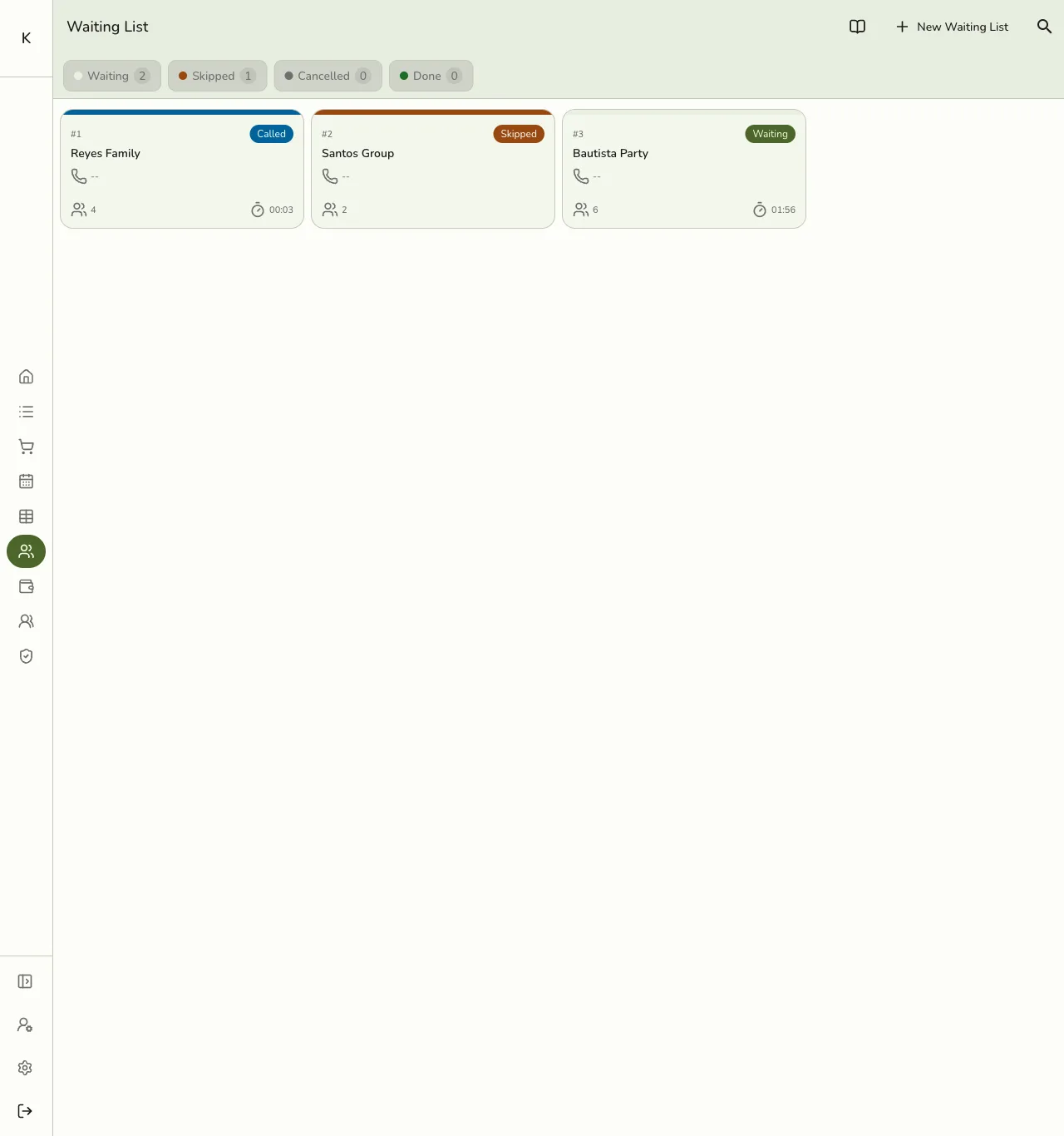
The Waiting List screen gives you full control over your customer queue. You add parties, call them when ready, track wait times, and update their status as you serve them.
Opening the Waiting List
- Open the POS.
- Select Waiting List from the menu.
You see the current queue with each party's name, party size, position, wait time, and status.
Adding a Party to the Queue
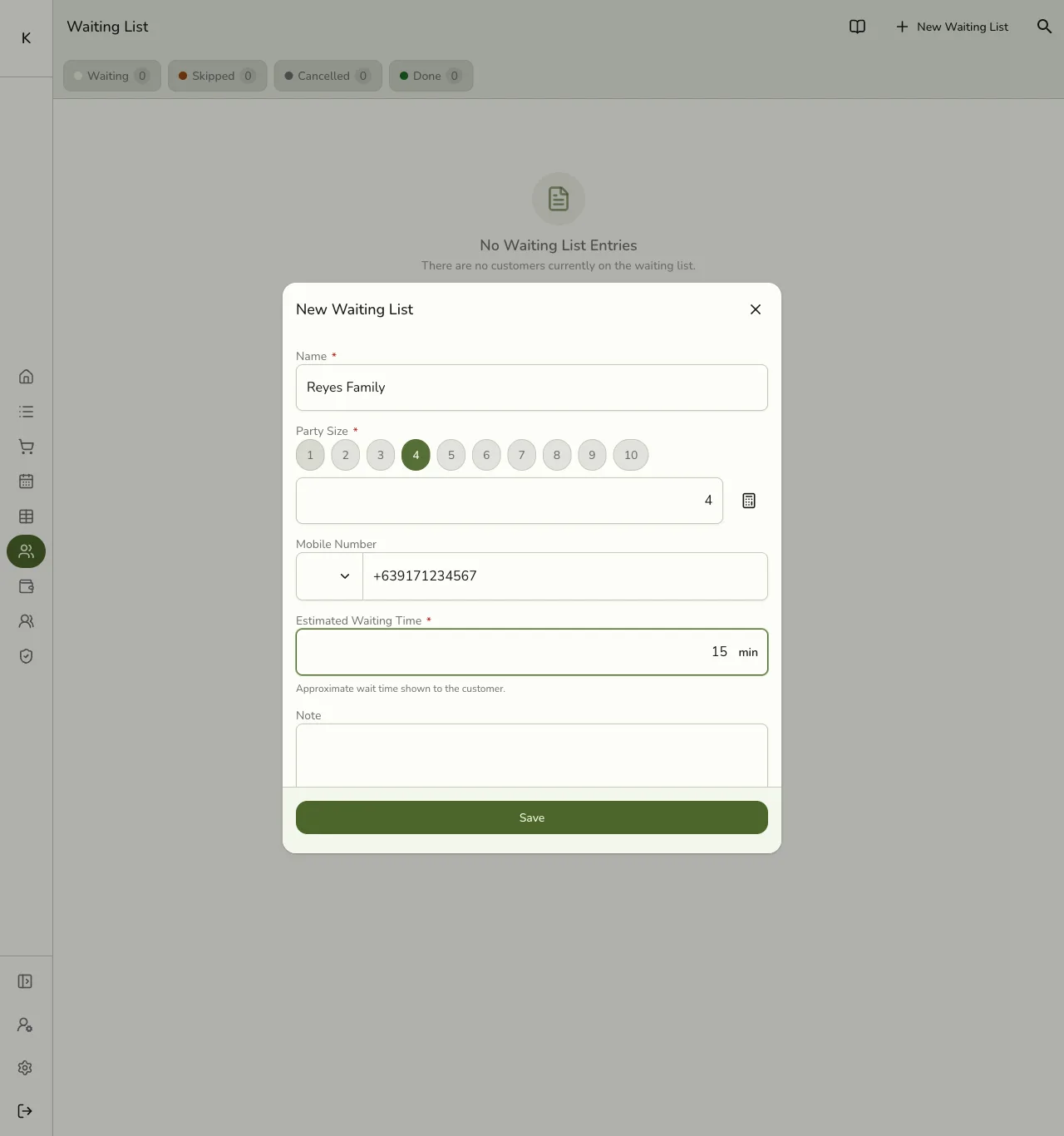
- Press New Waiting List.
- Fill in the fields below.
- Press Save.
The party appears at the end of the queue with the next position number. Numbers
restart at #1 each day (your store's local time), like a take-a-number dispenser —
so the first party every morning is #1, not a continuation of yesterday's count.
Queue Entry Fields
The party or guest name
Example: Maria Santos
Number of people in the group
Example: 4
Used when you press Send SMS (requires the SMS add-on)
Example: +63 917 123 4567
Minutes you expect the party to wait — shown to the customer
Example: 10
Special requests or details
Example: Needs high chair
There is no edit screen for a queue entry — only status actions. If you typed the mobile number wrong, Cancel the entry and add it again.
Statuses and Actions
Each entry has a status, and the actions available depend on it.
In the queue, not yet called
You called the party — SMS is separate (Send SMS)
Passed over for now — they stepped away or were not ready
Removed from the queue (no-show or left)
Served and cleared from the active queue
Open a party to see its actions:
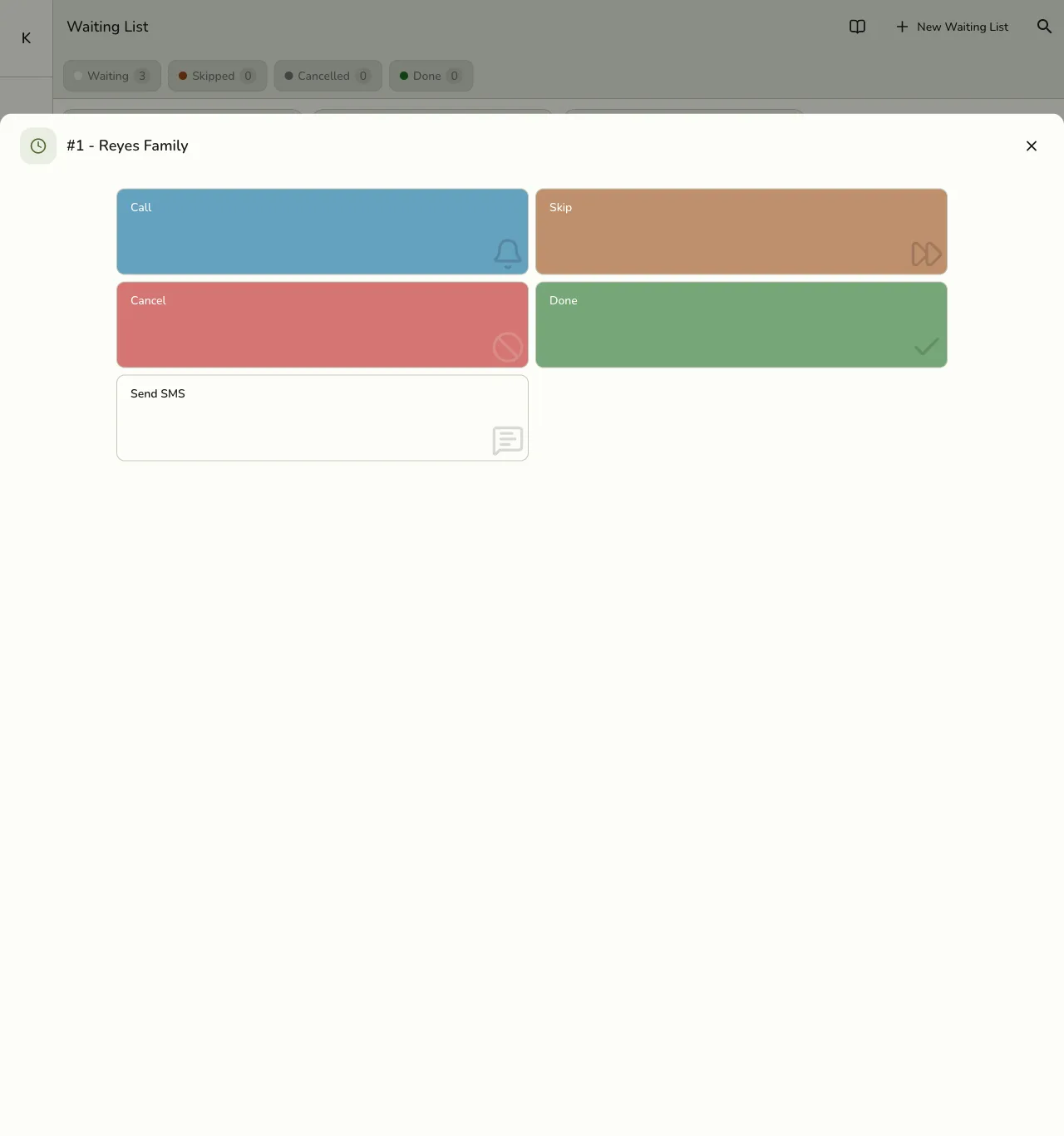
- Call — marks the party Called. Does not send SMS by itself. You can call again if you need to re-announce.
- Send SMS — opens the Notify sheet for a manual waiting-list text (pick a template, confirm the mobile). Email is not offered for waiting-list entries — SMS only. Needs the SMS add-on, wallet points, and Modify Waiting List.
- Skip — passes over a party that is not ready. They keep their place in line.
- Wait — returns a Called, Skipped, or Cancelled party to Waiting. A party you previously Cancelled rejoins at the end of the line; a Called or Skipped party keeps its place.
- Cancel — removes a no-show from the queue.
- Done — marks the party served and clears them from the active queue.
Calling a Party (and SMS)
When a spot opens, open the next party and press Call. The party moves to Called.
Waiting-list SMS is manual only today — calling a party does not text them automatically. To notify by text:
- Open the party (Waiting or Called).
- Press Send SMS.
- Confirm the mobile number, pick a template (for example "table ready"), and send.
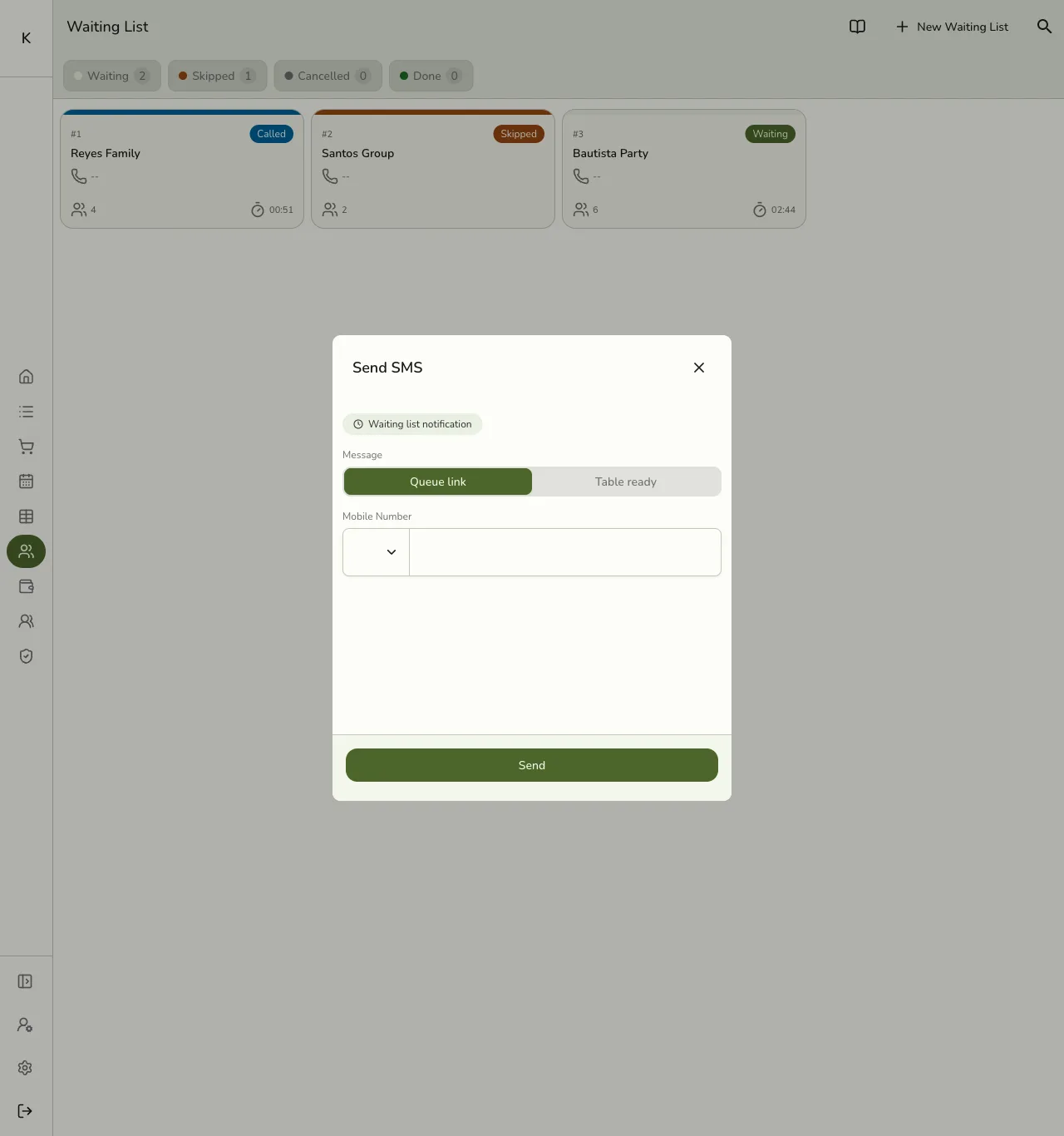
The entry needs a valid mobile number. Each text uses a small amount of your SMS wallet balance. If the SMS add-on is off, Call still works — you just cannot send a text from the queue.
See Message Templates to customize waiting-list wording, and SMS Overview for Wallet and setup.
Returning a Party to the Queue
If you called the wrong party, or a skipped customer is now ready:
- Open the party.
- Press Wait.
They return to Waiting. A previously Cancelled party goes to the back of the line (they lost their turn); a Called or Skipped party keeps its original place.
Marking a Party as Done
When you finish serving a party:
- Open the party.
- Press Done.
They leave the active queue. Completed parties stay visible for the rest of the day under the Done filter.
Handling a No-Show
If a party leaves before being served:
- Open the party.
- Press Cancel.
They move to Cancelled and leave the active queue. If they come back, open them and press Wait to re-add them at the end of the line.
Wait Times and the Customer Display
Each entry shows two times:
- Wait time — a live counter of how long the party has been waiting, since you added them.
- Estimated wait — the minutes you entered, shown to set expectations.
If you put the waiting list on a customer-facing display, guests see the queue with their position, party size, wait time, and estimated wait. As a party waits past its estimate, its row gradually changes color so staff can spot who has been waiting too long. For setup (Hub LAN or cloud), see Customer Display Screen.
Tips
- Add a mobile number so you can text parties instead of shouting names.
- Set a realistic estimated wait when you add a party — it sets expectations on the display.
- Update statuses promptly. Call, Done, and Cancel right away to keep the queue and the display accurate.
- Use notes for special requests so staff can prepare before the party is seated.