

Connecting a Printer
This guide walks you through adding a thermal printer that connects over your network or through the Fuze Store Hub. Pick the section that matches how your printer connects: Network (TCP/IP), USB, or Serial.
Using a Bluetooth printer?
Bluetooth printers pair directly with your phone or tablet and don't use the Fuze Store Hub — they have their own guide: Connecting a Bluetooth Printer.
USB, Serial, and web-browser printing run through the Fuze Store Hub. Network (TCP/IP) printers can be reached directly from the mobile app, though the Hub is recommended for speed and reliability.
You need the Manage Printer permission (or be the store owner) to add or
edit printers.
Before you start
- Make sure your printer is powered on and has paper.
- Have the printer's manual nearby — you may need details like the MAC address, IP address, or USB vendor ID.
- For network and USB printers, make sure your POS device and the printer are on the same Wi-Fi.
Connect a Network (TCP/IP) Printer
Network printers stay in one spot and connect over your store's Wi-Fi or Ethernet. They are reliable for high-volume restaurants and retail.
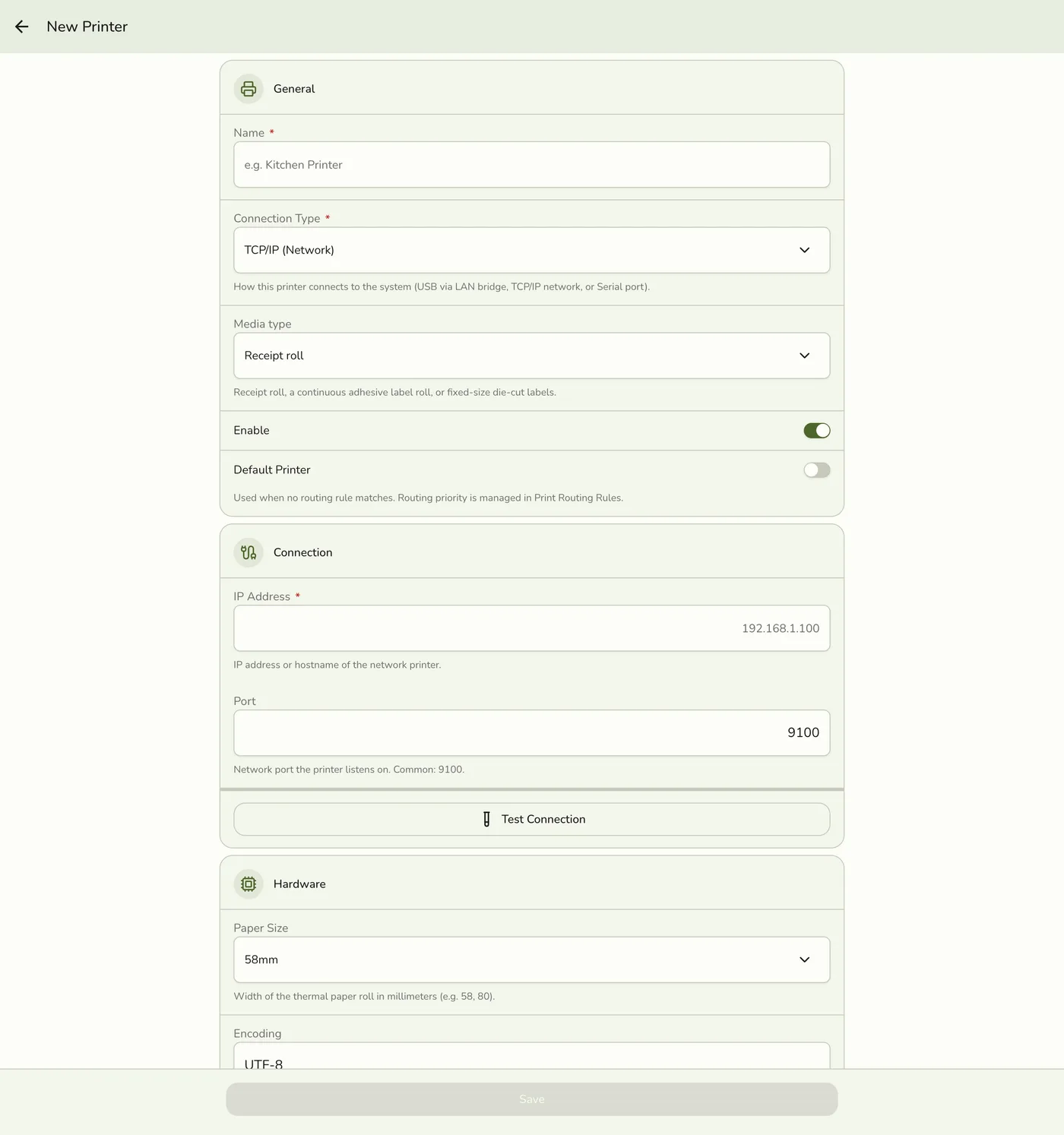
Plug the printer into your network (Ethernet cable or Wi-Fi setup as per the
printer's manual).
Print a network self-test page from the printer to find its IP address.
It looks like 192.168.1.100.
On your POS device, open Store → Printers and tap Add Printer.
Give the printer a name and select Network (TCP/IP) as the connection
type.
Enter the printer's IP address and port. The default port for
thermal printers is 9100 — only change this if your printer's manual says
otherwise.
Pick your paper width (58mm or 80mm) and encoding (use UTF-8 unless
you need Chinese, Japanese, or Korean — see the encoding tip below).
Tap Save, then Test Print from the printer detail page.
The printer must be on the same network as your POS device. If your
store has multiple Wi-Fi networks (e.g., a "guest" and a "staff" network),
the printer and the POS must be on the same one.
Connect a USB Printer
USB printers connect to a computer in your store, and that computer relays prints to the rest of your devices. This needs the LAN Bridge running on the connected computer first.
Install and start the LAN Bridge. Follow the LAN Bridge Setup
guide before continuing.
Plug the USB printer into the LAN Bridge computer.
On your POS device, open Store → Printers and tap Add Printer.
Give the printer a name and select USB as the connection type.
Tap Discover USB Printers. Fuze Store asks the LAN Bridge to scan
for every USB printer plugged into it. A dialog appears with the
discovered printers, showing each printer's name, Vendor ID (VID), and
Product ID (PID).
Select your printer from the list. The Vendor ID and Product ID
fields are filled in automatically. These are hex identifiers that
uniquely identify your printer model — you don't need to change them.
Choose your paper width (58mm or 80mm) and tap Save.
Open the printer's detail page and tap Test Print to confirm the
LAN Bridge can talk to the printer. The test page prints directly
through the LAN Bridge.
The Discover USB Printers button is only active when your device is
connected to the Fuze Store Hub. If the button is grayed out, open
Configurations → Integrations → Fuze Store Hub and make sure the
connection is paired and the badge is green.
If discovery doesn't find your printer, you can type the Vendor ID and
Product ID manually. These are 4-character hex codes (e.g. 04b8 and
0202) — you can find them in your printer's manual or by running
lsusb (Linux/macOS) or checking Device Manager (Windows).
Connect a Serial Printer
Serial printers are older or industrial models that connect via RS-232. Like USB, they need the LAN Bridge running on the computer they are plugged into.
Connect the serial printer to the computer's serial port (or a USB-to-Serial
adapter like an FTDI FT232).
In Fuze Store, open Store → Printers and tap Add Printer. Choose
Serial as the connection type.
Enter the device path (Linux: /dev/ttyUSB0 or /dev/ttyS0,
Windows: COM3) and the baud rate (usually 9600 or 19200 — check
the manual).
If your printer prints the first half of a receipt and then stops, or
shows garbled characters, open Advanced Serial Settings and enable
Hardware Flow Control (RTS/CTS). Industrial kitchen printers almost
always need this.
The Advanced Serial Settings panel also lets you change data bits
(default 8), parity (default none), stop bits (default 1), and
toggle software flow control (XON/XOFF). Most modern thermal printers ship
with the defaults (8-N-1, no flow control) — only change these if the
printer manual or the vendor's receipt comes out garbled.
Test before you save
The printer form has a Test Connection button you can use while you're
still filling it in — you don't have to save first. It sends a test using
exactly what's on screen, so it's the fastest way to check an IP address, port,
or USB selection without creating a printer you may have to delete.
Use it whenever you're unsure of a setting. If it fails, change the value and
try again — nothing has been saved yet.
Once the printer is saved, Test Print on its detail page does the same
against the stored settings. Reach for that one when a printer that used to work
has stopped.
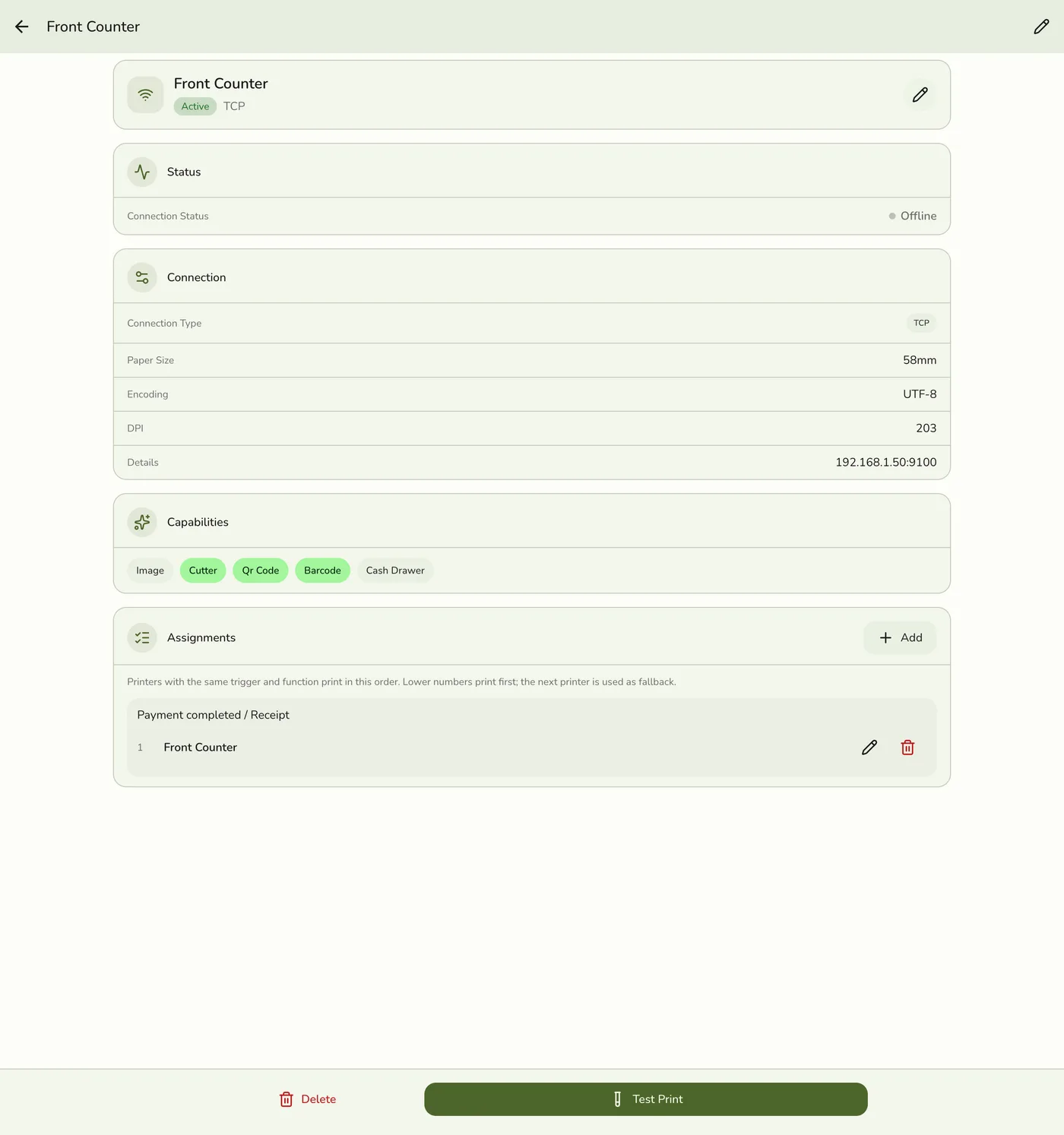
A test that fails before saving is almost always the address or the cable. A
test that fails only after saving — when it worked in the form — usually means
the printer went to sleep or changed IP. See
Troubleshooting.
Encoding tip
The default encoding is UTF-8, which works for English, Spanish, French, and most Latin-script languages. If your receipts show garbled or square characters:
| Language | Recommended encoding |
|---|---|
| Chinese (Simplified or Traditional) | GB18030 or GBK |
| Japanese | Shift_JIS |
| Korean | EUC-KR |
| Older / US-only printers | CP437 |
You can change the encoding any time on the printer's edit page.
Naming printers well
Good names make routing rules easy to read later. Try names like:
- "Front Counter Receipt"
- "Kitchen Hot Line"
- "Bar — Drinks"
- "Take-away Labels"
Avoid generic names like "Printer 1" — when you have three printers in a busy kitchen, you'll be glad you used descriptive names.
What's next
- Routing Rules — tell Fuze Store what to print and where.
- Print Queue & Status — see what happens when a printer is offline.
- Troubleshooting — fix common issues.