

AI Connections Overview
AI assistants like Claude Desktop and ChatGPT can read your store data and answer questions about your business in plain language. The AI Connections feature lets you grant an AI tool secure access to specific parts of your store — orders, reports, products, customers, inventory — and revoke that access at any time. Almost everything is read-only. Four optional import permissions — catalog, expenses, inventory, and bookings — are the only ways an AI can write anything, and each one shows you a preview and waits for your explicit approval in the chat before saving.
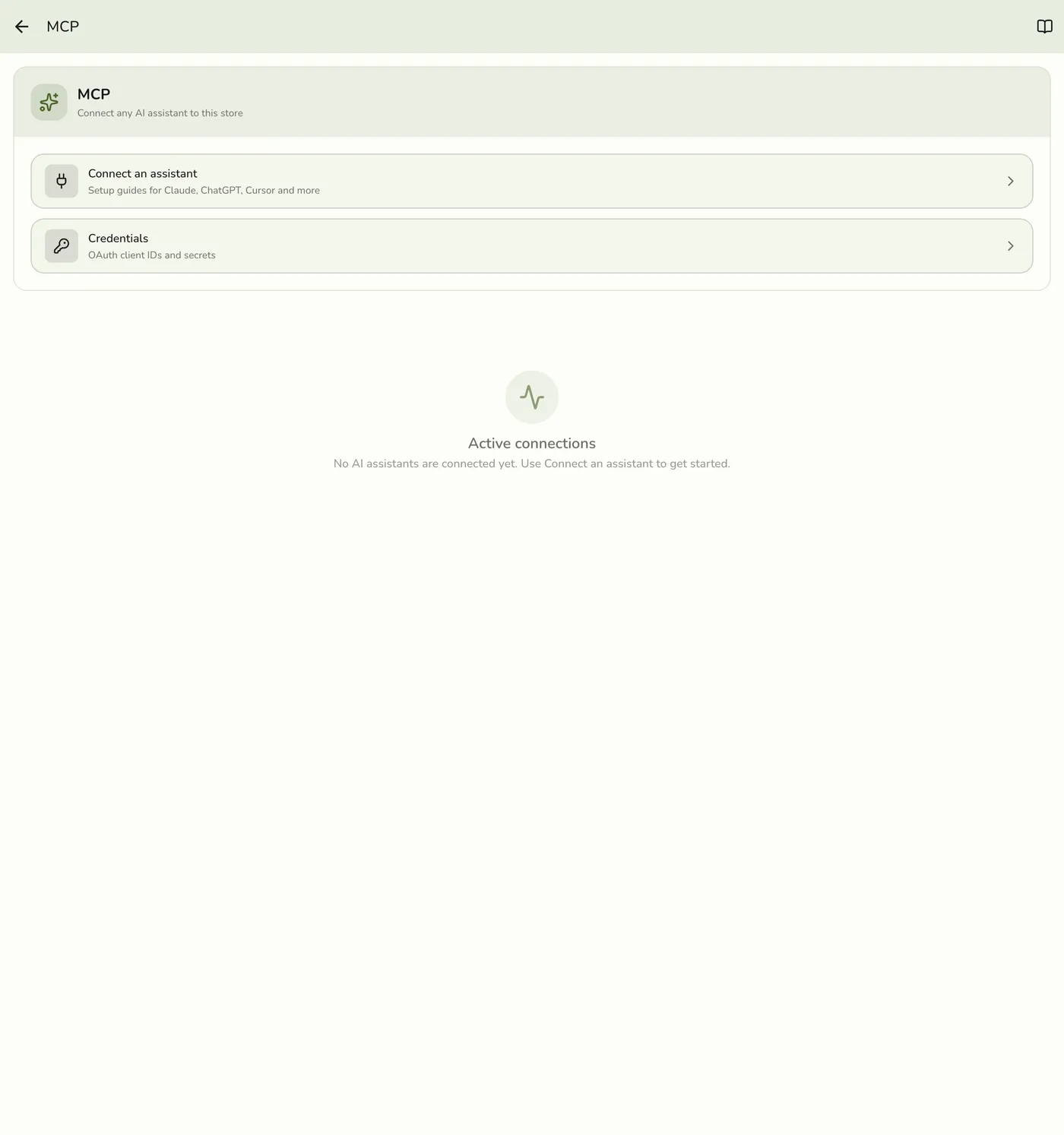
What are AI Connections?
An AI Connection is a secure link between an external AI tool and your Fuze Store account. You decide which AI tool gets access, what it can read (and optionally whether it can import anything), and when to disconnect it. Without one of the import permissions, the AI cannot create, edit, or delete anything.
What the AI Can Answer
Once connected, you can ask your AI assistant questions like:
- "What were my top-selling products last month?"
- "Show me my sales trend for this quarter."
- "Which day of the week has the highest revenue at my main store?"
- "How many orders did I process today?"
- "What is my average order value for dine-in customers?"
- "Give me the tracking link for order 1042 so I can send it to the customer."
The AI reads the data you approved and responds in plain language.
That last one returns the same link your receipts already print as a QR code — the AI hands you the link, and you send it to the customer yourself. It never sends anything on your behalf.
What Permissions Can the AI Get?
When you create an AI Connection, you choose which permissions to grant. You can grant as few or as many as you need. The AI tool only sees the data you explicitly approve.
Store profile, staff list, and store settings.
Example: "Who works at my Cebu branch?"
Order history, line items, and order status.
Example: "Show me yesterday's orders."
Sales reports, transaction summaries, and analytics.
Example: "What was my total revenue last week?"
Product catalog, prices, and descriptions.
Example: "Which products cost more than ₱500?"
Customer profiles and purchase history.
Example: "Who are my top 5 customers this month?"
Stock levels and inventory locations.
Example: "What products are running low?"
COGS, gross margin, expenses, tax, cash variance, and P&L.
Example: "What is my gross margin by category last month?"
Cashier sessions, events and bookings, KDS performance.
Example: "How is the kitchen pacing today?"
Per-staff sales, refunds, and discount activity.
Example: "Who are my top 3 staff by sales this week?"
Let the AI add products, services, categories, and taxes to your catalog — with a preview and your approval before anything is written.
Example: "Here's a photo of my menu — import it into my catalog."
Let the AI record expenses from receipts and invoices. Imported expenses always arrive as Pending, so someone still approves the spending in the app.
Example: "Here are this week's receipts — record them."
Let the AI add suppliers and draft purchase orders. Drafts are never placed and stock levels are never changed — you do that in the app.
Example: "Add these suppliers from my contact list."
Let the AI create appointments and table reservations. Customers are never notified automatically — you confirm with them yourself.
Example: "Book these five appointments from my notebook."
Every permission except the four Import ones is read-only. The imports are the only way an AI can write anything, and they all work the same way: the AI shows you a preview, waits for you to approve it in the chat, and only then saves. None of them can delete anything, and none can touch orders, payments, or settings.
How the Connection Works
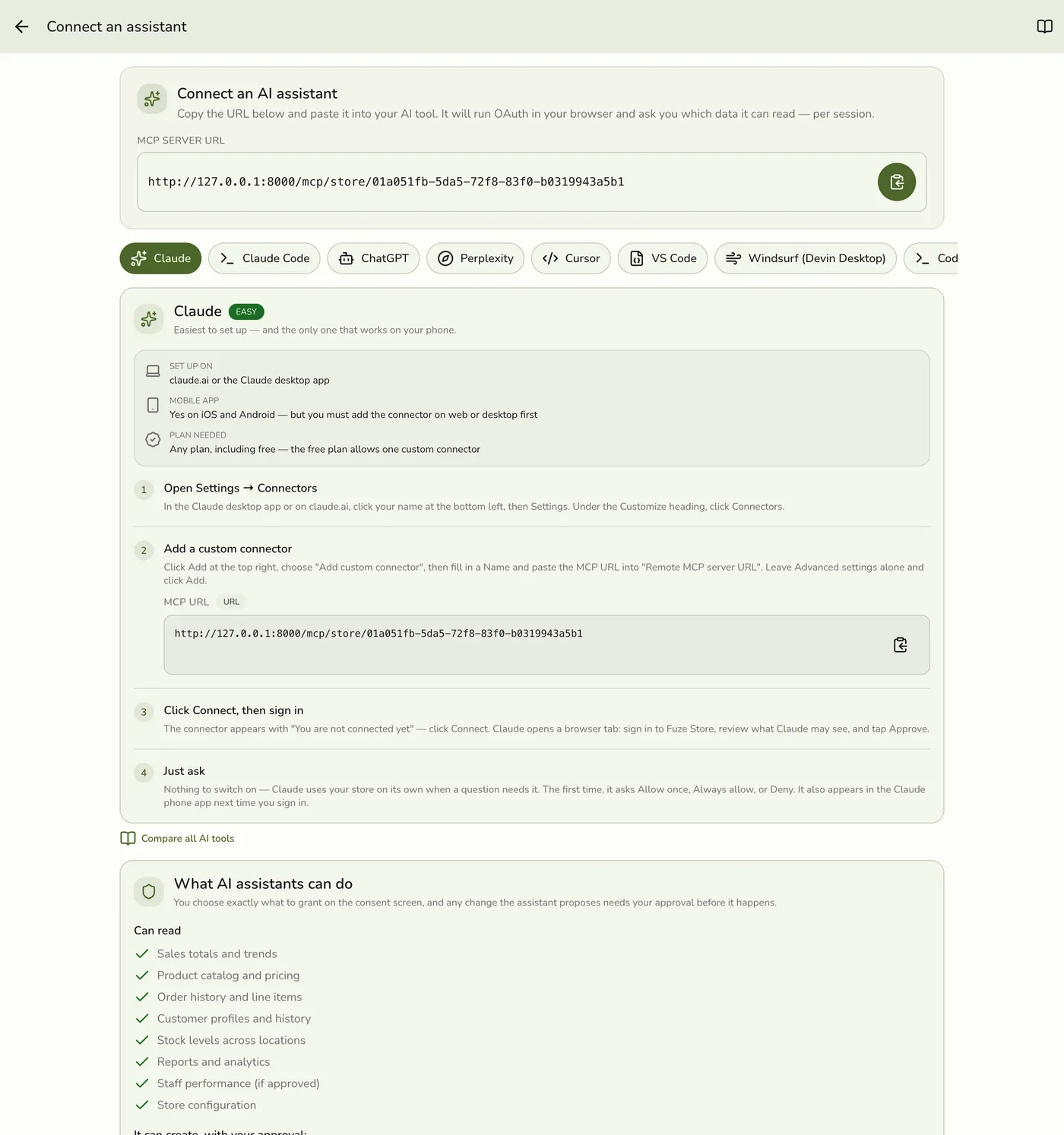
Setting up an AI Connection uses an industry-standard flow called OAuth2 with PKCE. You don't need to understand the details — Fuze Store has a short list of presets for popular AI tools (Claude Desktop, Claude Code, ChatGPT, Cursor) that auto-fill the technical fields for you. Just pick the preset matching your AI tool and the form takes care of the rest.
Here is what happens from your side:
Public vs Confidential Connections
When you create a connection, you pick a Connection Type:
- Public (default, recommended) — For desktop AI apps like Claude Desktop and ChatGPT. No secret is issued. The connection uses PKCE for security.
- Confidential — For server-to-server scripts and automated integrations. A Client Secret is issued and shown only once.
If you are not sure, pick Public. It is the right choice for nearly every AI tool.
Security and Privacy
- Your password is never shared. The AI never sees your Fuze Store credentials.
- The AI only sees what you approve. You review the exact list of permissions on the consent screen before approving.
- Store-scoped access. If you own multiple stores, you pick exactly one store per connection.
- Revoke any time. One click removes the AI's access immediately.
- Read-only by default. The AI cannot place orders, take payments, or change settings. The only exceptions are the four Import permissions, which you have to grant explicitly and which always show you a preview to approve before anything is written.
You are always in control
Every permission is opt-in. Grant only what the AI needs. You can always create multiple connections with different permission sets and revoke them independently.
Supported AI Tools
Any AI tool that supports the Model Context Protocol (MCP) and OAuth2 PKCE can connect to Fuze Store. The in-app connect guide has step-by-step instructions for:
- Claude and Claude Code by Anthropic
- ChatGPT, Codex, and the ChatGPT desktop app by OpenAI
- Perplexity
- Cursor, VS Code, and Windsurf
- Gemini CLI by Google
- Any custom MCP client built by developers
Where Can You Set It Up, and What Does It Cost?
The Fuze Store AI Connections add-on is paid (the badge at the top of this page), though it is included free during your trial and during Early Release. Separately, each AI vendor decides where you can add a connector, whether their mobile app supports it, and which of their plans you need. Those rules differ per tool and change often.
See the full comparison
Which AI Tools Work Where compares every supported tool side by side — where you add the connection, whether it works on a phone, and the plan each vendor requires. Two things worth knowing up front:
- Only Claude works on mobile, and you still have to add the connection on a computer first.
- ChatGPT needs developer mode switched on — it works on any plan, including free, but only from a web browser on a computer.