

Routing Rules
Routing rules are how you tell Fuze Store what to print, when, and on which printer. Once you set them up, you never have to pick a printer manually during checkout again — the right paper just appears on the right printer automatically.
You can create as many routing rules as you need. A small store might have one rule. A busy restaurant might have ten.
What a routing rule is
A routing rule answers four questions:
- When should I print? (the trigger event)
- What kind of document is this? (the function)
- Which orders does this apply to? (the filter)
- Which printer should print it? (and the priority if multiple printers can)
Here is what one rule looks like in plain English:
When payment is completed, print a Receipt for all orders on the Front Counter printer.
And another:
When an order is created, print a Kitchen Ticket for orders that include items from the Food category on the Kitchen Hot Line printer.
You can add as many of these as you need. They run in parallel — one order can produce a receipt at the front counter and a kitchen ticket at the back at the same time.
Visual: one order, multiple printers
   ┌─────────────┐
   │   Order     │
   │  #001234    │
   │             │
   │ 2× Burger   │  ← Food category
   │ 1× Beer     │  ← Drinks category
   └──────┬──────┘
          │
          │ Trigger: Order Created
          ▼
   ┌──────────────┐
   │ Routing Rule │
   │   Engine     │
   └──┬────────┬──┘
      │        │
      ▼        ▼
  ┌────────┐ ┌────────┐
  │Kitchen │ │  Bar   │
  │ Hot    │ │ Drinks │
  │ Line   │ │        │
  └────────┘ └────────┘
The kitchen sees only food. The bar sees only drinks. Both happen automatically the moment the order is created.
Trigger events
A trigger event is the moment in the order lifecycle when the print should fire.
| Trigger | When it fires | Typical use |
|---|---|---|
| Order Created | Right after a new order is saved | Kitchen tickets, prep slips |
| Order Updated | Whenever items are added, changed, or removed | Re-print kitchen slip with the changes |
| Order Completed | When the order is marked complete | Bill out, take-away label |
| Payment Completed | When the customer has paid | Customer receipt |
| Manual | Only when staff taps "Reprint" | Manual reprints from order detail |
You'll typically use Order Created for kitchen tickets and Payment Completed for receipts.
Printer functions
A function describes what kind of document the printer is for. Fuze Store uses this for failover (described below) and for the printer's icon in the UI.
| Function | What it's for |
|---|---|
| Receipt | Customer-facing receipts with totals, payment, and change |
| Kitchen | Hot kitchen tickets — items, modifiers, special instructions |
| Bar | Drink slips for the bar station |
| Label | Take-away labels and packaging stickers |
| Queue | Customer queue tickets ("Now serving #42") |
Filters
Filters let you say "this rule only applies to certain orders". Without a filter, the rule applies to every order. Filters are how you split kitchen vs bar, or how you skip take-away orders.
| Filter | Example |
|---|---|
| All orders | The default — print for every order. |
| By order type | Only In-Store, only Take-Away, only Delivery, etc. |
| By category | Only when the order contains items from "Food", "Drinks", "Desserts"… |
| By product | Only when the order contains a specific product (e.g. "Birthday Cake") |
You can mix filters — for example, "By category: Food and by order type: In-Store" only prints when both are true.
Coffee shop example. Two printers: one in the kitchen, one at the bar.
Create two rules — one with category filter "Food" pointed at the kitchen,
one with category filter "Drinks" pointed at the bar. Both fire on Order
Created. Done.
Priority and failover
If you have two printers that could both handle the same job (say, two receipt printers at busy front counters), use priority to say which one to try first.
- Priority is a number from
1(highest) to100(lowest). - Fuze Store always tries the highest-priority printer first.
- If that printer fails (offline, paper jam, network issue), Fuze Store automatically tries the next priority printer with the same function — this is called failover.
- A friendly "Failover active" toast appears so you know the backup printer kicked in.
The printer-level Default setting is separate from routing priority.
Default is only used when no routing rule matches. It does not make that
printer first when multiple rules have the same trigger and function.
  Priority 1   ──>  ┌──────────┐
                    │ Receipt  │
                    │  #1      │  ← offline ✗
                    └──────────┘
                          │
                          │ failover
                          ▼
  Priority 2   ──>  ┌──────────┐
                    │ Receipt  │
                    │  #2      │  ← prints ✓
                    └──────────┘
If all printers for a function fail, the job goes into the print queue and is automatically reprinted when a printer comes back online.
Creating a routing rule
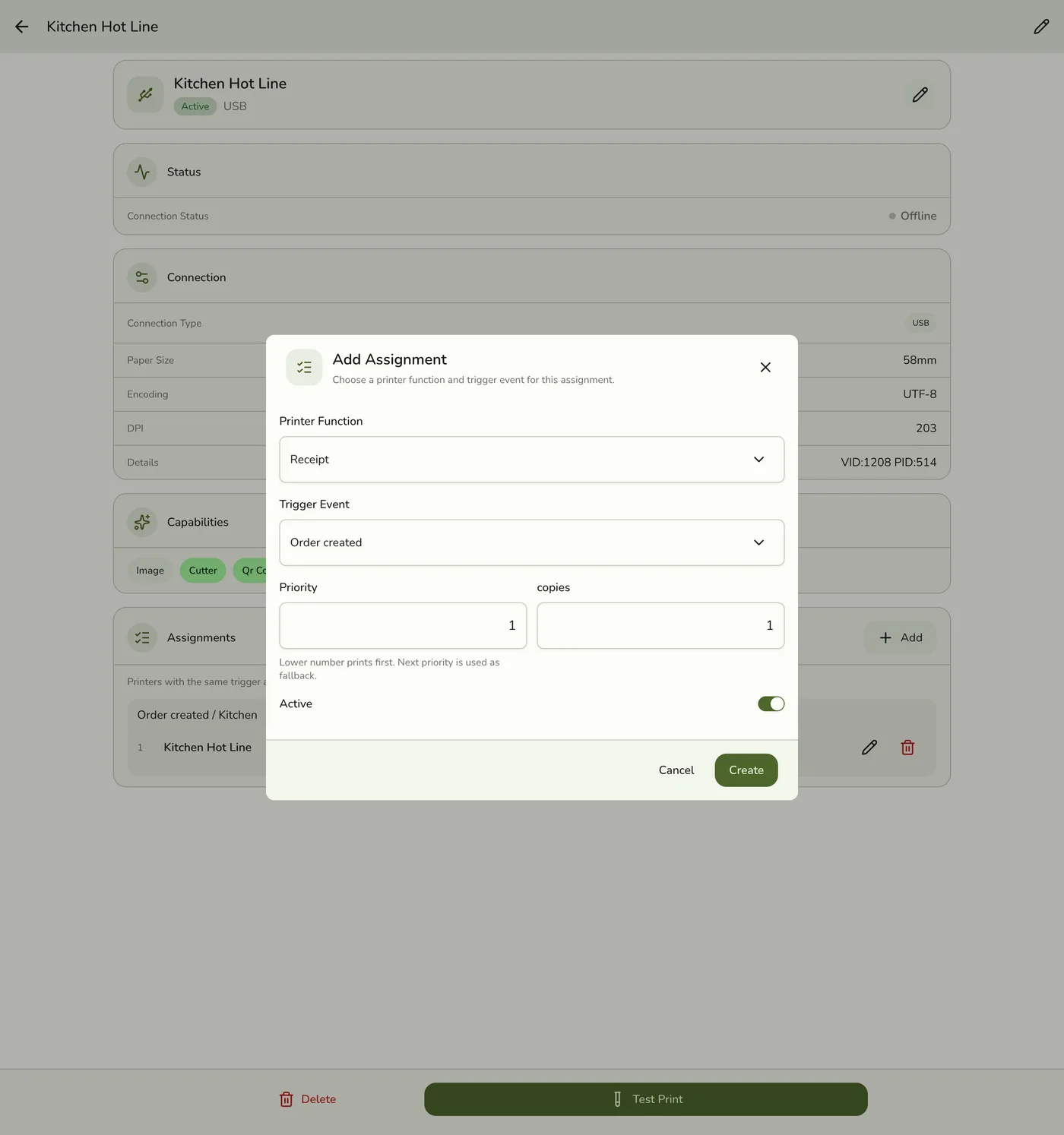
Open Store → Printers and tap the printer you want to add the rule to.
Open the Routing Rules tab and tap Add Routing Rule.
Choose the Function (Receipt, Kitchen, Bar, Label, or Queue).
Choose the Trigger Event (when this rule should fire).
Set the Filter. Pick All orders for a simple setup, or use category /
product / order type filters to narrow it down.
Set the Priority (default 1). Only matters if you'll have a backup
printer for the same function.
Set the number of Copies (1-10) — useful for kitchen prep tickets that
need a duplicate.
Editing or removing a routing rule
You can edit or delete a routing rule from the same Routing Rules tab. Toggling Active off keeps the rule in place but stops it from running — handy for temporarily disabling a printer without losing the configuration.
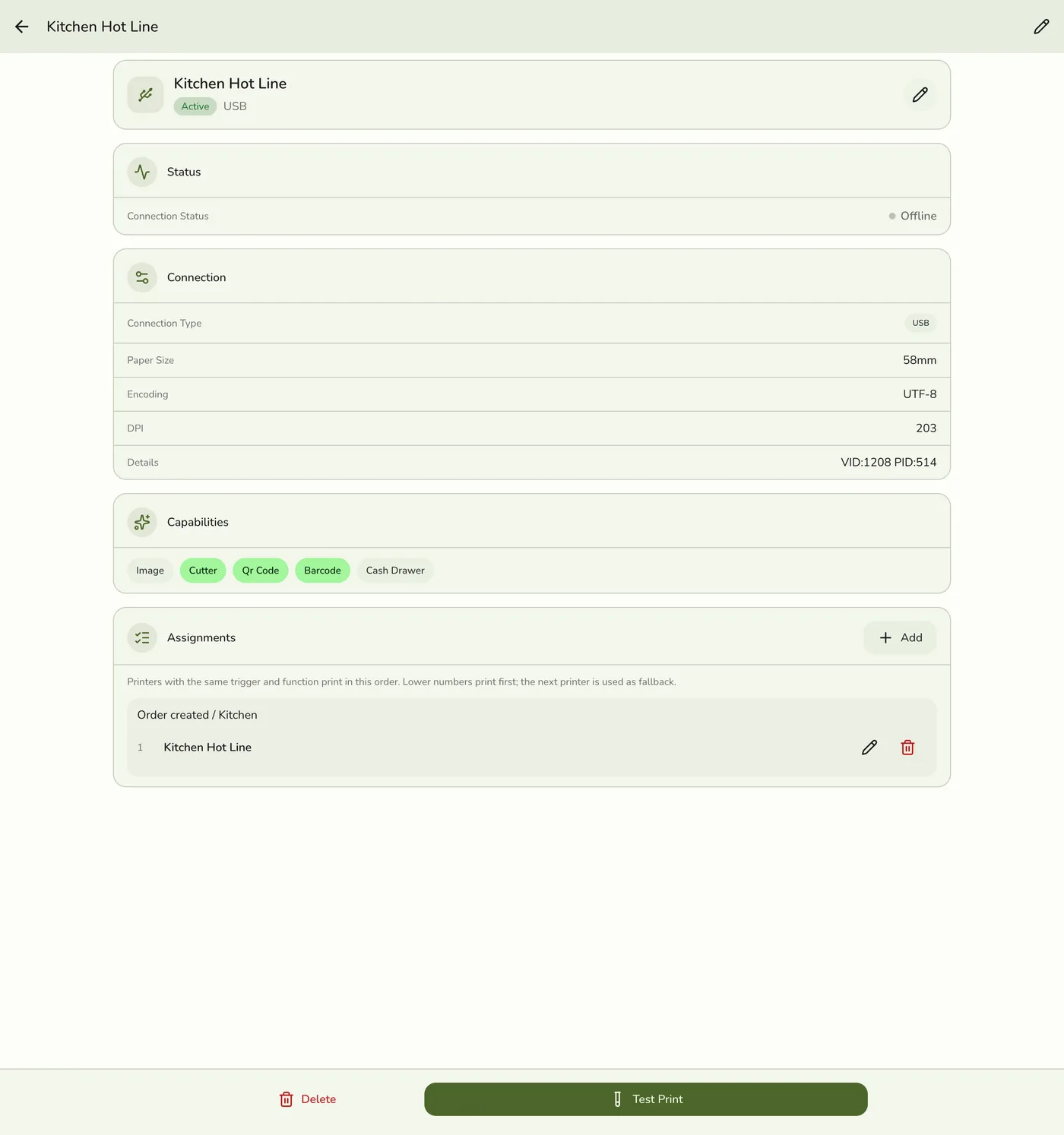
Changing or deleting a rule does not affect orders that have already been
placed and printed. It only affects future orders.
Examples
Restaurant with kitchen and bar
| # | Function | Trigger | Filter | Printer |
|---|---|---|---|---|
| 1 | Receipt | Payment Completed | All orders | Front Counter |
| 2 | Kitchen | Order Created | Category: Food | Kitchen Hot Line |
| 3 | Bar | Order Created | Category: Drinks | Bar |
Retail with two backup receipt printers
| # | Function | Trigger | Filter | Priority | Printer |
|---|---|---|---|---|---|
| 1 | Receipt | Payment Completed | All orders | 1 | Front Counter A |
| 2 | Receipt | Payment Completed | All orders | 2 | Front Counter B |
If A goes down, B takes over automatically.
Take-away only labels
| # | Function | Trigger | Filter | Printer |
|---|---|---|---|---|
| 1 | Label | Order Completed | Order type: Take-Away | Label Printer |