

LAN Bridge Setup
The LAN Bridge is the on-premise helper that lets Fuze Store talk to USB and Serial printers and makes printing from a web browser possible. It is now built into the Fuze Store Hub — a free desktop app you install on one computer in your store. There is no separate "LAN Bridge" download; installing the Hub gives you the bridge.
If you only use Bluetooth printers from the mobile app, you can skip this guide — Bluetooth printing does not need the Hub.
When you need it
You need the Fuze Store Hub if any of these are true:
- You have a USB printer.
- You have a Serial / RS-232 printer.
- You print receipts from a web browser (the Fuze Store dashboard).
- You want faster, more reliable printing in a busy store, even with TCP/IP printers.
You do not need it if:
- You only use a Bluetooth printer with the mobile app.
- You only use a TCP/IP printer from the mobile app and you're happy with the speed.
What you need
- A Windows, Mac, or Linux computer that stays on during business hours (a dedicated mini-PC, an old laptop, or your back-office computer).
- The computer must be on the same Wi-Fi or LAN as your POS device(s) and your printers.
- About 10 minutes for setup.
Install and connect the Hub
The Hub has its own setup guide. Follow it once, then come back here to add printers:
Install the Hub
Download and install the Fuze Store Hub for your operating system. See Installing Fuze Store Hub.
Run first-time setup
On first launch you sign in, pick the store this computer serves, and paste a 72-hour activation key (generated for you in the mobile app under Configurations → Integrations → Fuze Store Hub). There is no Store ID to type and no shared password to copy. See First-Time Setup.
Pair your POS device
Generate an 8-digit pair code in Hub → Settings → Network and enter it on your phone or tablet's pairing wizard. Each device gets its own 30-day session key — there's no manual IP address or port to enter; the app finds the Hub on your Wi-Fi automatically once paired. See Pairing the Mobile App.
The mobile app sends a small "heartbeat" to the Hub every 30 seconds to keep the connection healthy. If the Hub is unreachable for too long, you'll see a "LAN disconnected" banner — your prints queue and resume automatically when the Hub is back. See Print Queue & Status.
Add USB or Serial printers
Once the Hub is connected and your device is paired, register USB and Serial printers:
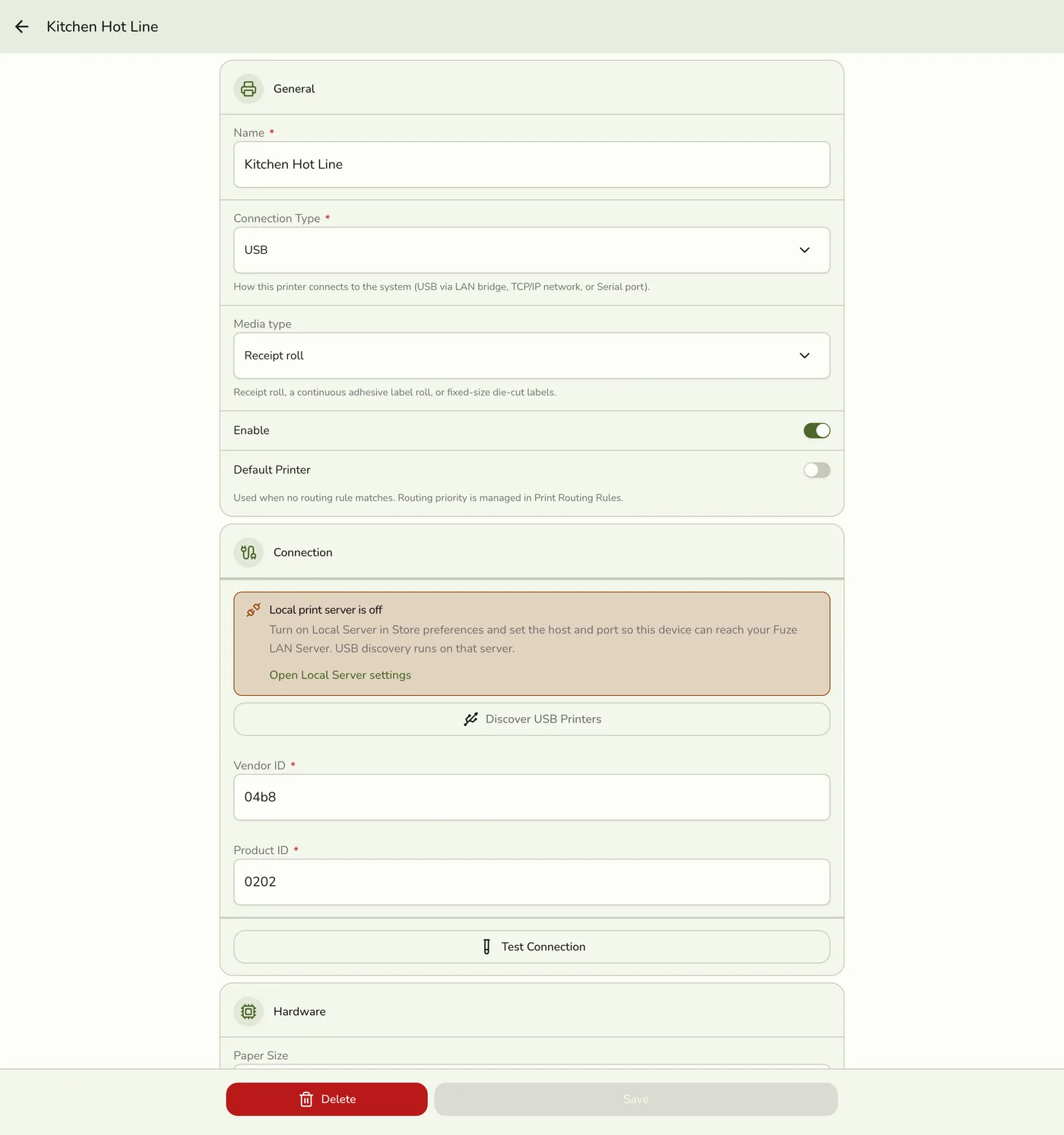
Tap Discover USB Printers (or enter the Serial device path manually). The Hub scans for connected printers and returns each device's name, Vendor ID, and Product ID.
You can also discover and register printers from the Hub itself (Hub → Printers → Discover → Register). For the full walk-through, see Adding Printers on the Hub and Connecting a Printer.
Verify the Hub is reachable
To confirm the Hub is alive without using the app, open this in a browser on any computer on the same network (replace 192.168.1.10 with the Hub computer's IP):
https://192.168.1.10:18443/health
The Hub issues its own local certificate (not one from a public authority), so your browser shows a one-time security warning the first time — that's expected on a local device. After you continue, you should see a small { "status": "ok" } response. From a terminal, use curl -k https://192.168.1.10:18443/health (the -k skips the certificate check — fine for devices that haven't installed the shop's Hub certificate). On the Hub computer itself you can skip the warning entirely by installing the certificate from Fuze Store Hub → Settings → Network → This shop's Hub certificate.
Common questions
Is the LAN Bridge a separate program?
No — it's part of the Fuze Store Hub. Installing the Hub installs the bridge.
Can the Hub run on the same computer as the Fuze Store browser app?
Yes. The browser app pairs with the Hub the same way a phone does (see Pairing the Browser App).
Can multiple POS devices share one Hub?
Yes — that's the recommended setup. One Hub per store, with every tablet and counter paired to it.
Does the Hub need internet?
No, not for printing. Printing flows over your local Wi-Fi. The Hub uses the internet only for plan/add-on updates, optional Kitchen Display cloud sync, and automatic updates. If the internet drops, local printing keeps working.
Each paired device has its own session key — there's no shared password. If a device is lost or stolen, revoke just that device in Hub → Settings → Network → Pair the browser without disturbing the others.