

Print Queue & Status
Things go wrong sometimes. A printer runs out of paper, the LAN Bridge computer reboots, the Wi-Fi blinks. Fuze Store is built so that none of those events lose your prints. This page explains the safety net.
The status banner
The first thing you'll notice when a printer goes offline is a banner at the top of the printer screen.
| Banner color | What it means |
|---|---|
| Red banner | All your printers are offline. New prints will be queued and retried. |
| Yellow banner | One printer is offline but you have at least one other working. Failover may kick in if a backup is configured. |
| No banner | Everything is working as expected. |
The banner is non-blocking — you can keep ringing up sales. It just keeps you informed.
Banners disappear automatically as soon as Fuze Store detects the printer is
back online. You don't have to dismiss them by hand.
What is the print queue?
The print queue is a hidden list of prints that failed to reach a printer right away. Instead of losing the print, Fuze Store remembers it and retries when the printer comes back.
Each queued print remembers:
- The order it belongs to.
- Which routing rule fired it.
- Which printer it should go to.
- How many times it has been tried.
- The error message (if any).
You can see queued prints from any printer's detail page in the Status & Queue section.
How retries work
   ┌──────────────┐
   │ Print fails  │
   └──────┬───────┘
          │
          ▼
   ┌──────────────┐
   │  Add to      │
   │  queue       │  ← "Print queued for retry" toast
   └──────┬───────┘
          │
          │ Wait for printer to reconnect
          ▼
   ┌──────────────┐
   │ Connection   │
   │ restored     │  ← "LAN reconnected" toast
   └──────┬───────┘
          │
          │ 5-second debounce
          ▼
   ┌──────────────┐
   │ Flush queue  │  ← "Print queue flushed" toast
   └──────┬───────┘
          │
          ▼
   ┌──────────────┐
   │   Printed    │
   └──────────────┘
The queue is automatic. You don't have to tap "retry" — Fuze Store retries each job up to 3 times as soon as the printer is reachable again.
If a job still can't print after 3 tries, it stays in the queue marked failed. You can then retry it manually or cancel it.
Manual retry and cancel
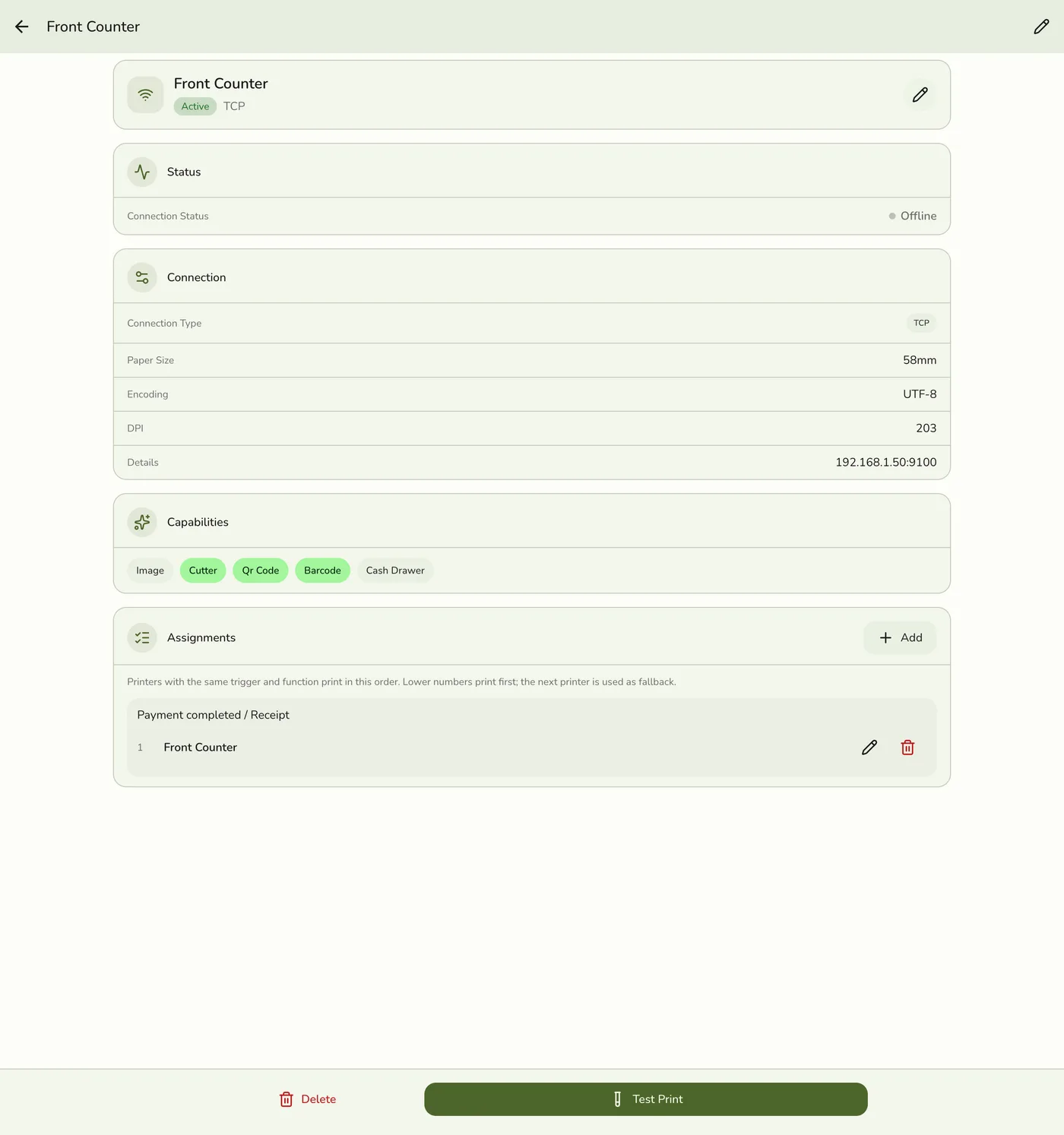
Open any printer's detail page. The Status & Queue card shows:
- Number of jobs queued (waiting to be tried)
- Number of jobs failed (tried 3 times, gave up)
- Each job has its own Retry and Cancel button
Tap Retry to put a failed job back in line. Tap Cancel to remove it permanently.
Print history on orders
Every order keeps a Print History card on its detail page so you can see exactly what was printed for that specific order, when, and on which printer.
Each entry shows:
- The printer name
- A status badge (queued, printing, completed, failed)
- The trigger that fired the print (Order Created, Payment Completed, etc.)
- The time it was attempted
- An error message if it failed
This is the place to look when a customer says "I never got my receipt" — you can confirm at a glance whether the print succeeded.
What happens when you have no printers yet
If you open the Printers screen and you haven't added any yet, you'll see a Setup Card with a friendly explanation and an Add Printer button. This is just a helpful empty state — nothing has gone wrong.
Migrating from the old single-printer setup
If you used Fuze Store's previous single-printer Bluetooth setup, you'll see a one-time Migration Banner at the top of the Printers screen. Tapping Migrate does three things automatically:
Creates a new Bluetooth printer in the new system using your existing
pairing information (the MAC address Fuze Store already knew about).
Reads your old print preferences ("print receipt on payment", "print order
slip on create") and creates routing rules that match them.
Hides the migration banner. From now on you can use all the new features
(multiple printers, routing rules, queue, etc.).
Your existing receipts continue to print exactly as before, just through the new system.
The migration is one-way. Once you've migrated, the old single-printer
settings are no longer used. Make sure to test a print after migrating to
confirm everything works.
Bluetooth printers and the queue
Bluetooth printers have one limitation: they can't be retried from the queue automatically. This is because retrying a print needs the full order data, and Bluetooth printers run on the device itself rather than through the LAN Bridge.
If a Bluetooth print fails, you'll see a toast and the failed print will appear in the order's Print History — but you'll need to use Reprint from the order detail page to try again. Network, USB, and Serial printers don't have this limitation.
Toasts you'll see
| Toast | What it means |
|---|---|
| "Print queued for retry" | A print failed and is now in the queue. Don't worry — Fuze Store will try again. |
| "Failover active" | The primary printer failed and a backup printer took over successfully. |
| "Printer reconnected" | A printer that was offline is back. |
| "LAN Bridge reconnected" | The LAN Bridge came back online. The queue will flush in 5 seconds. |
| "Print queue flushed" | All queued prints were sent. |
| "Bluetooth permission required" | Grant Bluetooth access to your phone for the printer to work. |