

Printers Overview
Fuze Store can print receipts, kitchen tickets, bar slips, queue tickets, and labels automatically while you take orders. You can connect more than one printer to the same store, and Fuze Store will send the right paper to the right printer without any extra clicks during checkout.
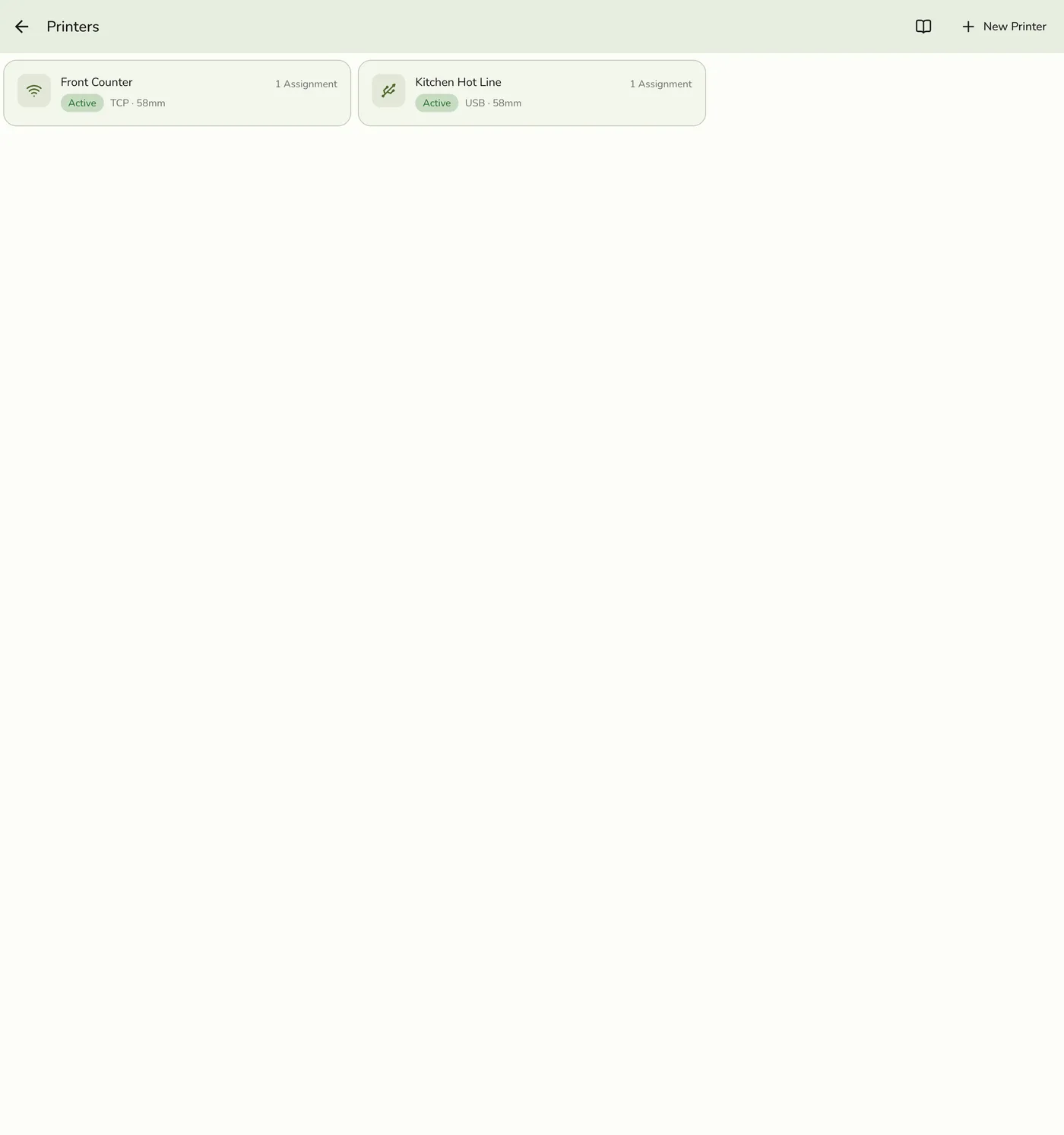
What you can do with printers
- Print receipts to a front-counter printer when payment is completed.
- Print kitchen tickets to a kitchen printer the moment an order is created.
- Print bar slips to a separate bar printer for drink orders only.
- Print queue tickets for waiting customers.
- Print labels for take-away packaging.
You can use one printer for everything, or split the workload across many printers. Fuze Store automatically picks the right printer for each job based on rules you set once.
How it works
Here is the simple picture of what happens when an order is placed:
   ┌─────────────┐
   │   Order     │
   │  #001234    │
   └──────┬──────┘
          │
          │  Trigger: Payment Completed
          ▼
   ┌──────────────┐
   │ Routing Rule │
   │   Engine     │
   └──┬────────┬──┘
      │        │
      ▼        ▼
  ┌────────┐ ┌────────┐
  │Receipt │ │Kitchen │
  │Printer │ │Printer │
  └────────┘ └────────┘
- You connect your printers to Fuze Store.
- You create routing rules that say "when this happens, print this on that printer".
- Fuze Store does the rest while you ring up orders.
Connection types
Fuze Store supports four ways to connect a printer. Pick the one that matches your hardware.
| Connection | Best for | Needs LAN Bridge? |
|---|---|---|
| Bluetooth | Mobile setups, food trucks, single printer | No |
| Network (TCP/IP) | Stationary printers on store Wi-Fi | Recommended |
| USB | USB-only printers shared by multiple devices | Yes |
| Serial | Older or industrial printers | Yes |
The LAN Bridge is built into the Fuze Store Hub, a free desktop app that runs on a computer in your store. You always need it for USB and Serial printers, and for any printing from a web browser. Bluetooth printers work directly from a phone without the bridge.
Network (TCP/IP) printers technically can be reached straight from a phone, but we recommend running the LAN Bridge anyway because:
- The bridge keeps a persistent print queue that survives a phone crash or reboot mid-checkout, so no receipt is ever lost.
- The bridge dedupes retries so the same receipt is never printed twice.
- The bridge gives you a single place to see queue status across all your devices.
If you have only one device and a single network printer, you can skip the bridge — just be aware that a phone crash mid-print may drop the job.
What you need
- A Fuze Store account with your store created.
- An ESC/POS-compatible thermal printer (most receipt printers from Epson, Star, Xprinter, MUNBYN, Goojprt and similar brands).
- Permission to manage printers (store owner or staff with the Manage Printer permission).
- For USB / Serial / Web printing: a computer running the LAN Bridge on the same Wi-Fi as your POS device.
The Printer feature is included in every Fuze Store plan. There is no extra
add-on or charge to use it.
Where to next
For a Bluetooth printer (pairs directly with your phone, no Hub), follow
Connecting a Bluetooth Printer.
For a Network, USB, or Serial printer, read Connecting a
Printer.
Set up Routing Rules so the right
documents go to the right printer.
If you need USB or Serial support, follow the LAN Bridge
Setup guide.
Learn how the Print Queue & Status
keeps you covered when a printer goes offline.