

Customer Facing Display Overview
The Customer Facing Display (CFD) turns a second device into a live customer screen during checkout. Your customers see their cart items, totals, and payment status in real time while you process their order.
What is the Customer Facing Display?
The CFD is a dedicated screen that faces your customer during a POS transaction. It connects to your POS register over your store's local Wi-Fi through Fuze Store Hub and updates instantly as you add items, apply discounts, or process payments.
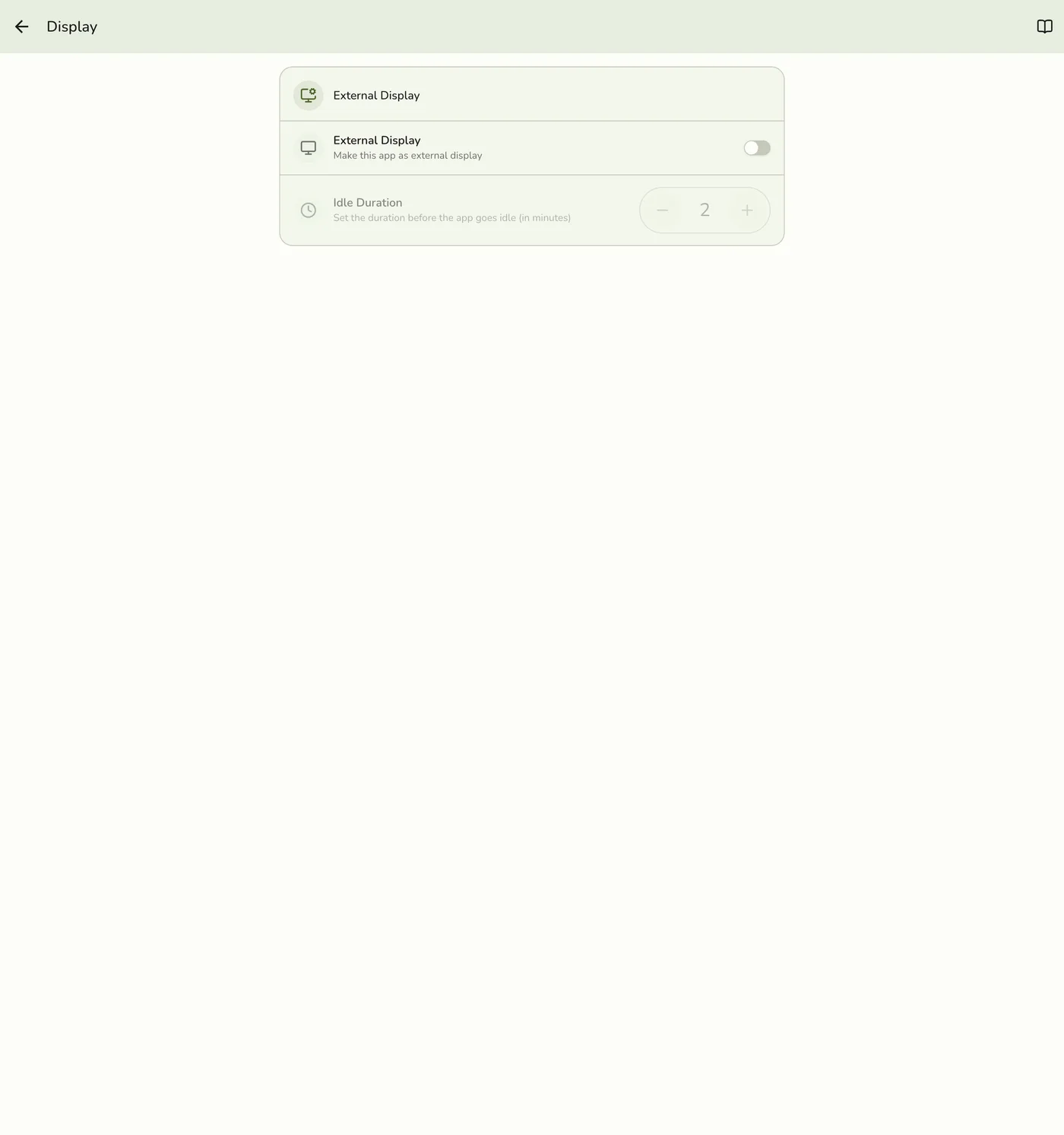
You run the display on a separate tablet, monitor, or any device with a web browser.
Key Features
- Live cart view. Customers see items, quantities, modifiers, and totals as you ring them up.
- Payment status. The screen shows when payment is processing, succeeded, or failed.
- Dismiss the payment screen anytime. Take the payment details back off the customer screen from the register without cancelling the payment — or, on a touchscreen display, tap the close button on the display itself.
- Post-transaction summary. After checkout, a receipt-style summary shows the order number, items, and change due.
- Queue display. When idle, the screen can show a "Now Serving" queue with estimated wait times.
- Privacy controls. Mask customer names and identifiers on the display for privacy.
- Works without internet. Updates travel over your local Wi-Fi through Fuze Store Hub, so the display keeps working during internet outages.
Display States
The CFD moves through four states during a transaction:
| State | What the Customer Sees |
|---|---|
| Idle | Your store logo, a customer queue, or both (configurable) |
| Active Order | Live cart with items, modifiers, discounts, taxes, and grand total |
| Payment | Payment details to scan or pay, and the payment status |
| Summary | Order confirmation with items, payments, and change due |
After the summary displays for a configurable duration, the screen returns to idle automatically.
Clearing the payment screen
Once you tap Show Info on Other Screen in the payment dialog, that button becomes Hide Info from Other Screen. Tapping it returns the display to the live cart (or to idle, if you have already cleared the register) and leaves your payment dialog open, so you can keep taking the payment.
If the customer display is a touchscreen, it also has its own close button in the top-left corner of the payment and summary screens. Tapping it clears the screen at the display. Closing it there does not change anything on your register — the button in the payment dialog may still read Hide Info from Other Screen, and tapping it again is harmless.
Requirements
- An active Customer Front Display add-on on your store (that is the name it appears under in the add-on catalog)
- A second device (tablet, monitor, or any screen with a browser) — a touchscreen is optional, and only needed if you want to clear the display from the display itself
- Fuze Store Hub running on a store computer, with your POS device paired to it
- The CFD device and your POS device on the same local Wi-Fi network
Fuze Store Hub is required
The CFD updates over your local Wi-Fi through Fuze Store Hub — there is no
cloud or internet sync. If the Hub isn't running and paired (or Use this
Hub is turned off on the POS), the display won't update. See
Customer-Facing Display on Fuze Store
Hub.
How It Connects
The display syncs over your store's local Wi-Fi through Fuze Store Hub: the POS sends each cart and payment update to the Hub, which relays it to the customer screen. Updates never leave your shop, so they arrive instantly and keep working even during an internet outage — as long as both devices stay on the same network as the Hub.
Related Guides
- Setting Up CFD
- Waiting List — Customer Display Screen — full-time queue board (Waiting List add-on; Hub or cloud)
- Add-ons Overview