

Scanning QR Codes & Barcodes
Fuze Store uses one scan concept at the counter: camera (or hardware wedge) → classify the code → open the order, add a product, or open a booking when Events are on your plan.
Turn on scanning
Camera scanning is off by default.
- Open Account → Settings (device / app settings — not store Preferences).
- Open the Point of Sale section.
- Turn on Camera barcode scanner.
- Optionally turn on Hardware barcode scanner for a USB/Bluetooth wedge (especially useful on web POS).
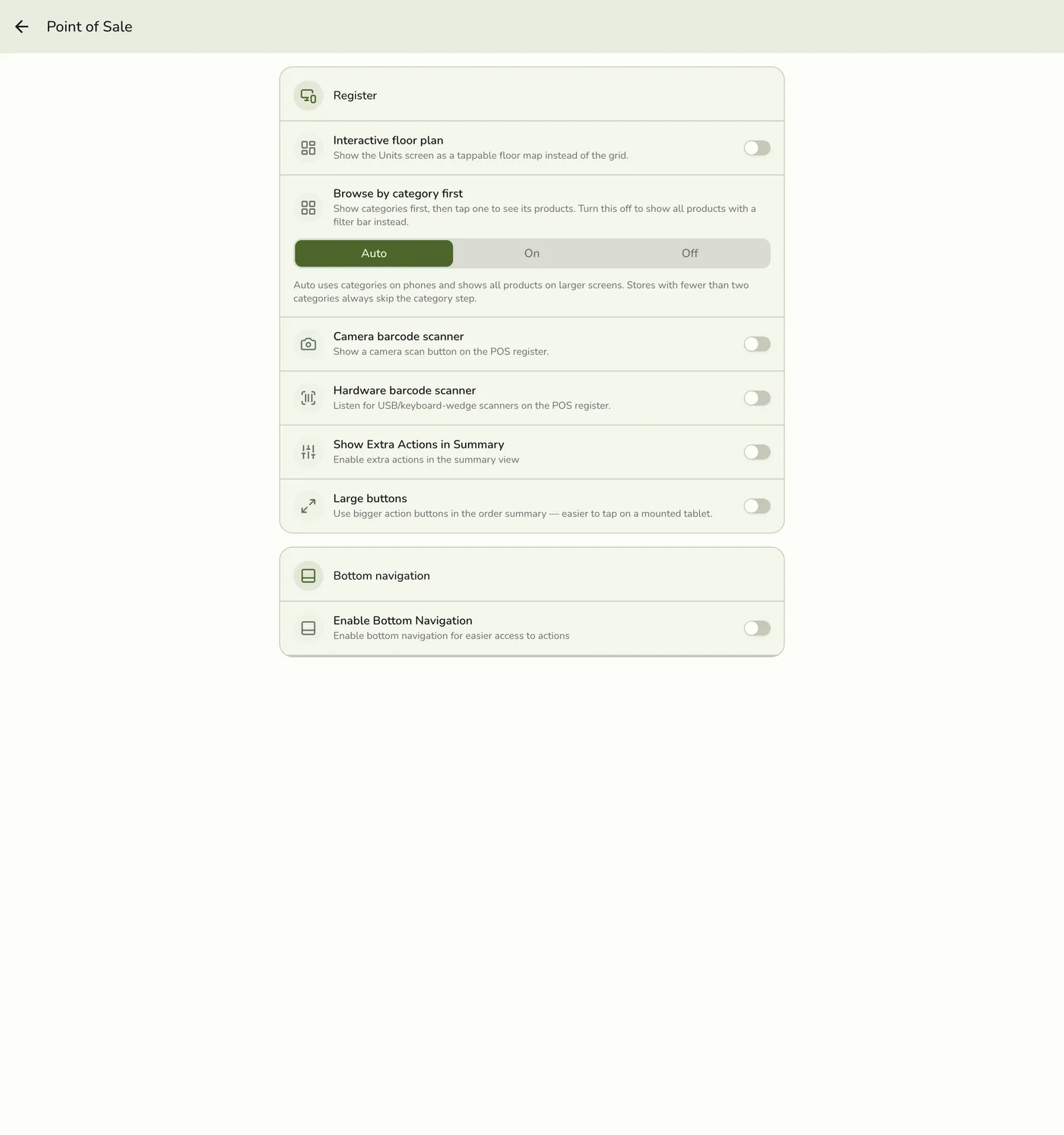
When camera scanning is on, a Scan action appears in the POS drawer (and related POS quick access). The register also has its own scanner entry — both use the same dispatch logic.
Start scanning
Tap Scan from the POS drawer. The camera opens full-screen over your current POS screen. Close with X to return where you were — an unsaved cart is kept.
You do not need to leave the register. Scan opens on top and closes back to
the same screen.
When there is nothing to point at
Customers often message their code instead of showing it. Two buttons on the scanner cover that, and both behave exactly like a scan:
- Upload image — pick their screenshot; Fuze reads the code out of the picture.
- Paste link — copy the link from the chat first, then tap this. The field arrives already filled from your clipboard, so you just confirm.
What you can scan
Fuze classifies codes automatically:
| Code | Result |
|---|---|
| Order / receipt QR | Opens that order |
| Pickup / claim QR | Opens the order for handoff |
| Product barcode | Adds the product to the register cart (options sheet if needed) |
| Waiting-list ticket QR | Opens the waiting-list entry (Waiting List add-on) |
| Booking / event QR | Opens the event (Events — Starter+) |
Pickup flow
Customer shows a printed claim / receipt QR (or the status page on their phone). Scan → order opens → complete or hand over.
Product barcodes
Works from Scan and from the register scanner the same way. Unknown barcodes stay on the scan UI with a short “not found” note.
Events & bookings — Starter+
Opening a booking from a QR requires Events on your plan. Free Basic
stores can still scan products and order/claim codes.
Customer phone camera (live status)
Printed and emailed QRs are universal links (/q/...). A customer’s stock camera opens a public live status page (when the store keeps public status on) — no staff app required.
Staff scanning the same code inside Fuze opens the full order or event for work.
Email & SMS codes
Order and booking notification emails can embed a scannable QR (same universal
/q/... link). Delivering those messages needs Email Notifications
(Starter+ / trial) and/or the SMS add-on with Wallet points. See Managing
Orders for the in-app Notify dialog.
Codes that aren’t found
Wrong store, random QR, or unknown barcode → brief “not found”, scanner stays open. Nothing is added.