

How to Delete an Area
Remove areas you no longer use so the list stays focused on active zones.
Paid plan required. Areas is available on any paid plan (Starter and up). It is not included on the free Basic plan. View plans
Step-by-step
From the Areas list
- Open Configurations → Operations → Areas.
- Find the area's card and tap its ⋮ icon.
- Tap Delete.
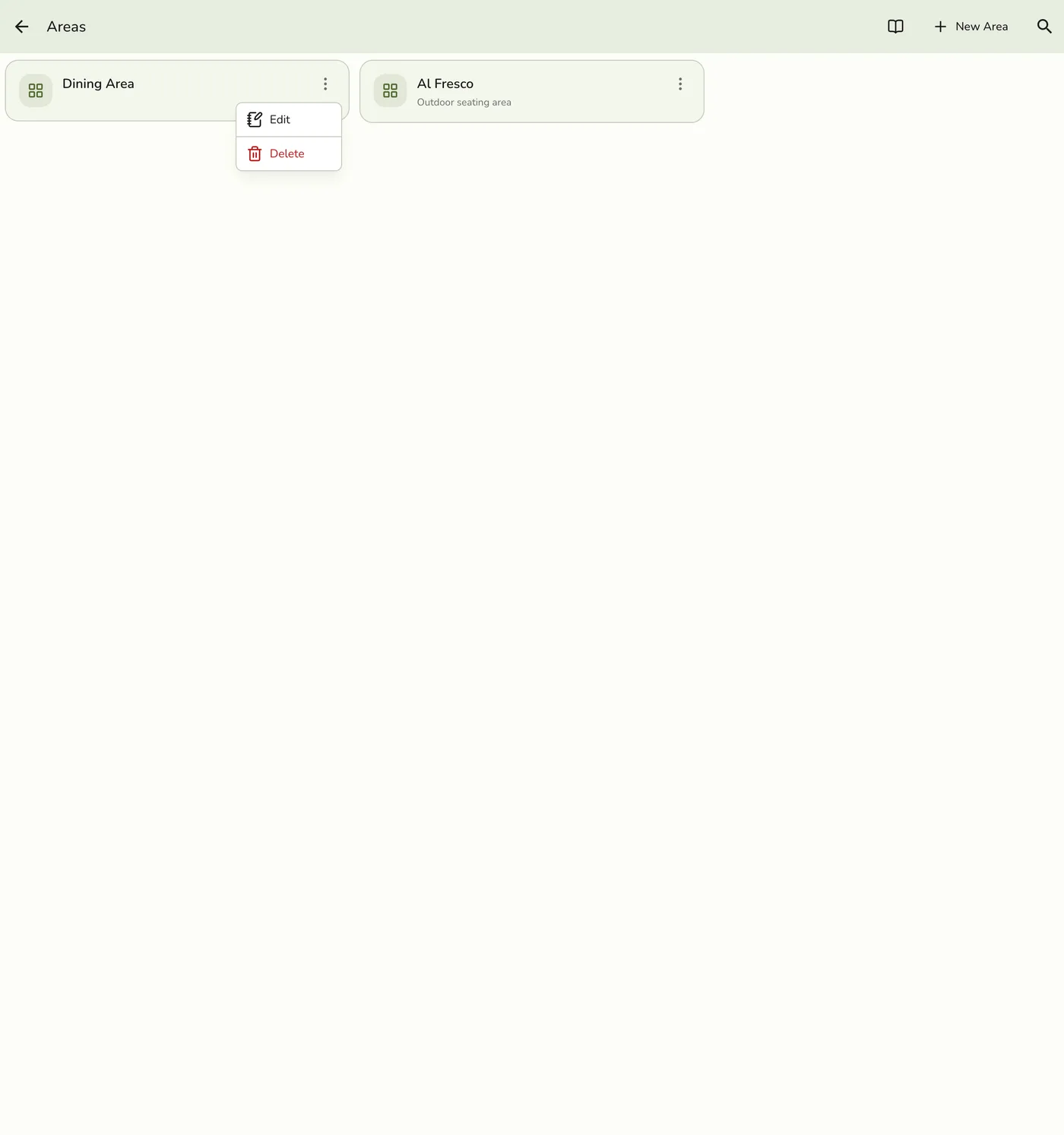
- Confirm when prompted.
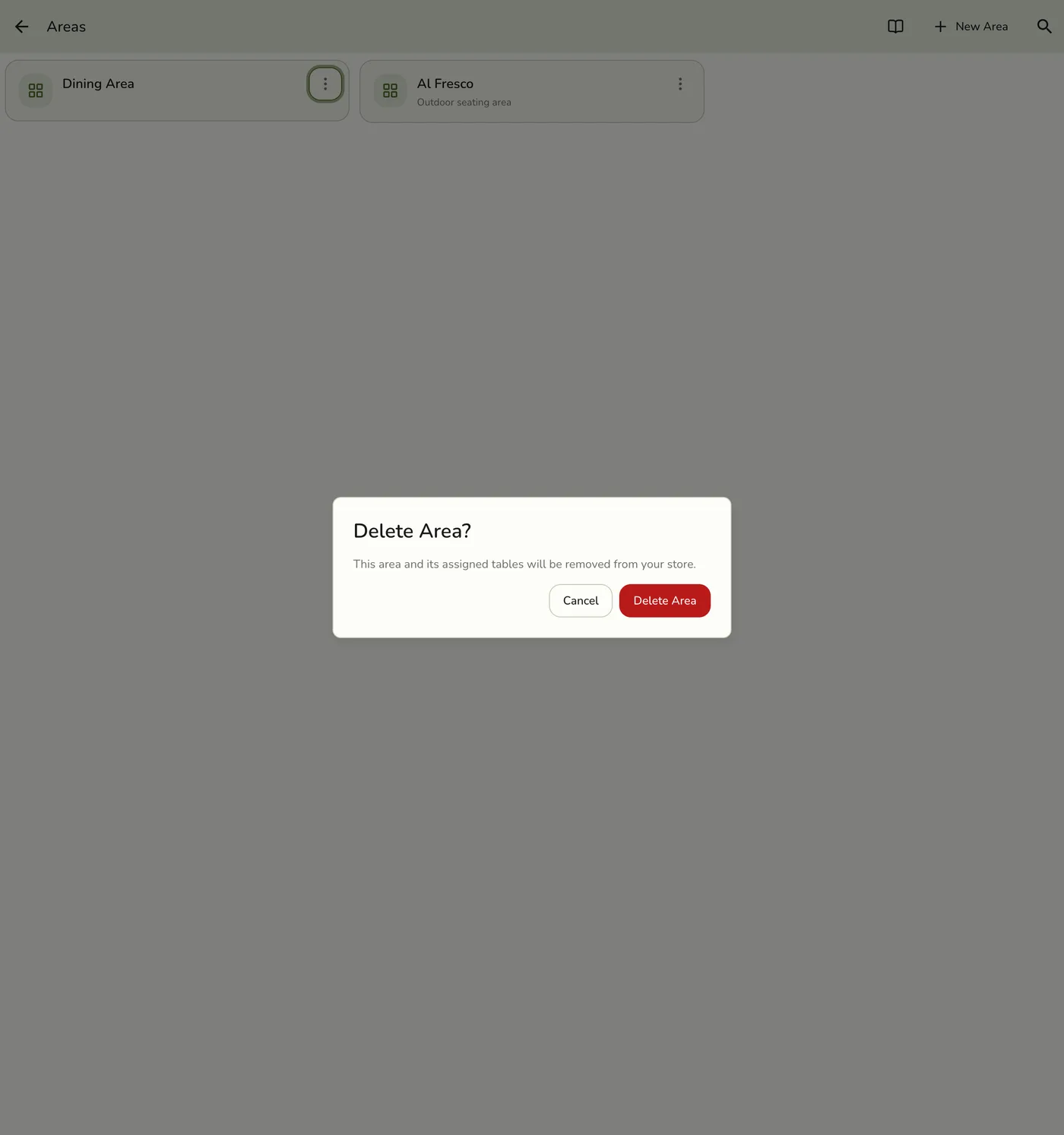
From the area form
- Open Configurations → Operations → Areas.
- Open the area (⋮ → Edit).
- Tap Delete on the form.
- Confirm when prompted.
What happens when you delete an area?
- The area leaves your management list (it is not offered for new assignments).
- Units that belonged to it become unassigned — they are not deleted. Reassign them under Units if you still need the grouping.
- Past orders keep whatever area/unit context they already had.
Tips
- Double-check before deleting — there is no restore action in the app.
- Prefer renaming if you only need a label change.