

Area and Units Overview
Areas and units map your physical layout into Fuze Store. Manage them under Configurations, then use them on the POS Units screen to assign orders and track status.
Paid plan required. Areas and Units is available on any paid plan (Starter and up). It is not included on the free Basic plan. View plans
On the free Basic plan, Areas and Units are locked. How many areas you can create depends on the plan (for example Starter 3, Lite 10, Standard 15, Premium unlimited — Free Trial allows 5). Units stay available on Starter and up once the feature is unlocked.
What is an Area?
An area is a section or zone in your store. You group related units under it.
Examples: Al fresco, VIP lounge, 2nd floor, main dining, washing bay.
What is a Unit?
A unit is a specific spot — a table, room, seat, bay, or booth — where service happens. A unit can optionally belong to an area.
How it flows
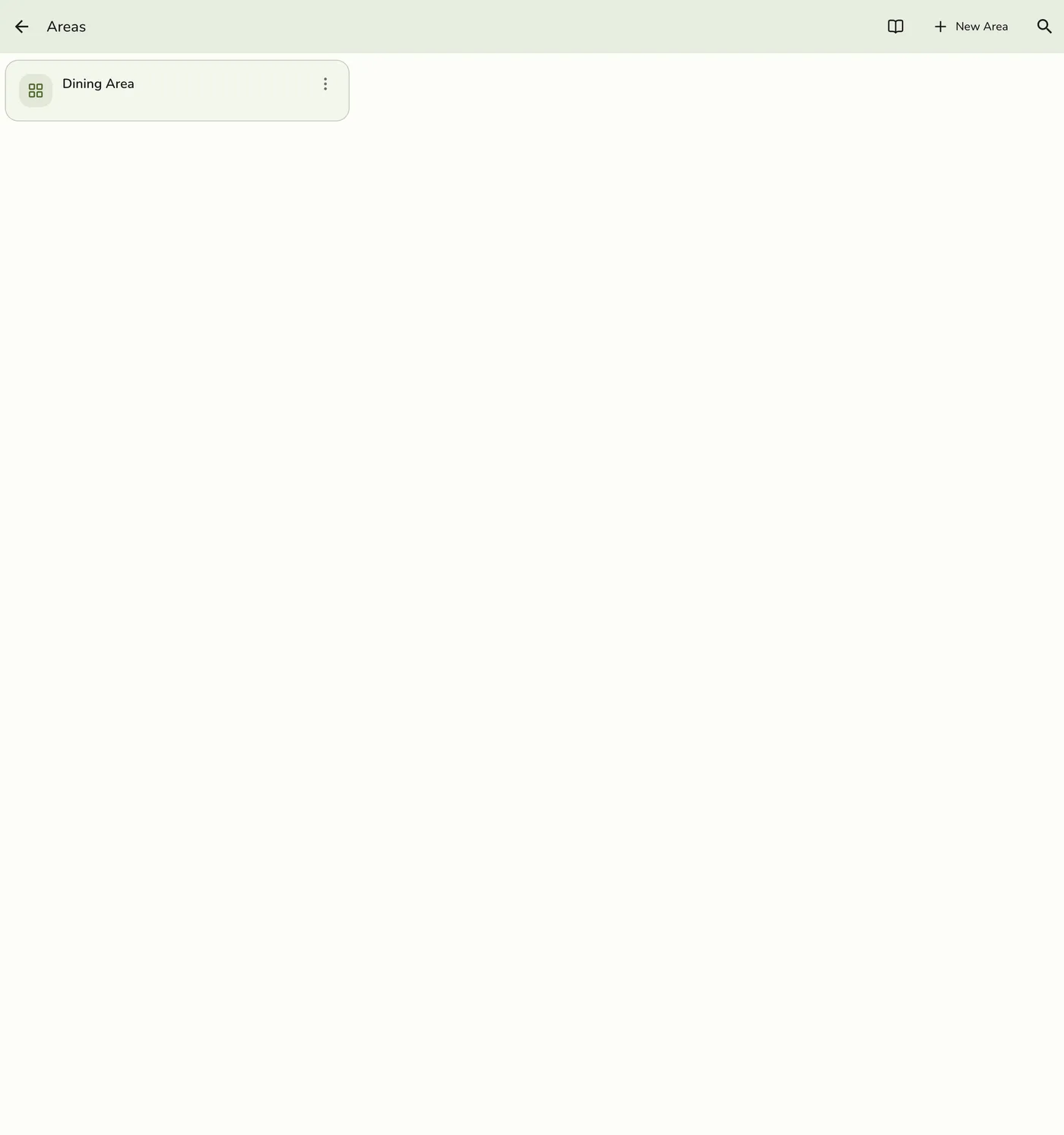
- Create areas under Configurations → Operations → Areas (New Area).
- Create units under Configurations → Operations → Units (New Unit) — name, capacity, optional area, and enable.
- On POS, open the drawer and tap Units to see the grid (or live floor if you use the Floor Plan add-on).
- Tap a unit to Make Order, change status, View Order, or Transfer an open order to another unit.
Field reference
Area fields:
| Field | Description | Required |
|---|---|---|
| Name | Area name | Yes |
| Description | Optional note for staff | No |
| Units | Assign existing units to this area | No |
Unit fields:
| Field | Description | Required |
|---|---|---|
| Name | Unit name | Yes |
| Capacity | How many people the unit holds | Yes |
| Area | Optional area assignment | No |
| Enable | Whether the unit appears for POS use | Yes |
Tips
- Name units clearly (for example Table 1, VIP Room).
- Match areas to your real floor plan.
- Deleting an area unassigns its units — reassign them if you still need the grouping.
- Floor Plan is a paid add-on layered on top of Areas/Units; the free tabular setup here works without it. See Floor Plan Overview.