

How to Delete a Unit
Remove tables, rooms, or seats you no longer use so the POS Units list stays accurate.
Paid plan required. Units is available on any paid plan (Starter and up). It is not included on the free Basic plan. View plans
Step-by-step
From the Units list
- Open Configurations → Operations → Units.
- Find the unit.
- Use Delete (trash) on the row.
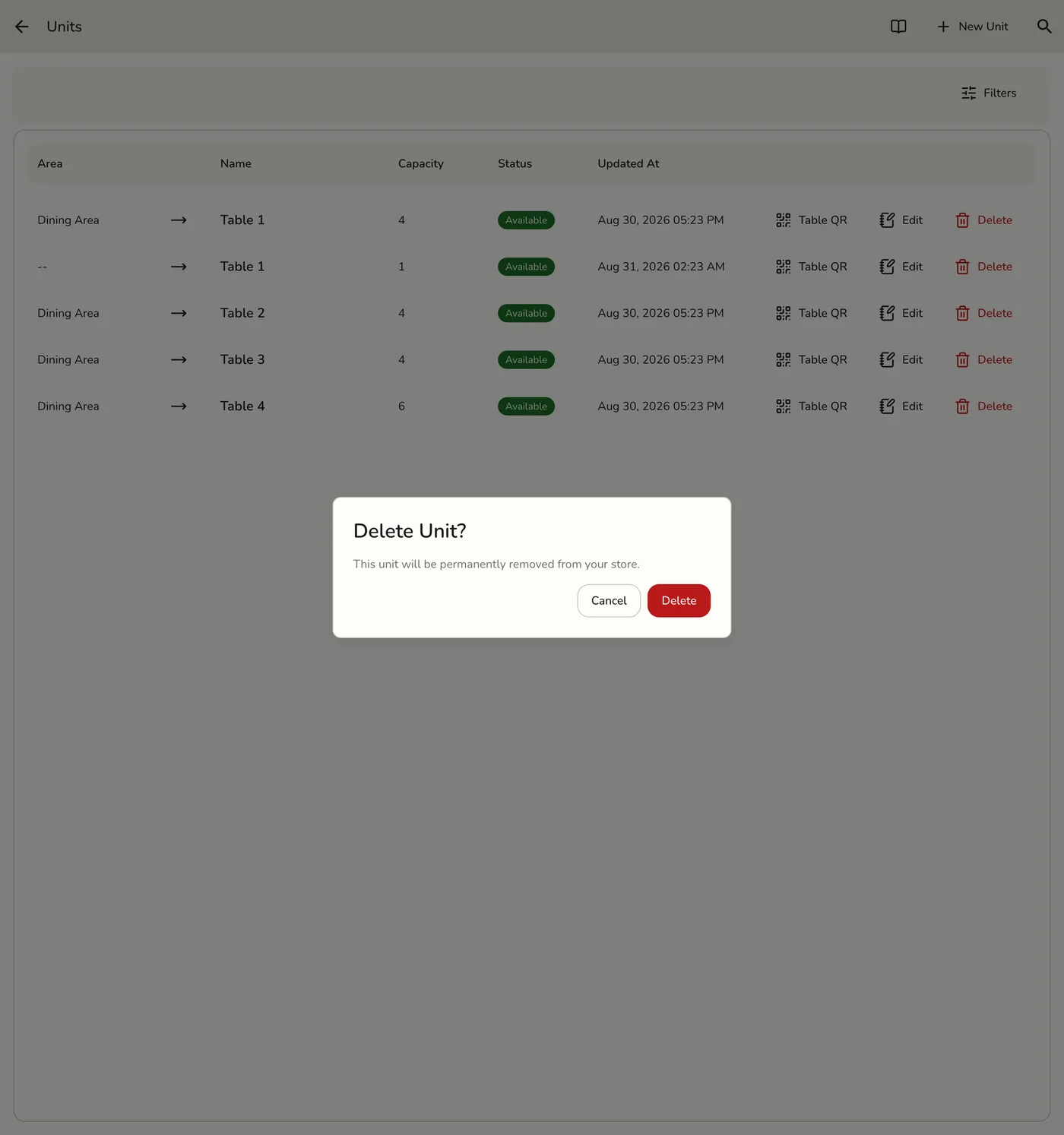
- Confirm when prompted.
From the unit form
- Open Configurations → Operations → Units.
- Open the unit (Edit Unit).
- Tap Delete on the form.
- Confirm when prompted.
What happens when you delete a unit?
- The unit is removed from management and POS for new assignments.
- Past orders that used that unit remain in history and reports.
- You can create a new unit later if the layout returns.
Tips
- Prefer Enable off if you might bring the unit back soon.
- There is no restore action in the app after delete.