

Creating a Floor Plan
Create one layout per area under Configurations. You need the Floor Plan add-on and Floor Plan → Modify permission.
Add-on required. This feature requires the Floor Plan add-on to be active on your store. View add-ons
Open Floor Plans
- Open Configurations.
- Under Operations, tap Floor Plans.
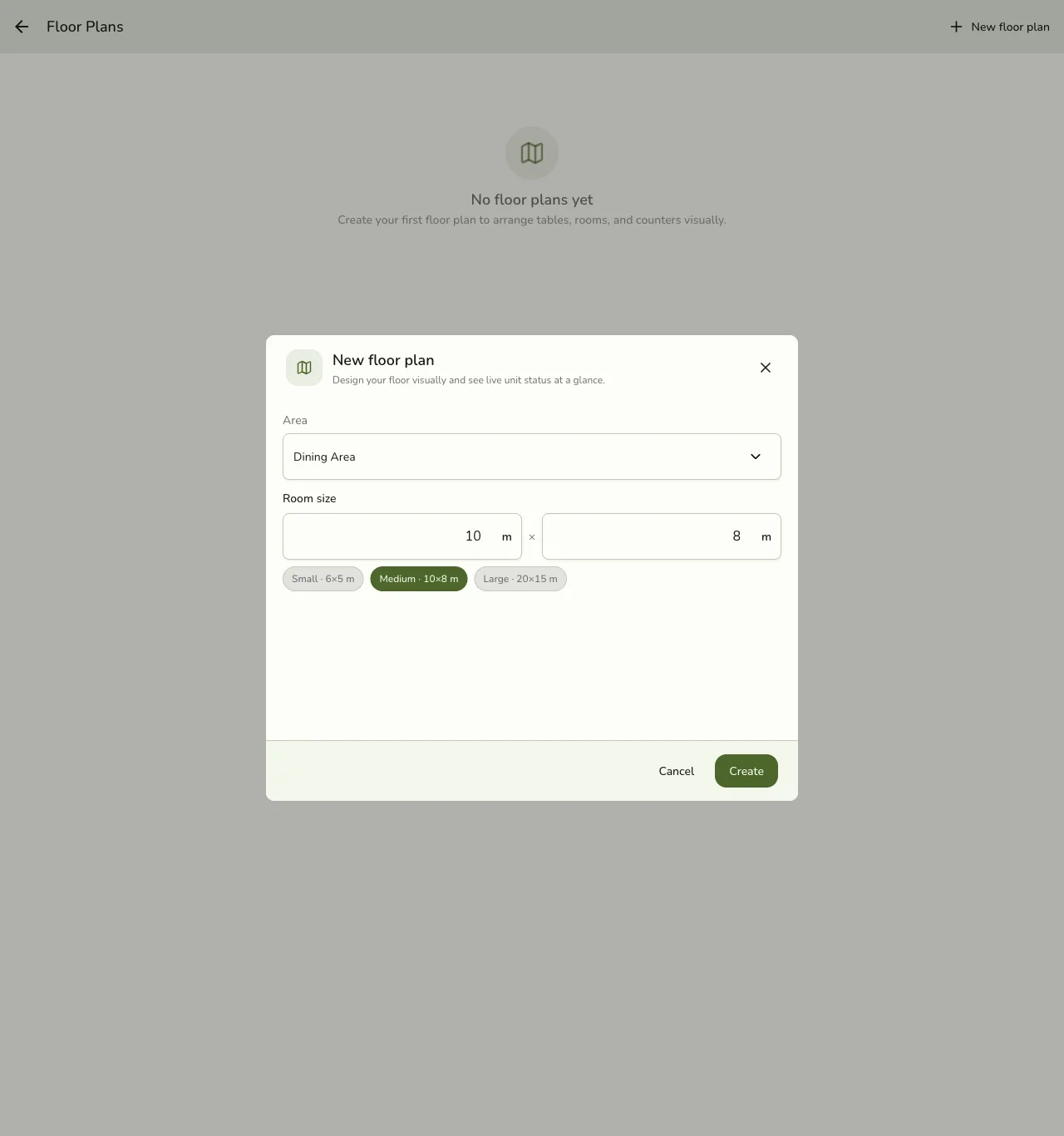
- Tap New floor plan.
New floor plan fields
| Field | Description |
|---|---|
| Area | Which area this layout belongs to. Required. Only areas without a plan yet appear. |
| Room size | Width and depth of the room in m (meters). Sets the canvas size for the editor. |
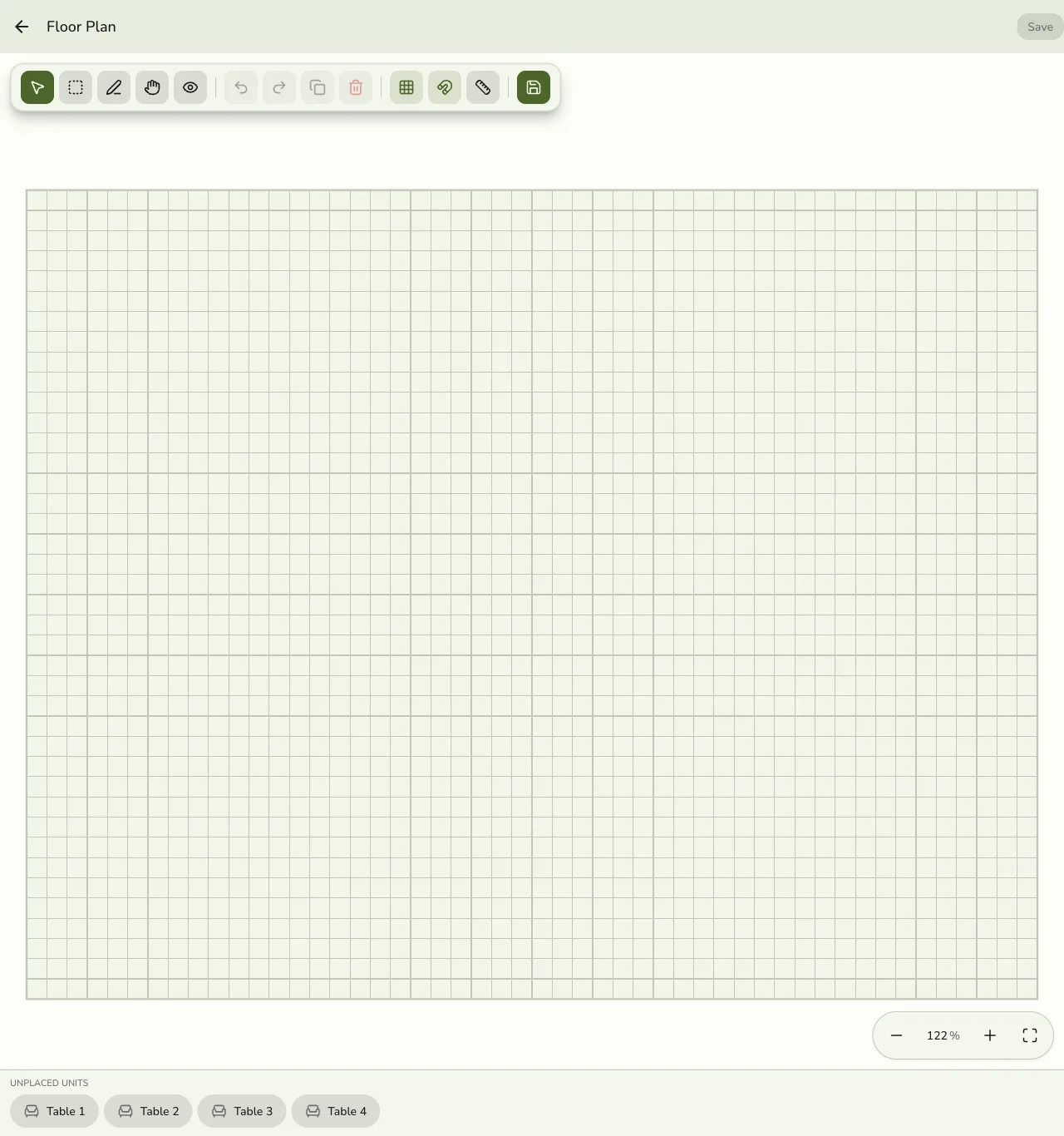
After you save, Fuze opens the editor so you can place walls, furniture, and link units. See Editing and placing units.
One plan per area
Each area can have only one floor plan. If an area already has a plan, it won’t show in the Area picker for a new plan — edit or delete the existing plan instead.
List actions
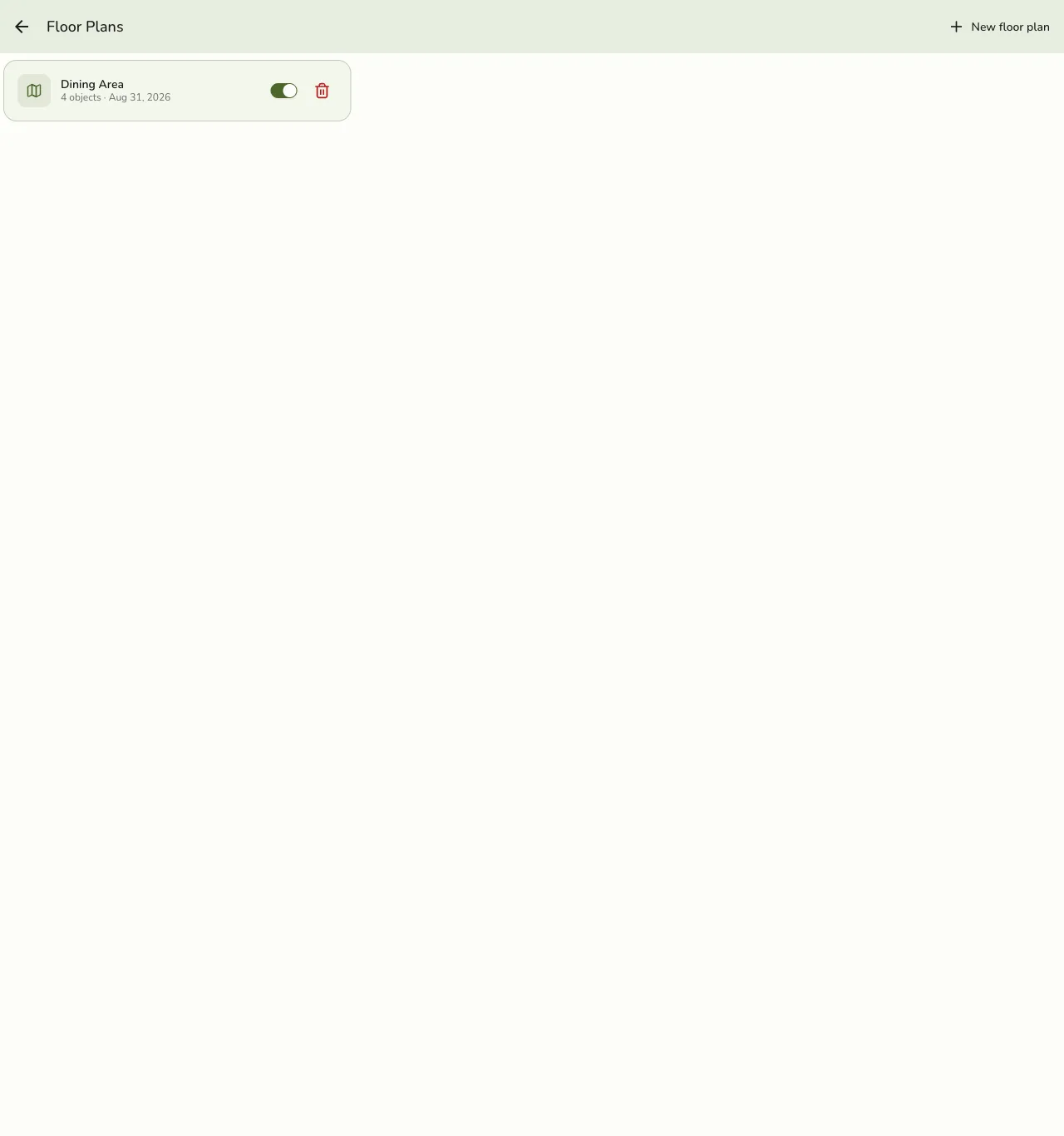
On the Floor Plans list you can:
- Open a plan to edit the layout.
- Turn Show on register on or off — when off, POS Units falls back to the classic grid for that area. See Live floor on POS.
- Delete a plan.
Deleting a floor plan removes the layout only. Your units and areas are not affected.