

Editing and Placing Units
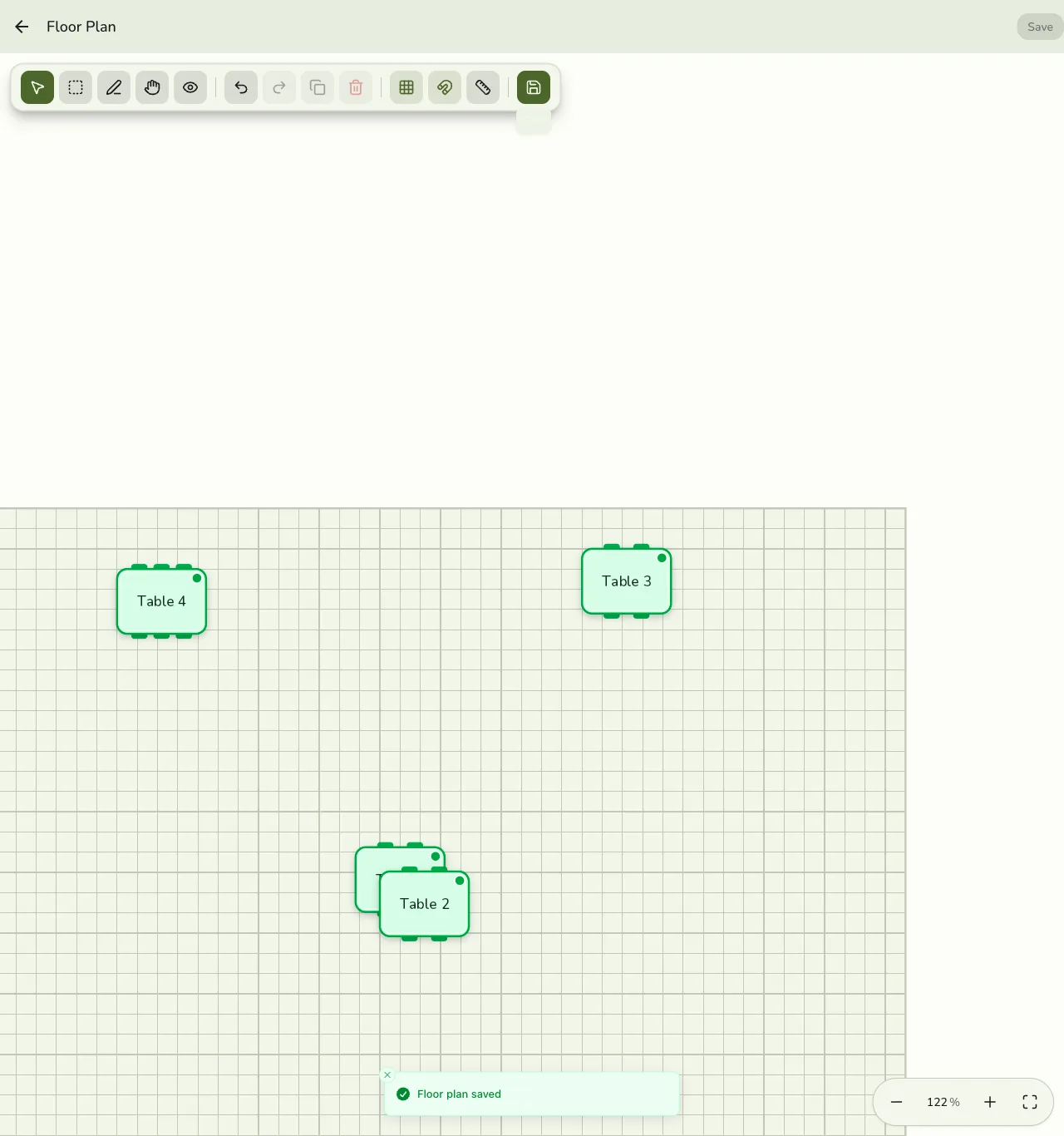
Open a floor plan from Configurations → Operations → Floor Plans to edit the layout. Changes stay local until you tap Save.
Add-on required. This feature requires the Floor Plan add-on to be active on your store. View add-ons
Save and leave
- Tap Save when you want to push the layout to the store (other devices pick it up after save).
- If you leave with unsaved changes, Fuze asks whether to Save & leave or Keep editing.
Modes
Use the mode control to switch how you work on the canvas:
| Mode | Use it to |
|---|---|
| Edit | Place and adjust objects with the tool palette |
| Select | Select and move existing objects |
| Draw | Draw freeform paths where supported |
| Pan | Move around a large room without selecting objects |
| View | Preview without editing |
Tools
In Edit mode, pick a tool from the palette, then tap or drag on the canvas:
Table, Chair, Wall, Room, Counter, Door, Window, Rectangle, Circle, Line, Text.
You can also adjust room size from the editor when you need a larger or smaller canvas (same Room size width/depth in meters as create).
Unplaced units
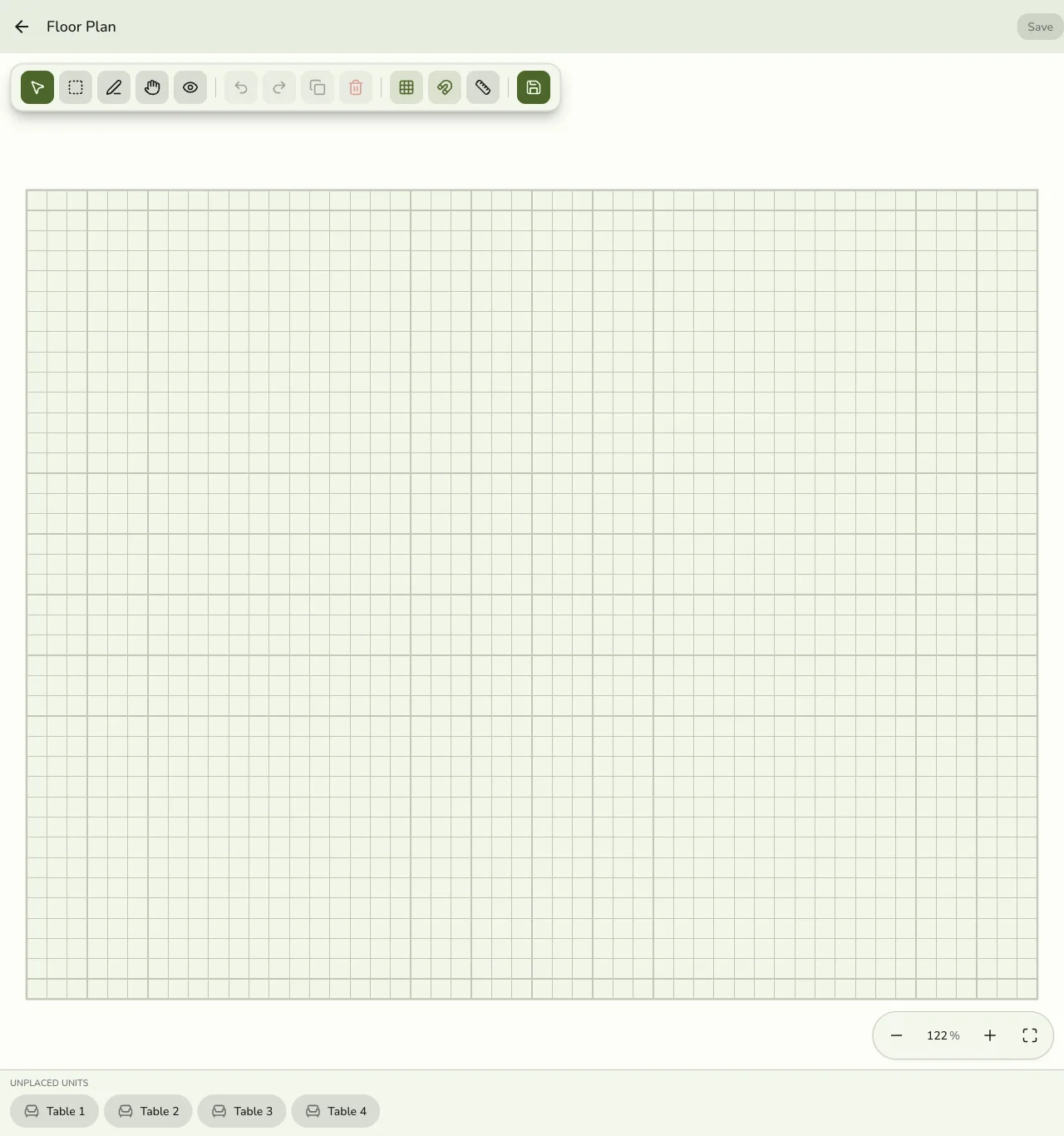
The Unplaced units tray lists units in this plan’s area that are not linked to a table on the floor yet.
- Tap a unit chip in the tray.
- Fuze places a linked table at the center of the current view.
- Once linked, that unit leaves the tray. Live status and POS actions use that link.
You can still draw a table with the Table tool and link it later — the tray is the fastest path for matching your Units catalog.
Tips
- Name units clearly in Configurations first (Table 1, Bay 2), then place them from the tray.
- Save before switching devices — the editor keeps a local draft until Save.
- Deleting the floor plan does not delete units; only the drawing goes away.