

Live Floor on POS
When Floor Plan is active, the POS Units screen can show a tappable map instead of the grid. Same order actions as the grid — only the view changes.
Add-on required. This feature requires the Floor Plan add-on to be active on your store. View add-ons
Turn a plan on for the register
On Configurations → Operations → Floor Plans, use Show on register on each plan.
- On — that area can render as a live floor on devices that use floor view.
- Off — POS keeps the classic unit grid for that area (the layout is kept; flip the switch again anytime).
Enable floor view on this device
Floor vs grid is a device setting — not store Preferences.
- Open Account → Settings (device / app settings — not store Preferences).
- Open the Point of Sale section.
- Turn on Interactive floor plan (“Show the Units screen as a tappable floor map instead of the grid.”).
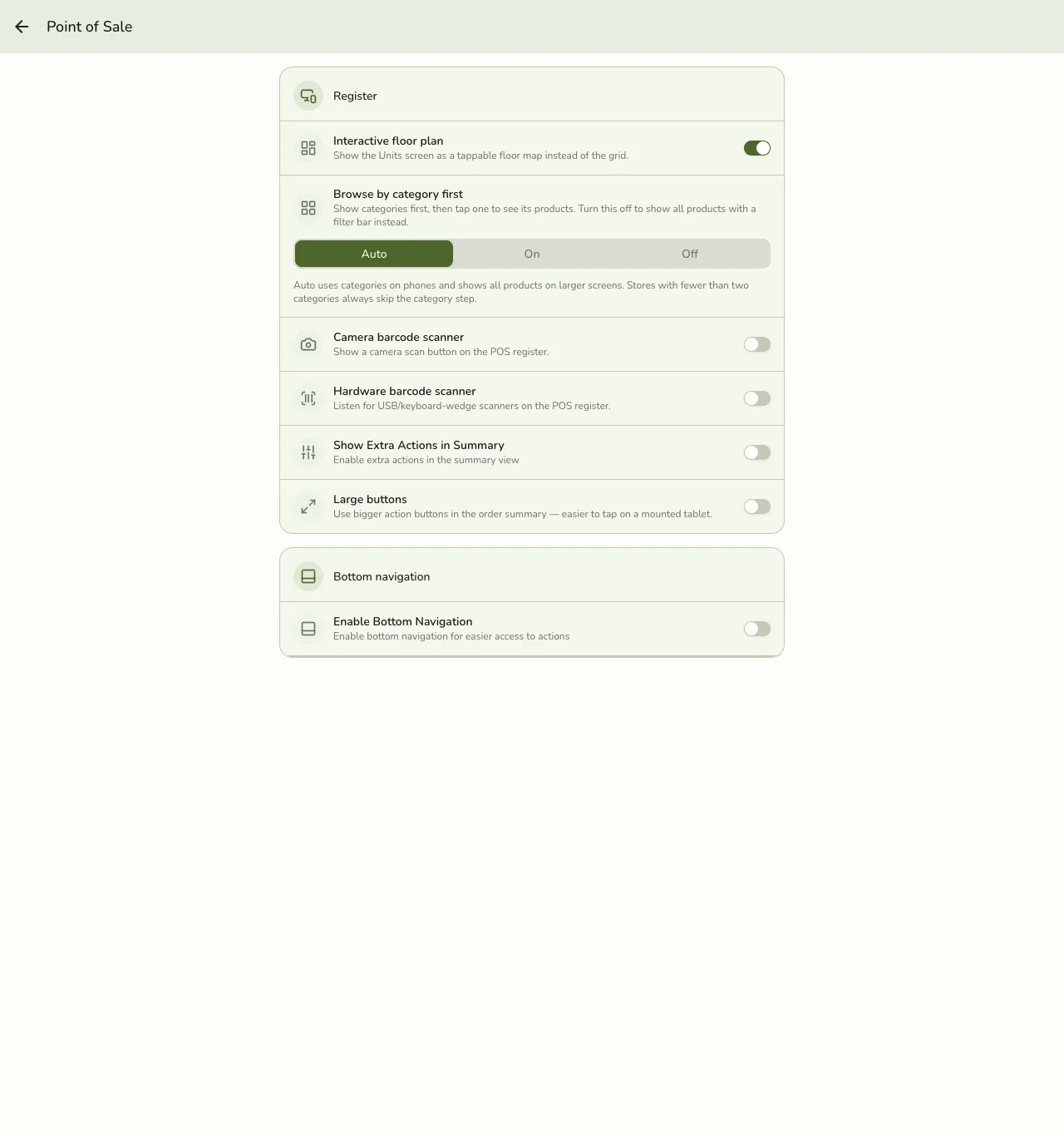
Staff need the Floor Plan add-on active on the store. Without it, the toggle stays hidden.
Open the live floor
- From POS, open the drawer (menu).
- Tap Units.
- With Interactive floor plan on and at least one area’s plan Show on register, you see the live floor for that area. Otherwise you see the grid.
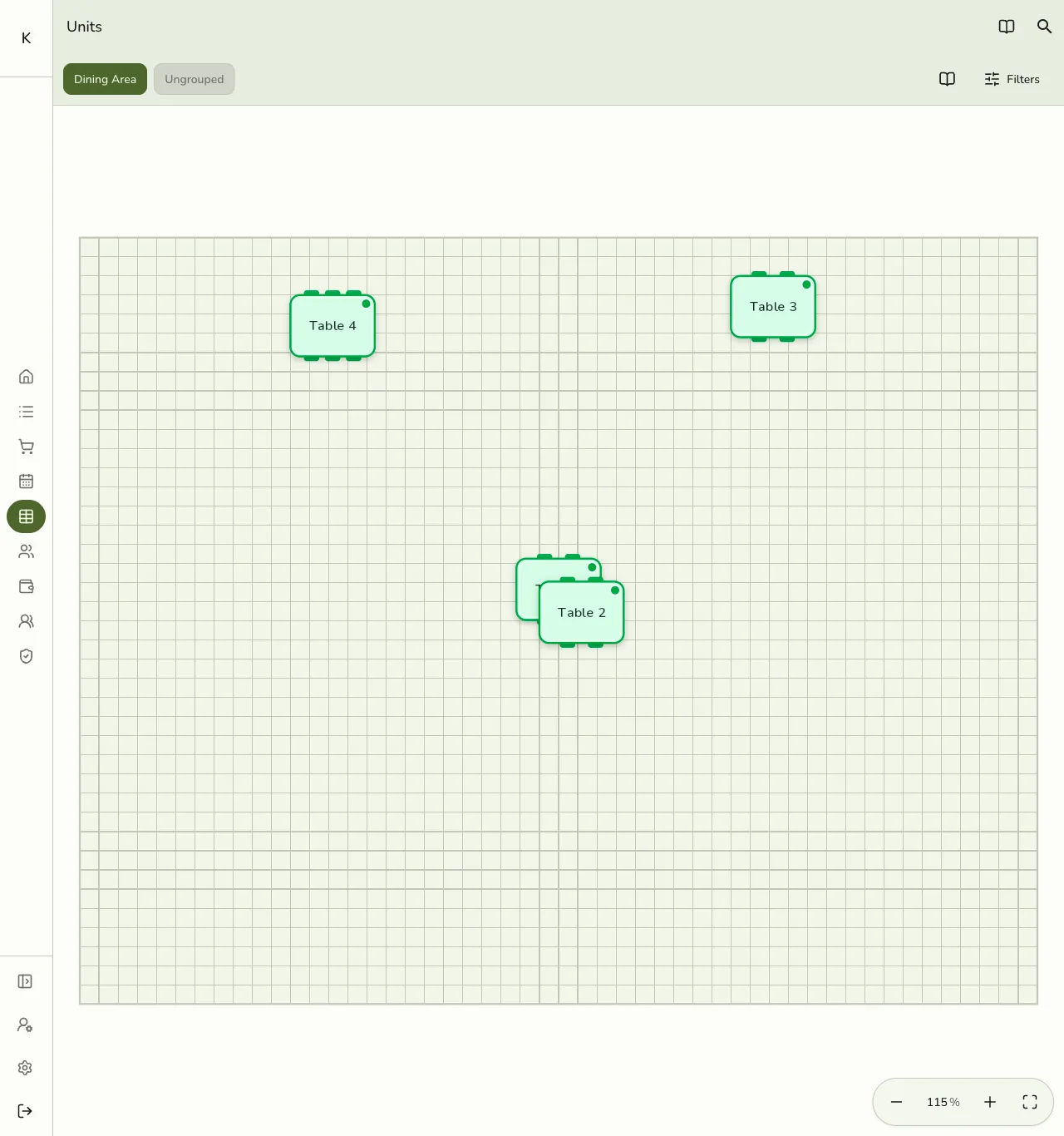
What you can do
Tap a linked unit (table) to open the same detail sheet as the grid:
| Action | When |
|---|---|
| Make Order | Start a new order on that unit |
| View Order | Open the order already on the unit |
| Transfer | Move the open order — tap another unit on the floor or grid; occupied targets confirm a swap; Unavailable is blocked |
Occupied tables show status styling plus the unit name and order number. Status changes and print/complete actions follow the same rules as POS Units Overview.
When you still see the grid
- Floor Plan add-on is off.
- Show on register is off for the area’s plan.
- Interactive floor plan is off on this device.
- The area has no floor plan, or units aren’t linked on the layout.