

Importing Staff
You can import staff members into Fuze Store POS to set up or update your team in bulk. This is useful when onboarding multiple employees or migrating from another system.
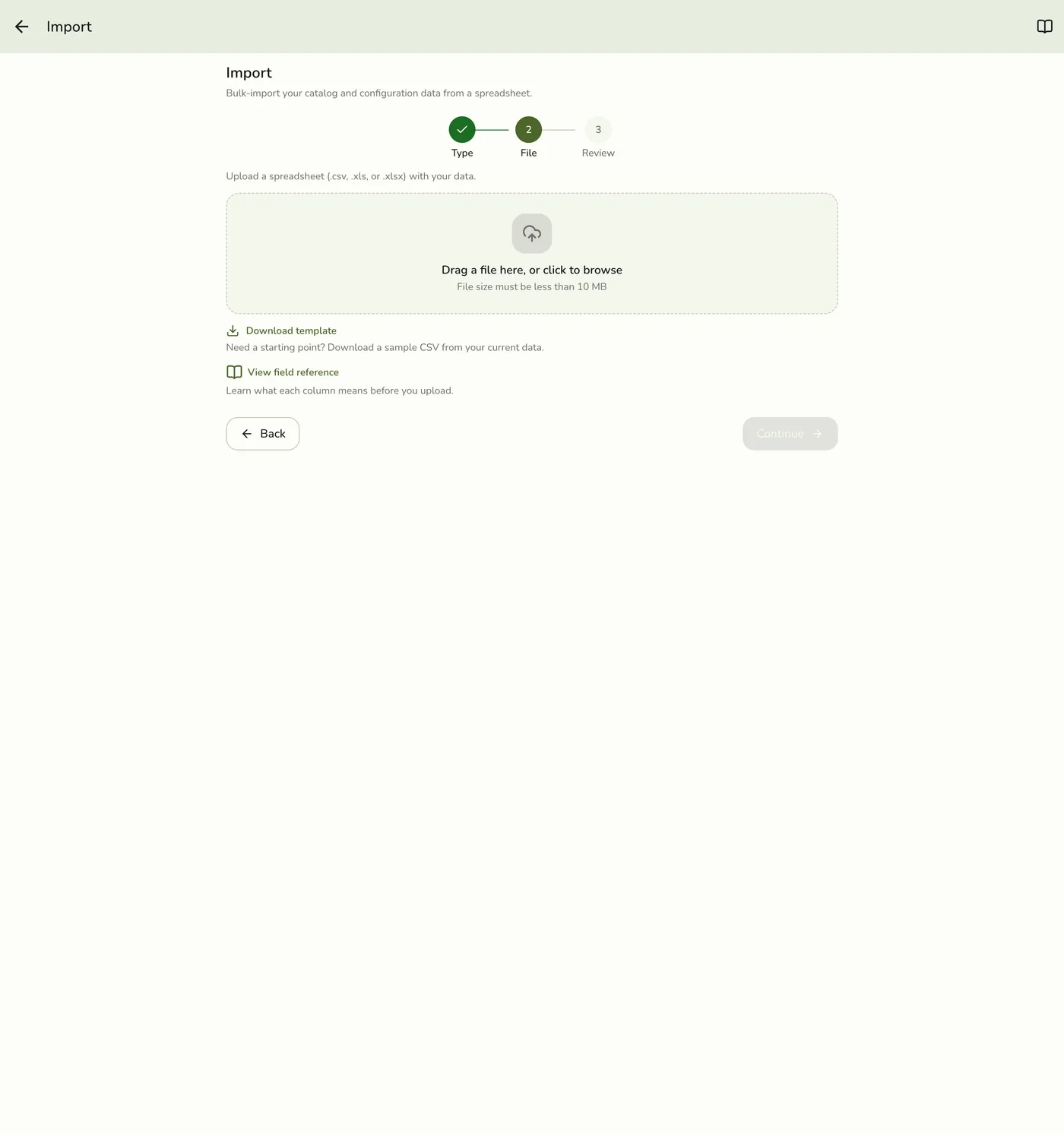
Step-by-Step Guide
- Open the app drawer.
- Go to Configurations.
- Under Data Management, tap Import.
- Choose the matching data type on the type grid.
- Optionally tap Download template for a CSV starter (your live export).
- Upload a CSV, XLS, or XLSX file, review the preview, then confirm Import.
Field Reference
Here are the columns in the Staff import file:
| Field | Description | Required | Possible Values | Example |
|---|---|---|---|---|
| id | UUID identifier for the staff member. Leave empty to create a new entry. | 123e4567-e89b-12d3-a456-426614174000 | ||
| role_id | UUID or code identifier of the role to assign. | 123e4567-e89b-12d3-a456-426614174001 or barista | ||
| first_name | First name of the staff member. | Yes | John | |
| last_name | Last name of the staff member. | Yes | Doe | |
| Email address of the staff member. | john.doe@email.com |
Tips
- Review your data before importing to avoid errors.
- Download a sample export file first if you are unsure about formatting.
- Make sure each staff member has the correct role assigned.
- Keep staff records up to date as your team changes.