

Importing Gift Cards
You can import gift cards into Fuze Store POS to set up or update your gift card inventory in bulk. This is useful when creating many gift cards at once or migrating from another system.
Gift cards import requires the Gift Cards add-on (unlocked during free trial when that add-on is trial-granted). Without it, the Gift cards card stays locked on the Import type grid.
Step-by-Step Guide
- Open the app drawer.
- Go to Configurations.
- Under Data Management, tap Import.
- Choose the matching data type on the type grid.
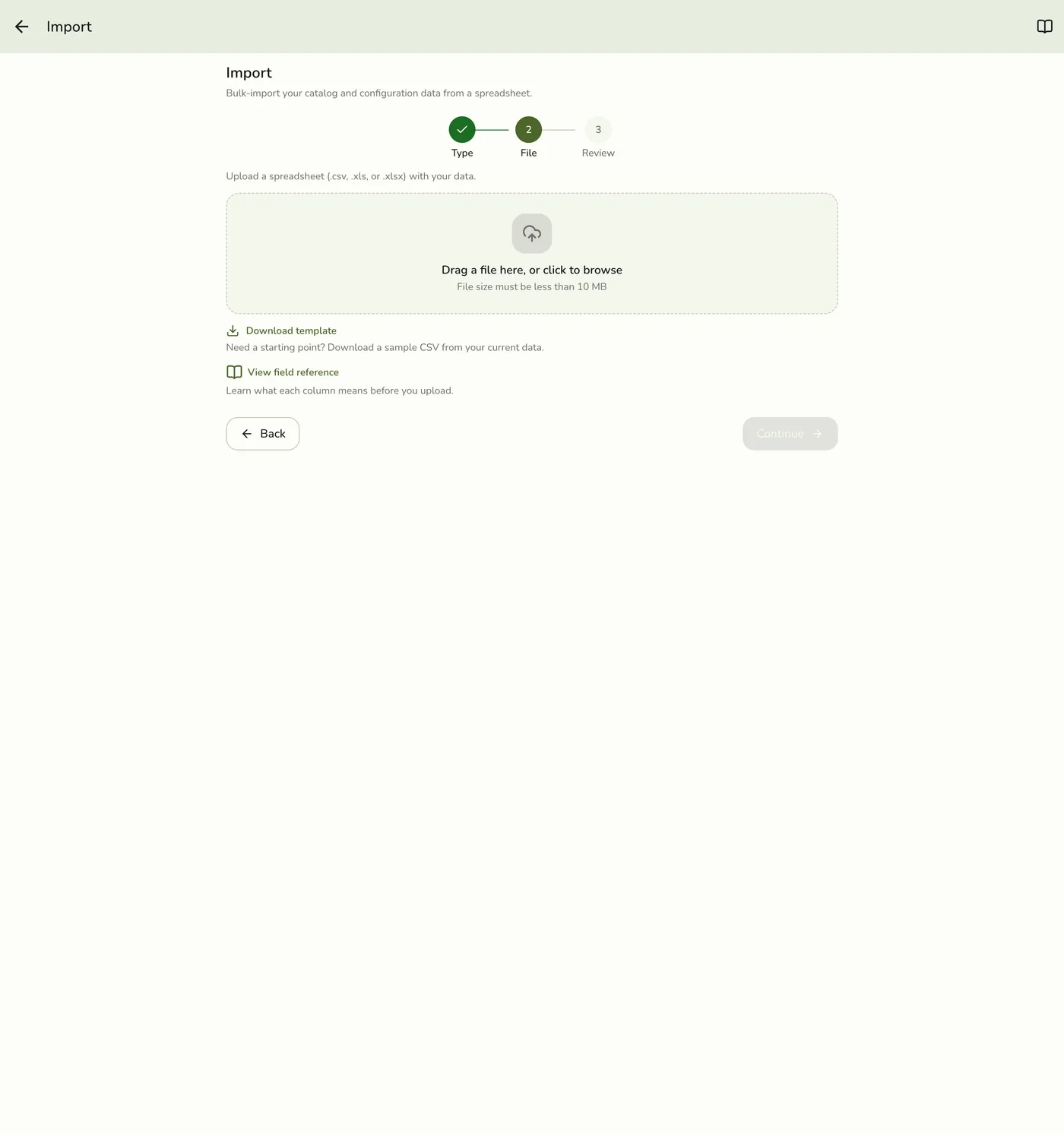
- Optionally tap Download template for a CSV starter (your live export).
- Upload a CSV, XLS, or XLSX file, review the preview, then confirm Import.
Field Reference
Here are the columns in the Gift Cards import file:
| Field | Description | Required | Possible Values | Example |
|---|---|---|---|---|
| id | UUID identifier for the gift card. Leave empty to create a new gift card. | 123e4567-e89b-12d3-a456-426614174000 | ||
| code | Short code for internal use. Also serves as an identifier — an existing code updates the matching gift card. | Yes | EARLYBIRD | |
| amount | The face value of the gift card. A newly imported card starts with this full amount available. | Yes | Any number | 100 |
| initial_amount | The value the card was issued with. Export only — on an existing card the import never overwrites it. | Any number | 100 | |
| balance | Value remaining on the card. Export only — the import never restores spent value on an existing card. | Any number | 60 | |
| description | A short note about the gift card. | Gift Card for early bird customers | ||
| max_usage | Maximum number of times the gift card can be used. | Any number | 100 | |
| usage_count | Number of times the gift card has already been used. | Any number | 0 | |
| is_active | Whether the gift card is active. | Yes | YES, NO | YES |
| expires_at | Expiry date and time for the gift card (ISO datetime format). | ISO Datetime | 2024-12-31T23:59:59Z |
Importing never changes who a card was issued to, and never rewrites the remaining balance of a card that already exists — so exporting your cards, editing a description, and re-importing is safe.
Tips
- Review your data before importing to avoid errors.
- Download a sample export file first if you are unsure about formatting.
- Set expiry dates to control when gift cards stop being valid.
- Use unique, memorable codes so customers can redeem them easily.