

How to Create a Discount
Follow these steps to set up a new discount for your store.
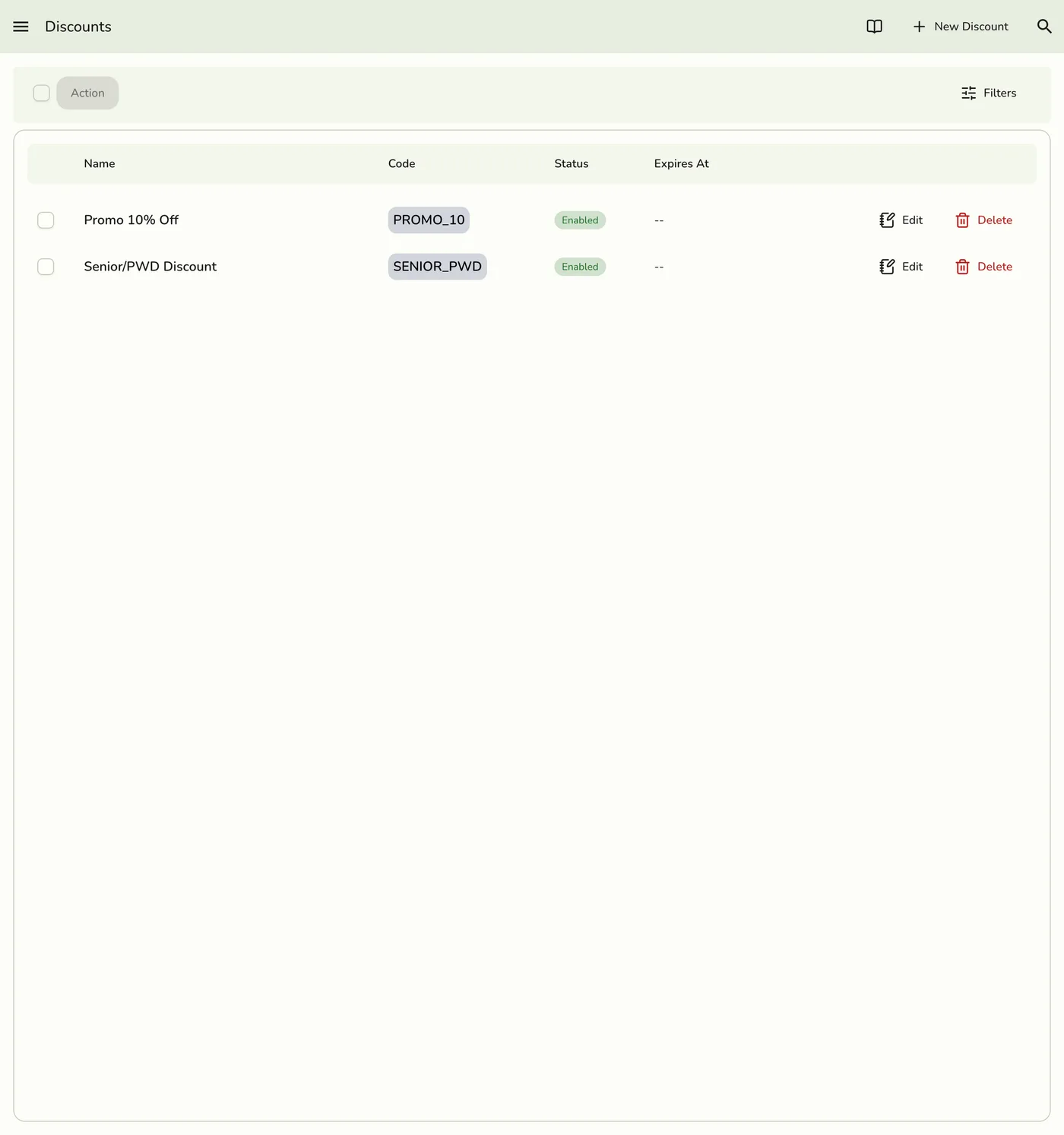
Step-by-Step Guide
1
Open the menu
Click the sidebar menu icon to open navigation.

2
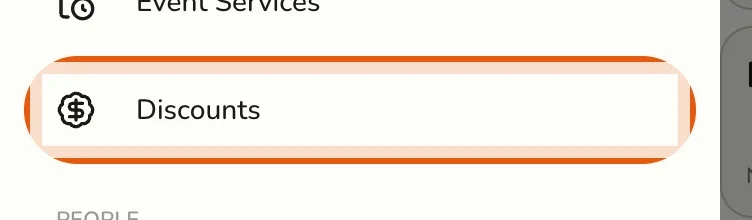
Go to Discounts
Select Discounts.
3
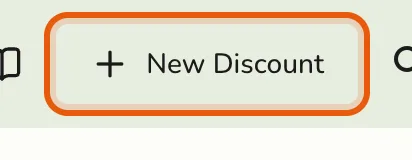
Add a discount
Tap New Discount.
4
Fill in the details
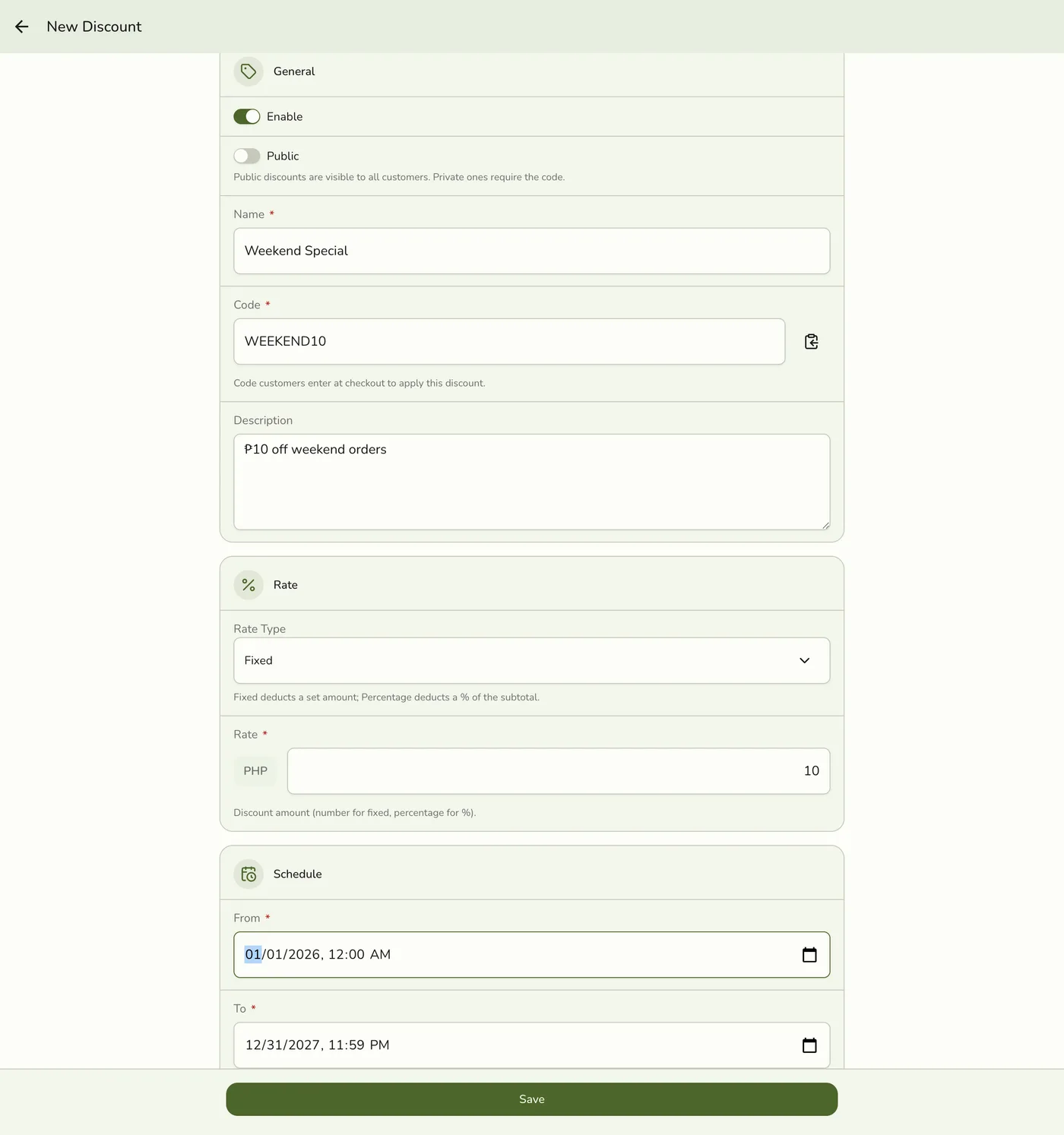
Fill in the discount details. See Field Explanations for more details on each field.
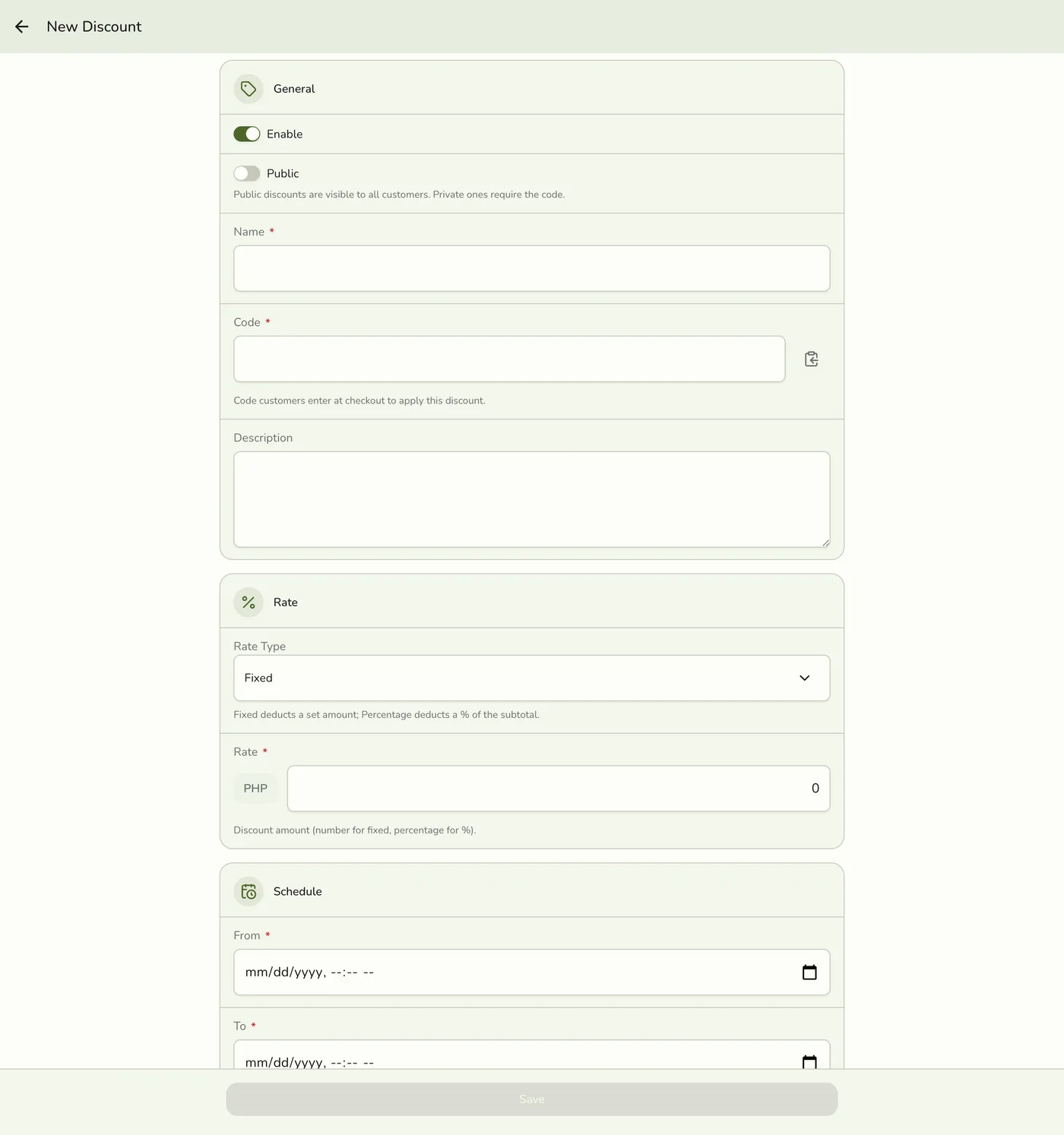
- Enable — turn the toggle on to make the discount active.
- Name — give the discount a clear name (for example, "10% Off Drinks").
- Code — required. A short identifier for the discount (for example
OPEN10). Staff pick the discount by name at the register; the code is how it is identified in exports and reports. - Public — required. Public discounts are visible to everyone; private ones are only picked deliberately.
- Rate Type — choose Fixed or Percentage.
- Rate — enter the amount or percentage to deduct.
- Description — (optional) add a short explanation.
- Limited time — off by default, which means the discount never expires. Turn it on to set a schedule.
- From — (optional, with Limited time on) when the discount becomes active. Leave it blank to start immediately.
- To — (required with Limited time on) when the discount expires.
5
Save
Click Save. The discount is now available for future sales.
Tips
- Use clear names so staff and customers recognize the offer.
- Double-check discount values to avoid giving away too much.
- Leave Limited time off for an ongoing offer; turn it on only for a promotion with an end date.
- You can edit or remove discounts later as your needs change.
Best Practices
- Review your discounts regularly to keep offers relevant.
- Train staff on how to apply and explain discounts at checkout.
- Track which discounts perform best to plan future promotions.