

Managing Expenses
After you record expenses, you can view, filter, edit, and delete them at any time. The expense list gives you a clear view of all your business spending.
Viewing the Expense List
- Open the sidebar menu and go to Expenses.

- You see a list of expenses for the selected Period, sorted by date (newest first), with Total Expense, Pending, and Approved totals above the list.
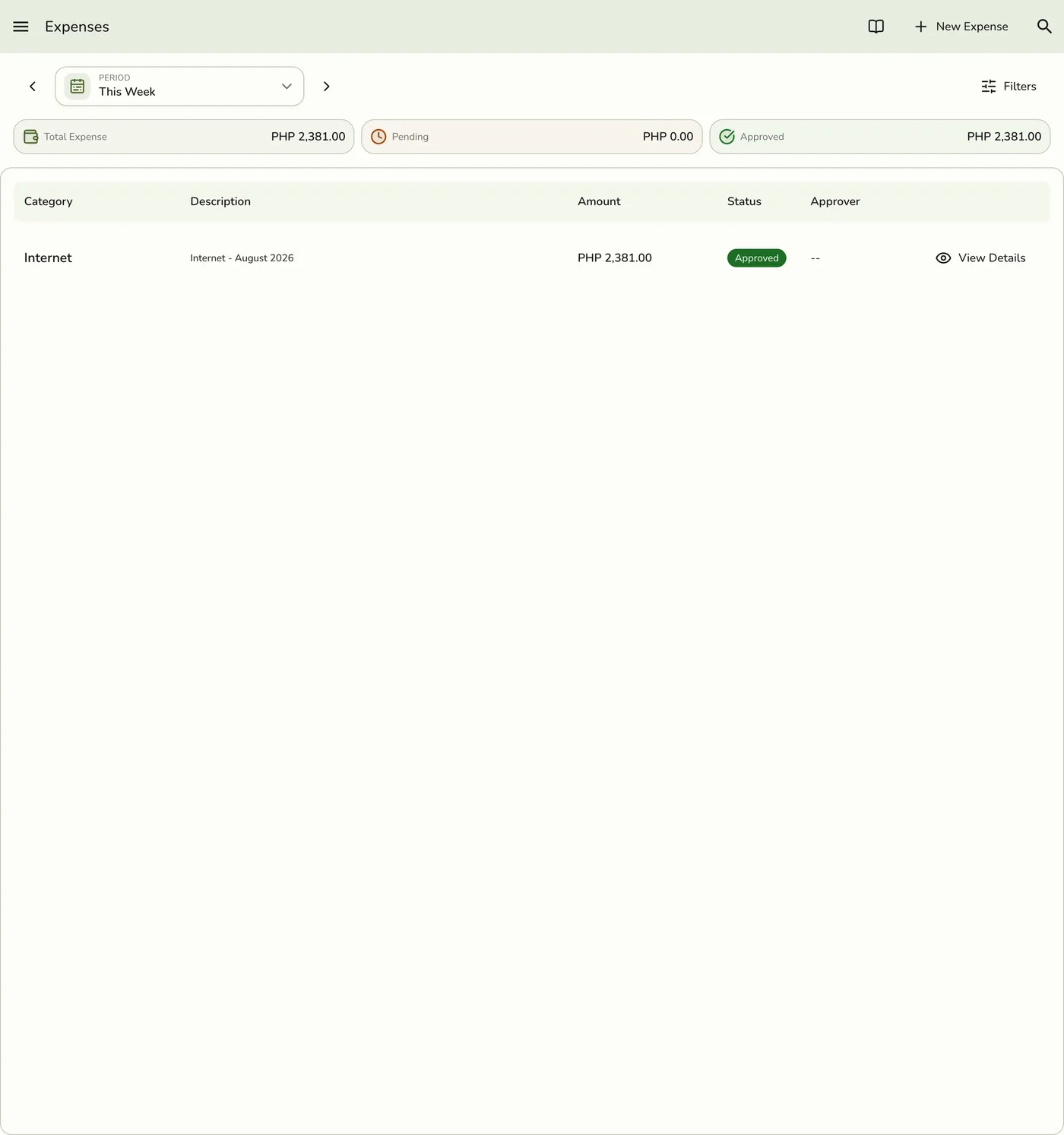
Each entry shows the category, description, amount, status, and approver. Press View Details on a row to see its full details, including any attached receipt.
Filtering Expenses
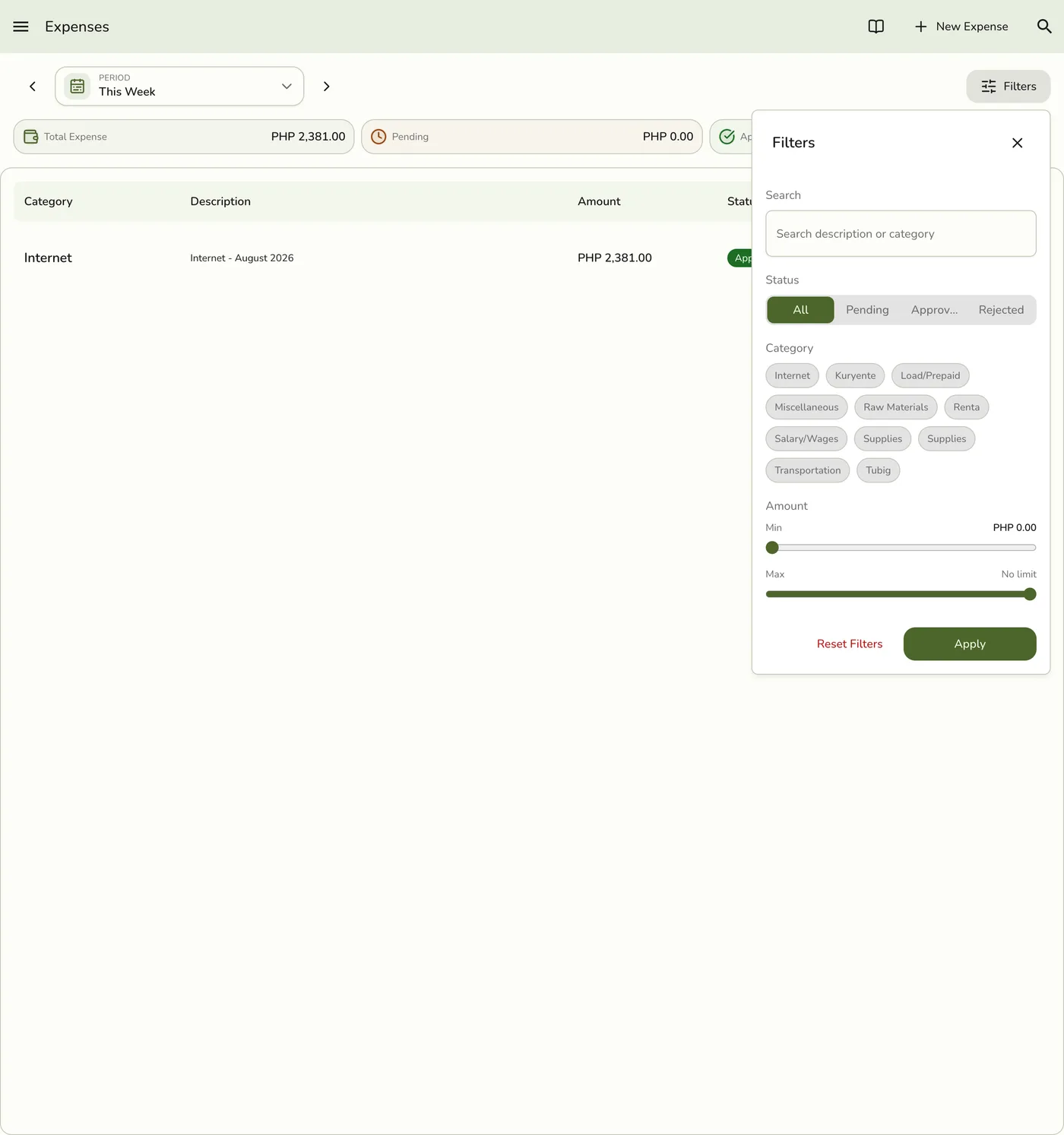
Tap Filters at the top right to open the filter panel — it applies once you tap Apply.
Filter Controls
| Control | Description |
|---|---|
| Period | The date range shown, next to the Filters button — step backward / forward or pick a preset |
| Search | Type to search expenses by description or category |
| Status | Filter by expense status — All, Pending, Approved, Rejected |
| Category | Tap one or more category chips to narrow the list |
| Amount range | Drag the Min / Max sliders to filter by amount |
How to Apply Filters
- Open the Expenses page from the sidebar.
- Tap Filters.
- Use the search field, status tabs, category chips, and amount sliders as needed.
- Tap Apply. The list updates to match.
To clear everything, tap Reset Filters inside the panel.
Editing an Expense
You can update a pending expense entry if you need to correct a mistake or add more detail.
- Find the expense in the list and press View Details.
- Press the Edit button.
- Update the fields you want to change (amount, category, date, description, or receipt).
- Press Save.
Changes apply immediately. The expense list reflects the updated information.
An approved expense is a posted record and has no Edit button — see Deleting below.
Deleting an Expense
You can remove an expense entry that was recorded by mistake or is no longer needed.
- Find the expense in the list and press View Details.
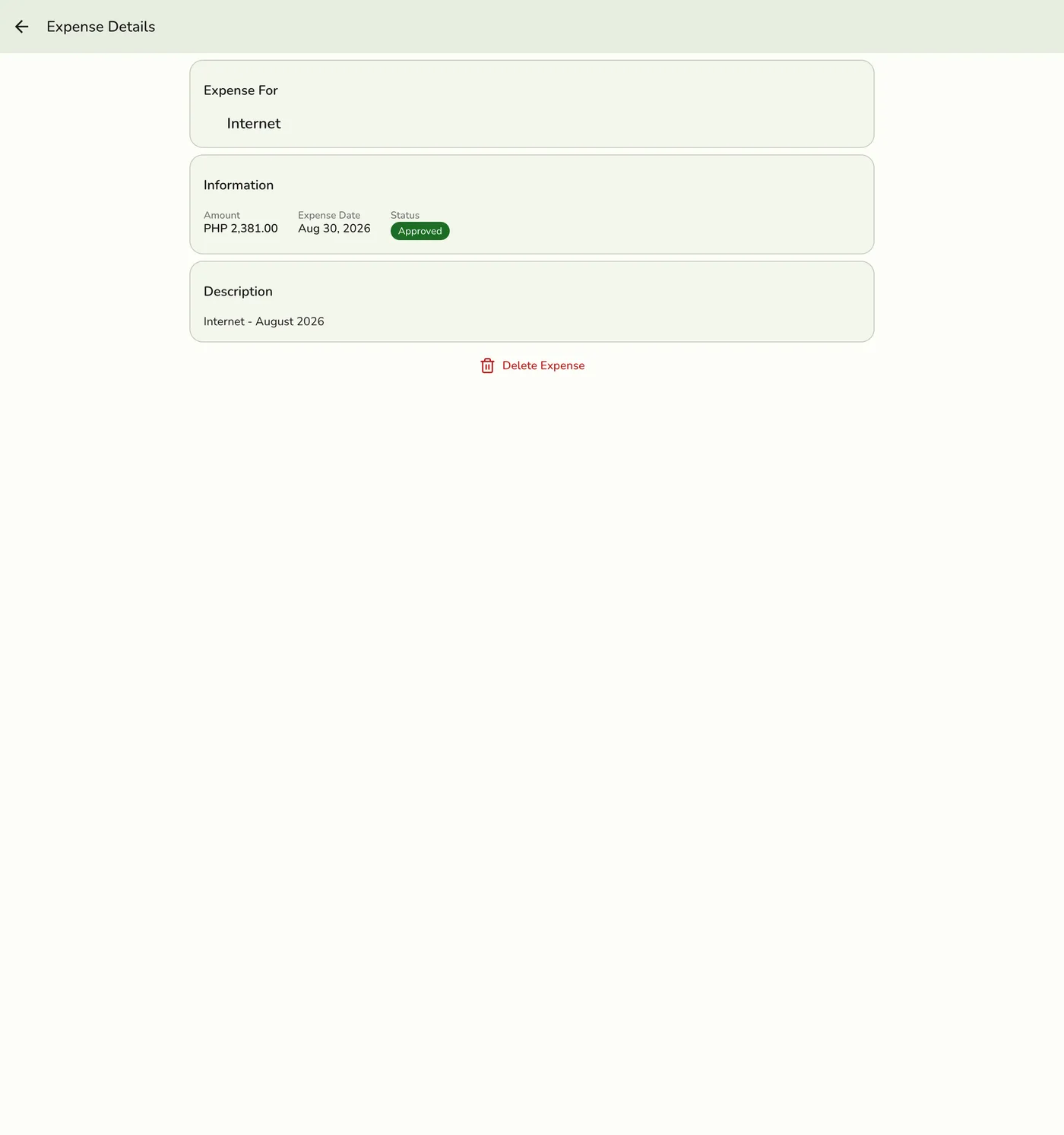
- Press Delete Expense.
- Confirm the deletion.
Pending and rejected expenses are removed directly. An approved expense is a posted record — removing it asks for a reason and keeps an audit trail, and it cannot be removed once it belongs to a closed cashier session. See Approving Expenses.
Reviewing Expense Totals
At the top of the Expenses page, you can see a summary of your total spending. This summary updates based on your active filters. Use it to quickly check how much you spent in a given time period or category.
Tips
- Review expenses weekly. Regular reviews help you catch errors early.
- Use date filters for monthly reports. Filter by month to see spending trends.
- Check categories for accuracy. Make sure each expense is in the right category.
- Keep receipts attached. If you forgot to attach a receipt, edit the expense to add it later.