

Managing Loyalty Tiers
Loyalty tiers define the reward levels in your program. You can create new tiers, edit existing ones, delete tiers you no longer need, and view which customers belong to each tier.

Viewing Your Tiers
- Open the sidebar menu and go to Configurations → Loyalty.
- Go to the Tiers section.
You see a list of all your tiers in the sort order you set on each tier — so give your tiers ascending sort numbers if you want them listed from lowest to highest.
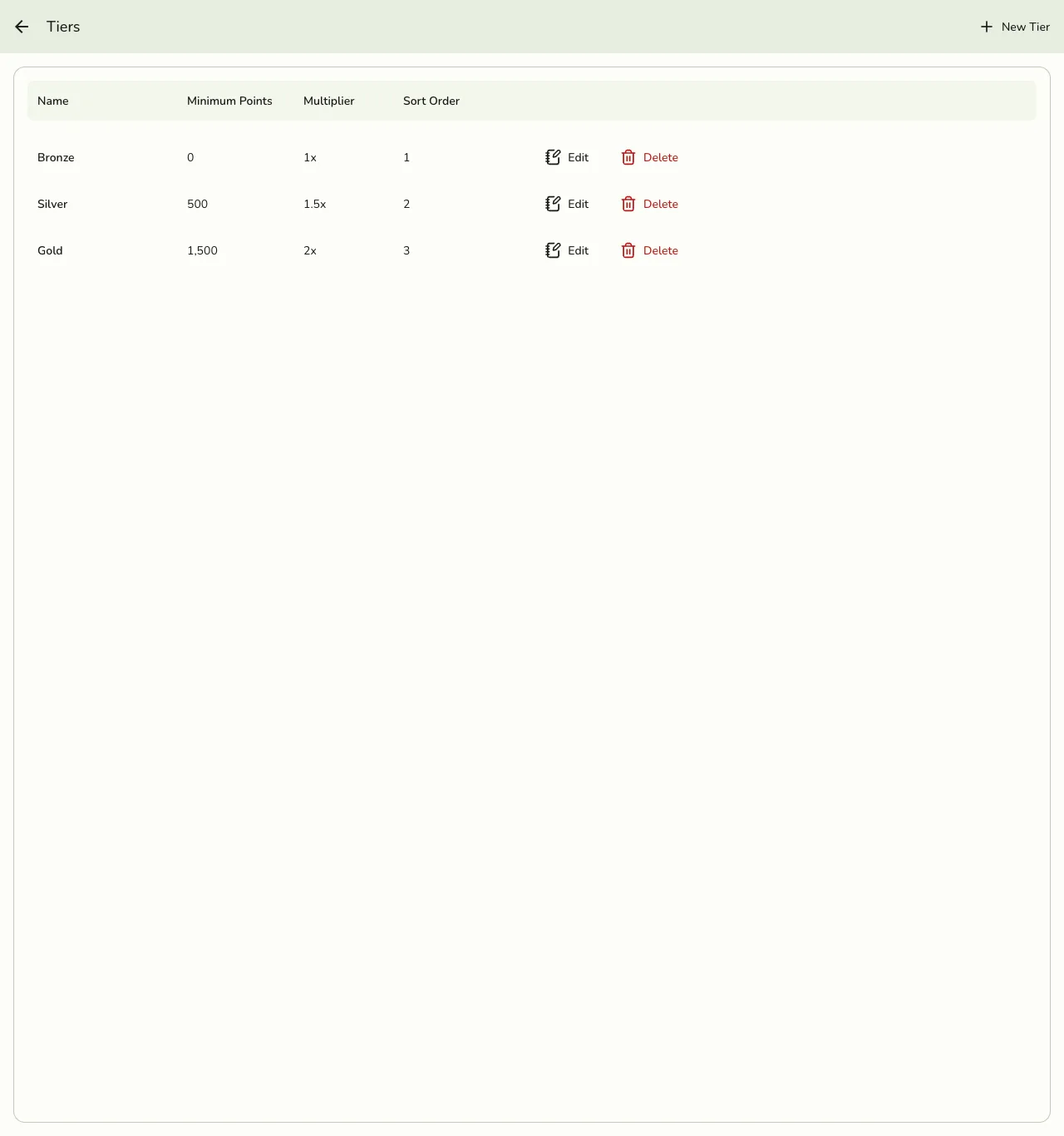
| Column | Description |
|---|---|
| Name | The display name of the tier |
| Point Threshold | Minimum points needed to reach this tier |
| Multiplier | Points earning multiplier for this tier (e.g., 2x means double points) |
Creating a New Tier
- In the Tiers section, press Add Tier.
- Enter a Name for the tier (for example, "Platinum").
- Set the Point Threshold. This is the minimum number of points a customer needs.
- Set the Multiplier. This determines how fast customers in this tier earn points (e.g., 1.5x means 50% more points per purchase).
- Set the Sort Order — this is what the list is ordered by.
- Press Save.
The new tier appears in the list. Existing customers are not re-sorted right away: a customer moves tier the next time they earn or redeem points, or at the monthly tier re-evaluation.
Tier Fields
| Field | Required | Description | Example |
|---|---|---|---|
| Name | Yes | A clear name for the tier | Gold |
| Point Threshold | Yes | Minimum points to qualify | 1,000 |
| Multiplier | Yes | Points earning multiplier (0.01 to 99.99) | 1.5 |
| Sort Order | Yes | Position in the tier list | 2 |
Editing a Tier
- Find the tier you want to change in the list.
- Press the Edit button on that tier.
- Update the name, point threshold, or multiplier as needed.
- Press Save.
The tier itself changes immediately, but customers are not re-sorted on the spot. Someone moves into their new tier the next time they earn or redeem points, or at the monthly tier re-evaluation — so a threshold change takes a little while to show up across your customer base.
Deleting a Tier
- Find the tier you want to remove.
- Press the Delete button.
- Confirm the deletion.
Customers in a deleted tier are left with no tier at all until their next earn, redeem, or the monthly re-evaluation moves them into a remaining one — they do not drop to the next tier down straight away. Deleting your only tier is allowed, which leaves everyone untiered, so keep at least one tier if your program is live.
Tips
- Use clear names. Customers see tier names in their profile. Choose names that feel rewarding.
- Space thresholds evenly. Make each tier feel achievable but meaningful.
- Review regularly. If most customers sit in one tier, adjust your thresholds.
- Limit the number of tiers. Three to five tiers work best for most businesses.