

Accepting an Organization Invitation
When someone invites you to their organization, you will receive an email with a link to accept or decline the invitation.
What the Invitation Includes
The invitation email and preview page show:
- The organization name you are being invited to
- Your assigned role (Admin, Member, or Billing)
- Any store assignments if the invite includes store access (combined invite)
- Who sent the invitation
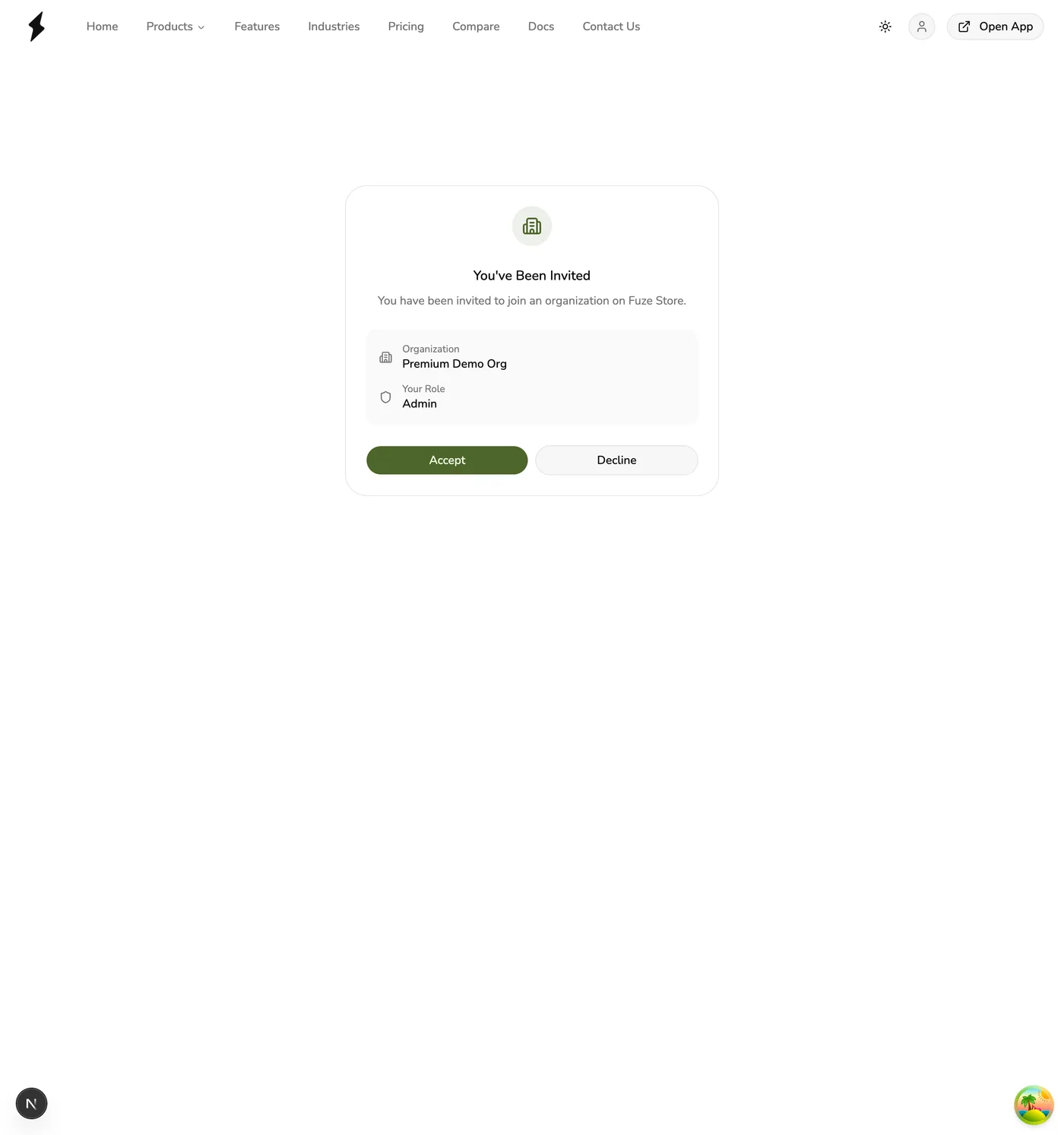
Accepting an Invitation
1
Click the Accept Invitation link in the email you received.
2
Review the invitation details on the preview page.
3
If you are not logged in, you will be redirected to log in first.
4
Press Accept to join the organization.
Account required
You must have a Fuze Store account to accept an invitation. If you do not have one yet, create an account first using the same email address the invitation was sent to.
What Happens When You Accept
- You are added as a member of the organization with the assigned role.
- If the invitation includes store assignments, you are also added as staff to those stores with the specified roles.
- All of this happens in a single step — you do not need to accept each store assignment separately.
Declining an Invitation
If you do not want to join the organization, press Decline on the invitation preview page. The invitation will be marked as declined and cannot be used again.
Expired Invitations
Invitations expire after 72 hours. If your invitation has expired:
- Contact the organization administrator.
- Ask them to resend the invitation from the organization's member management page.