

Adding Stores to an Organization
You can link your stores to an organization to manage them as a group. This gives organization owners and admins automatic access to all linked stores.
How Store Linking Works
Each store has an optional organization field. When you assign a store to an organization:
- The store appears in the organization's store list
- Organization owners and admins get full access to the store automatically
- The store retains its own staff, roles, and permissions independently
- The store's billing migrates to the organization subscription at the next billing cycle
One organization per store
A store can belong to at most one organization at a time. You can change or remove the assignment later.
Adding a Store During Creation
You can assign a store to an organization when creating it:
Open the organization
Start a store
Confirm the organization
Finish the wizard
Linking an Existing Store
You can link a store that already exists to an organization from the store details page:
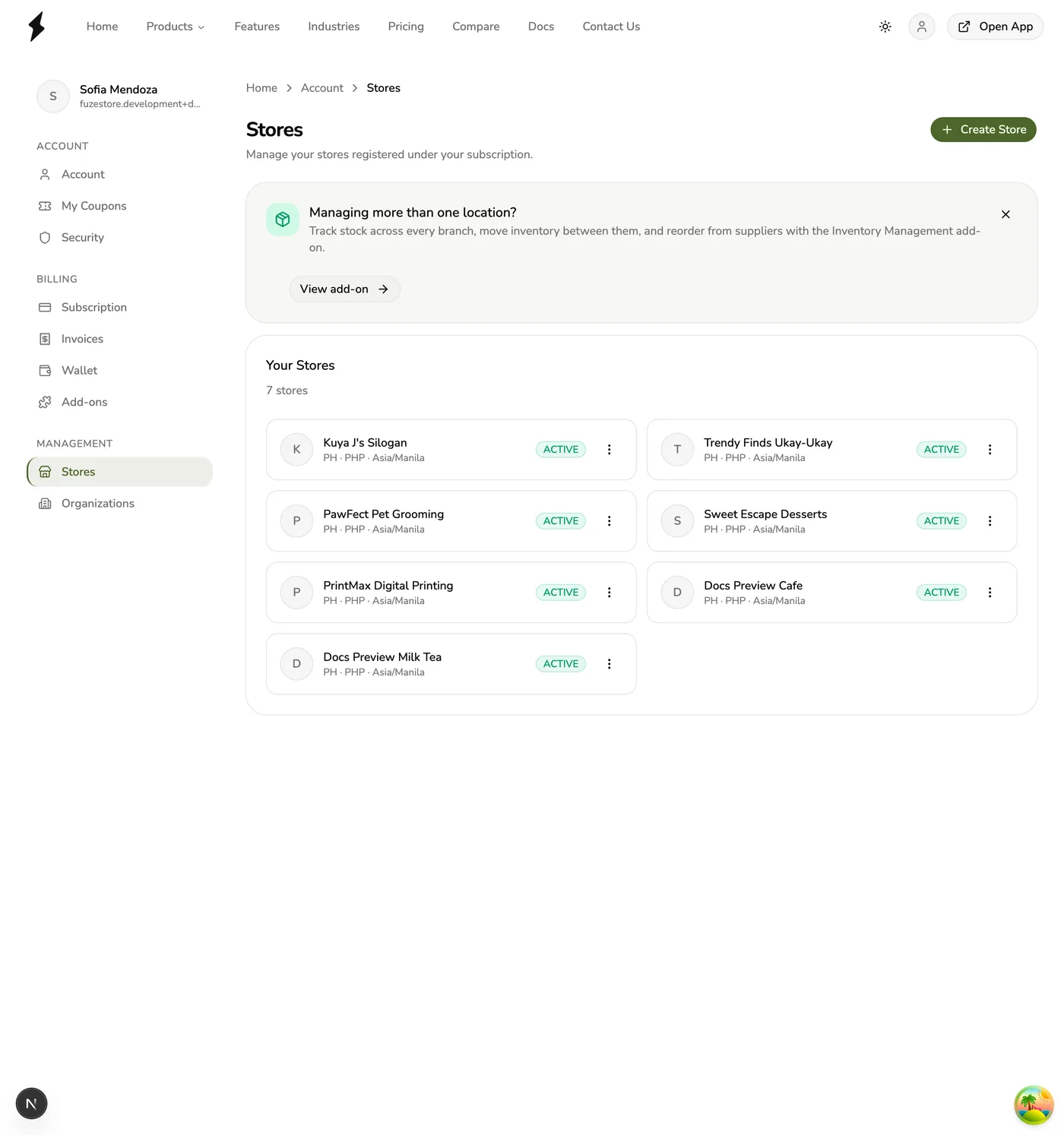
Open the store
Find the Organization card
Link it
There is no Organization dropdown and no Save button — linking happens the moment you confirm.
Billing migration on link
When you link a store to an organization, the store's billing migrates to the organization subscription at the next billing cycle. The store is no longer billed on your personal subscription.
Unlinking a Store
You can unlink a store from an organization to make it standalone again:
Open the store
Unlink it
Billing migration on unlink
When you unlink a store from an organization, the store's billing returns to your personal subscription at the next billing cycle. Make sure your personal subscription can accommodate the store.
Wallet credit does not come back
If the organization pools its Wallet, linking a store moves that store's remaining credit into the organization pool, and unlinking starts the store's own Wallet at zero. Neither is reversible automatically — the pool was funded jointly, so nothing is split back out. Spend a store's credit before linking it if you want to keep it.
For a detailed guide on linking and unlinking, see Linking & Unlinking Stores.
Viewing Organization Stores
To see all stores linked to an organization:
- Go to Account > Organizations.
- Select the organization.
- The Stores section shows all linked stores with their name, country, currency, and active status.
Automatic Access for Owners and Admins
Organization owners and admins get automatic full access to all linked stores. They do not need to be added as staff to individual stores.
Invisible at store level
Organization owners and admins do not appear in store staff lists. Their access is resolved automatically through the organization hierarchy.