

Organizations Overview
Not available during Early Release
Organization Management and Inventory are the two add-ons not unlocked during a free trial — and because add-on purchases are paused for the whole of Early Release, there is currently no way to switch them on. Everything in these Organization guides describes how it works once purchasing opens at general availability. Cross-store inventory features additionally need Inventory active on each store involved.
Organizations let you group multiple stores under a single account. Use them to manage a team of staff across all your stores, control member access levels, and view consolidated billing in one place.
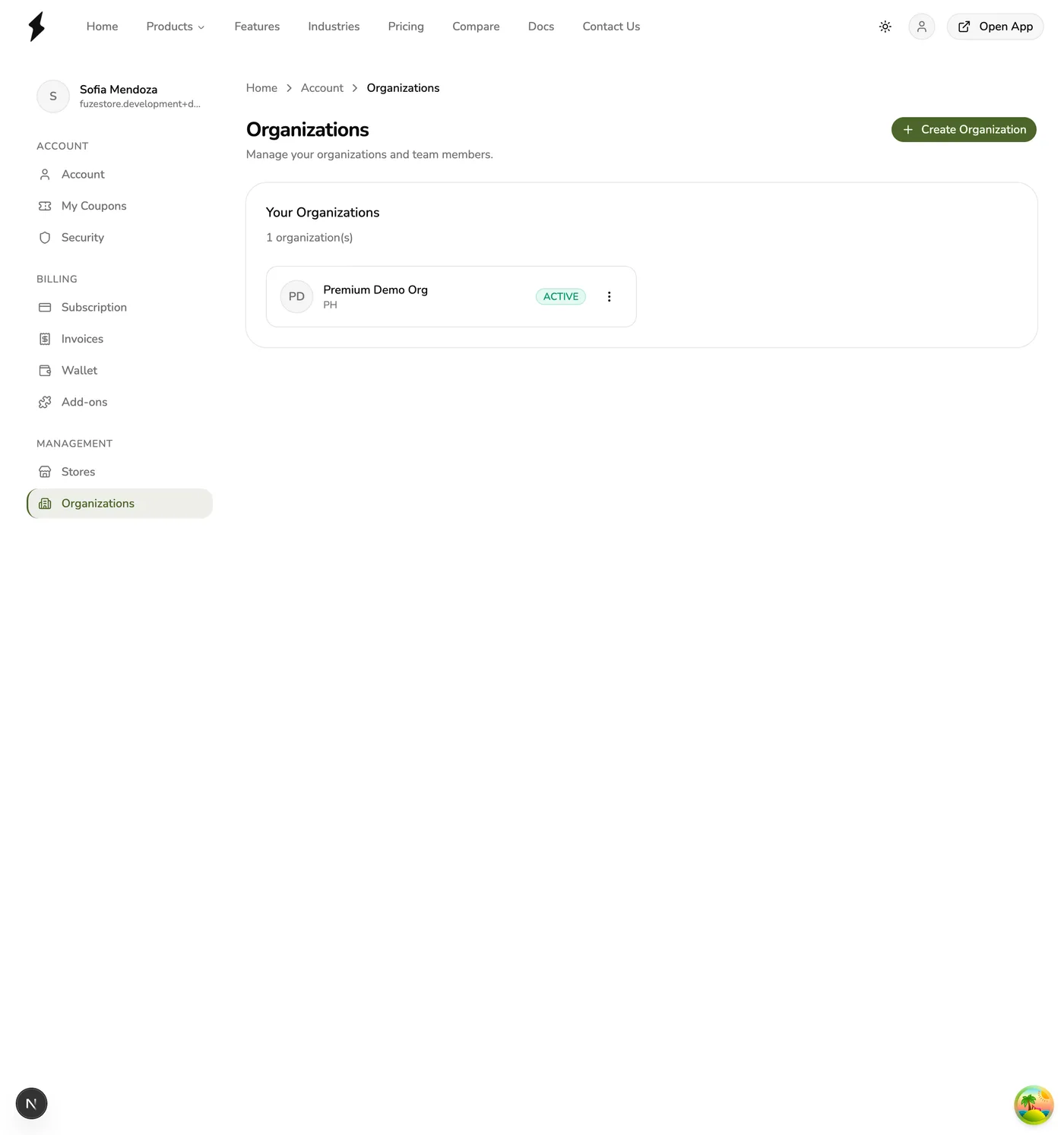
What is an Organization?
An organization is an account-level container for your stores and team. When you create an organization, you can:
- Add any of your stores to it
- Invite team members with specific roles
- View invoices and billing history for the whole organization
Organizations are separate from individual store staff. Members added at the organization level get automatic access to stores based on their role.
Member Roles
Each member in an organization has one of four roles:
| Role | Permissions |
|---|---|
| Owner | Full control. Can manage members, stores, billing, and delete the organization. |
| Admin | Full access to all stores. Cannot manage billing or delete the organization. |
| Member | No automatic store access. Must be manually added as staff to individual stores. |
| Billing | Can view and pay organization invoices. No store access unless manually added. |
Admin store access
Organization owners and admins automatically get full access to all stores
under the organization. They do not appear in store staff lists, but they can
perform any action on any store.
Key Features
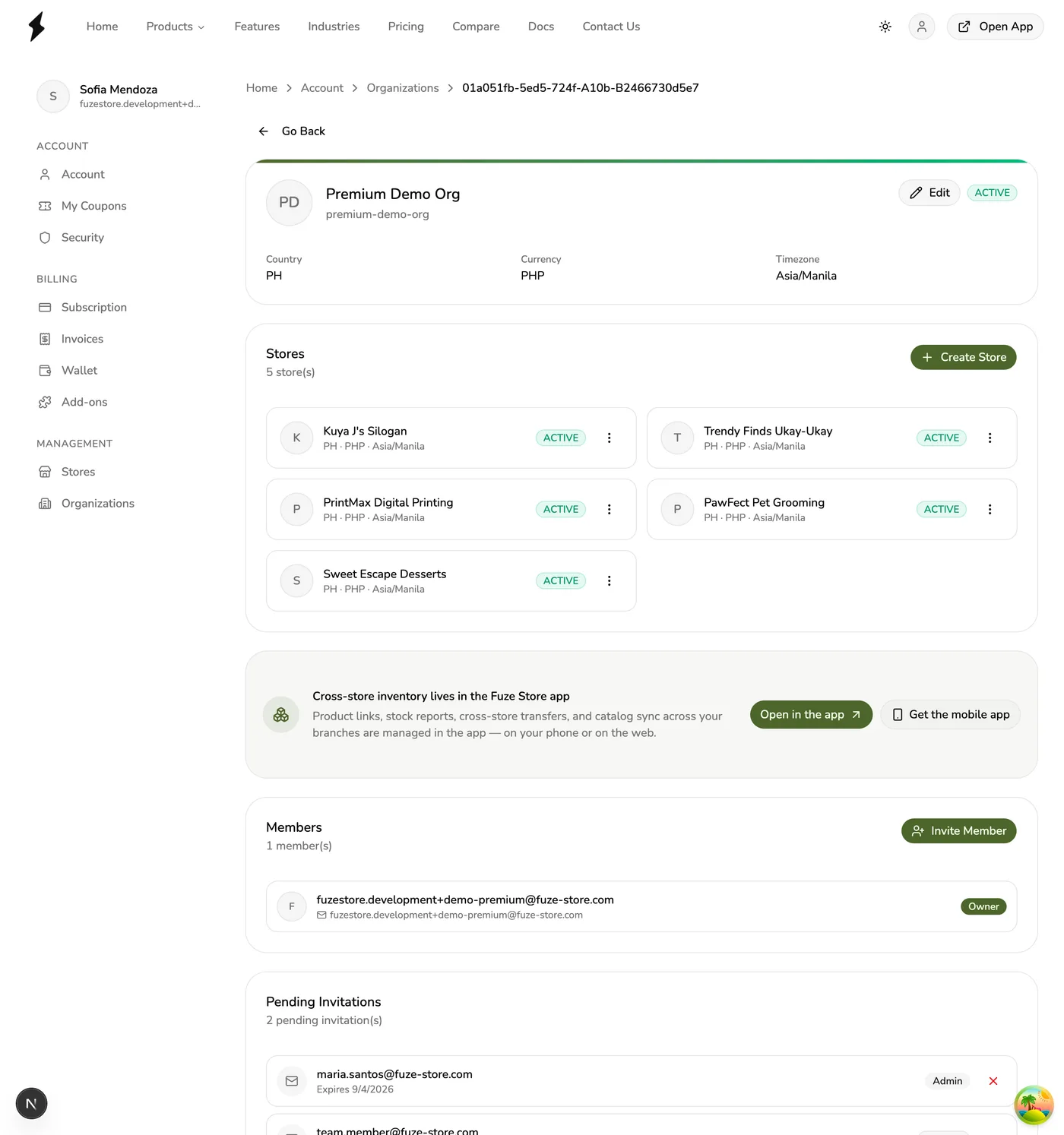
- Centralized member management. Invite people once and control their access across all stores.
- Automatic store access for admins. Owners and admins skip per-store setup.
- Store linking from store details. Link any existing store to an organization directly from the store details page.
- Billing consolidation. All stores under an organization share a single org subscription and consolidated invoicing.
- Payment management. Owners and billing members can manage the organization payment method and pay invoices.
- Multiple organizations. You can create and belong to more than one organization.
Store Linking
You can link stores to an organization in two ways:
- During store creation — select an organization in the store creation form.
- From the store details page — open an existing store's details and assign it to an organization.
Once linked, the store appears in the organization's store list and organization owners and admins get automatic full access to it. You can also unlink a store at any time to make it standalone again.
See Linking & Unlinking Stores for a step-by-step guide.
Organization Billing
When stores are linked to an organization, their billing is consolidated under the organization's subscription:
- The organization has its own subscription with consolidated invoicing for all linked stores.
- Store billing migrates to the organization subscription at the next billing cycle.
- If an organization payment fails, a 7-day grace period begins. After the grace period expires, linked stores are suspended until payment is made.
- Owners and billing members can update the organization payment method and pay invoices directly.
See Organization Invoices for details on viewing and paying invoices.
Store Suspension
If payment for the organization subscription fails and the 7-day grace period expires:
- All stores linked to the organization are suspended.
- Suspended stores cannot process transactions until payment is cleared.
- Once payment is made, all stores are reactivated automatically.
Before You Begin
To use organizations, you need the Organization Management add-on active on your account. Once active, the Organizations section appears in your account menu.