

How to Create a Gift Card
Add-on required. This feature requires the Gift Cards add-on to be active on your store. View add-ons
Follow these steps to add a new gift card to your store.
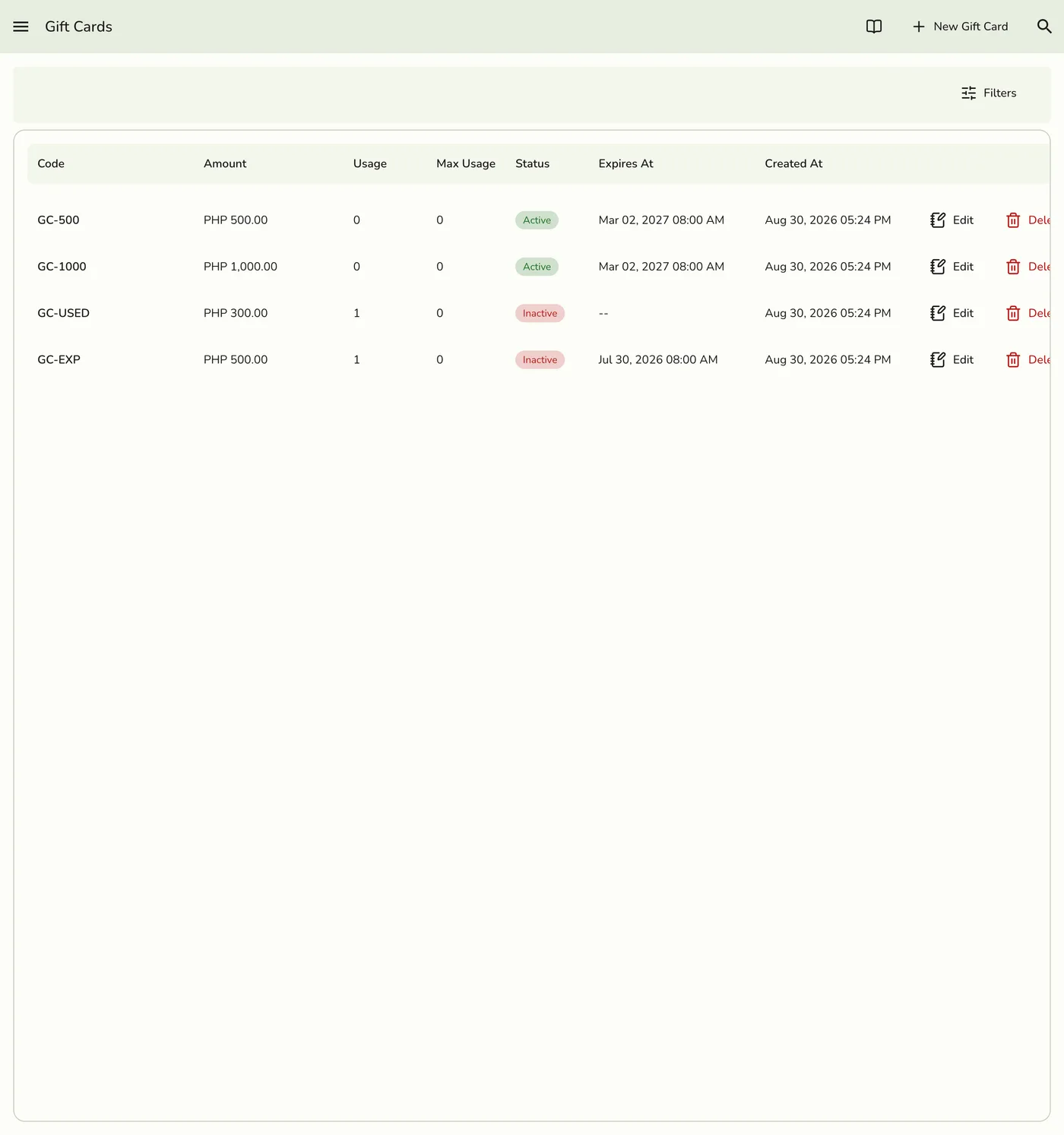
Step-by-Step Guide
1
Open the menu
Click the sidebar menu icon to open navigation.

2
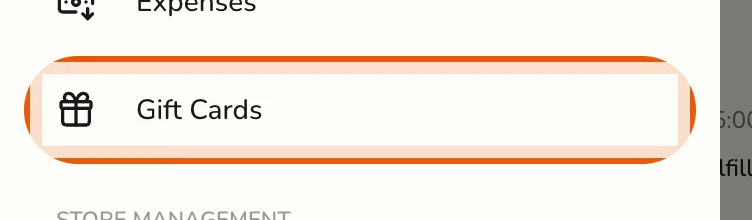
Go to Gift Cards
Select Gift Cards.
3
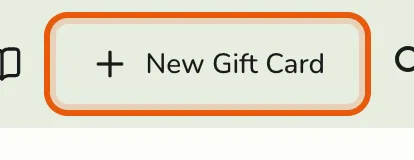
Add a gift card
Click the New Gift Card button.
4
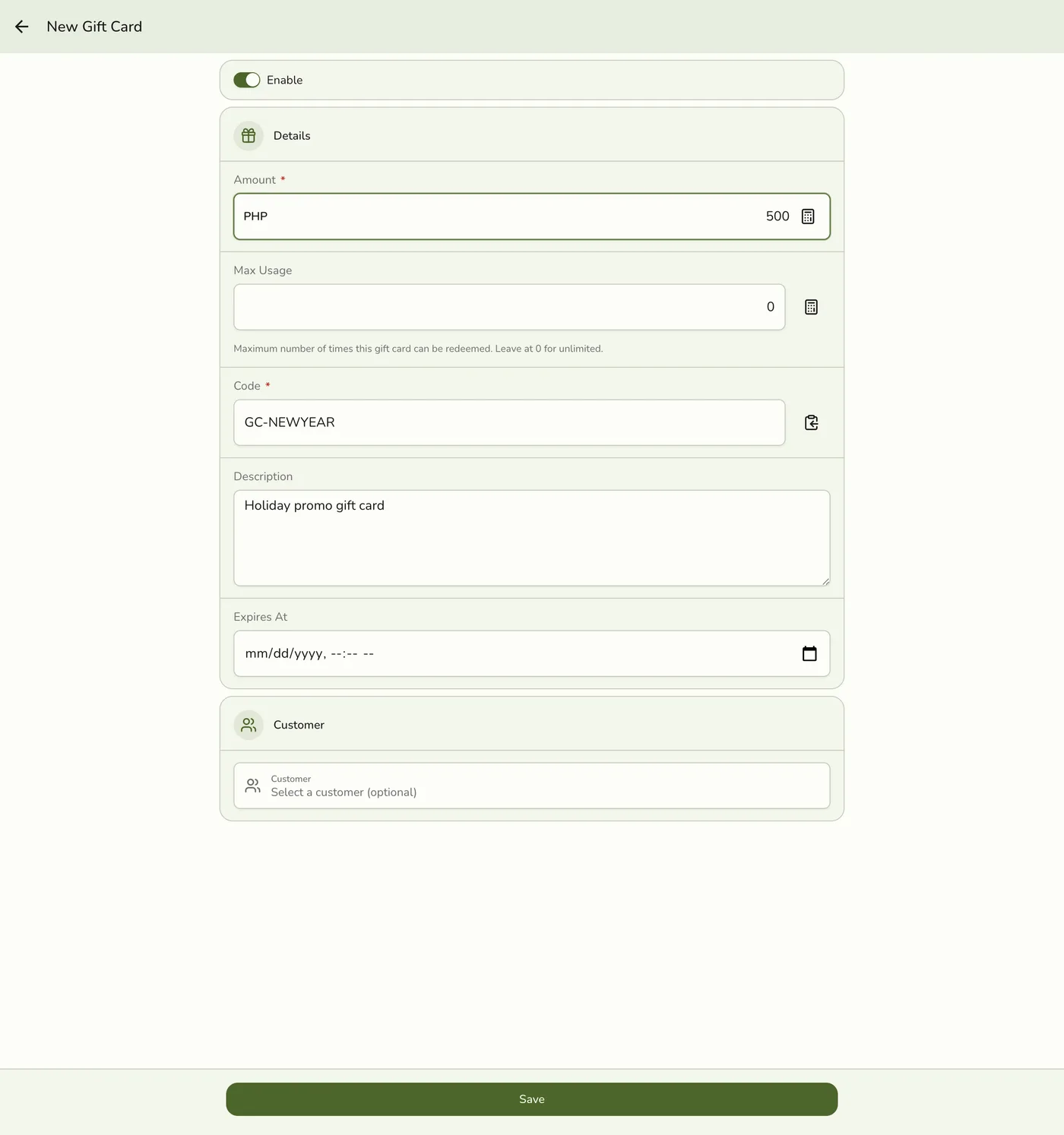
Fill in the details
Fill in the gift card details. See Field Explanations for more details on each field.
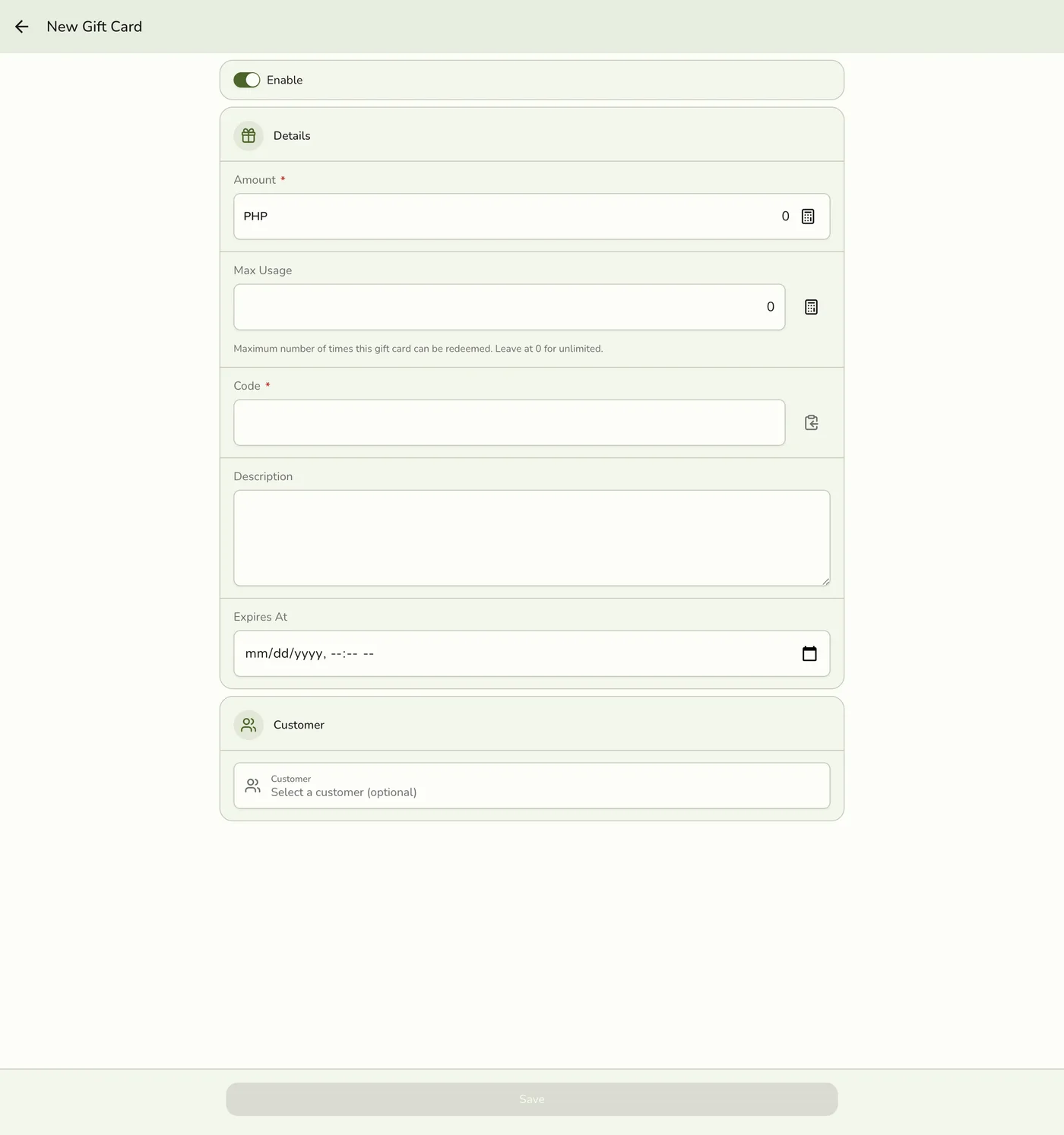
- Enable — turn the toggle on to make the gift card active.
- Amount — enter the value to load onto the card.
- Max Usage — set the maximum number of times the card can be redeemed. Leave it at 0 for unlimited use.
- Code — enter a unique code (for example, "GC2025").
- Description — (optional) add a short description (for example, "Gift card for special occasions").
- Expires At — (optional) set when the gift card expires. Leave it blank for a card that never expires.
5
Save
Click Save. The gift card is now ready to sell or give to customers.

Tips
- Use clear names and codes so staff and customers recognize each card.
- Double-check the value and code before saving.
- Set an Expires At date for seasonal or limited-time gift cards (leave blank for no expiry).
- You can edit or disable gift cards later as your needs change.
Best Practices
- Review your gift card options regularly to keep them appealing.
- Train staff on how to sell, redeem, and check gift card balances.
- Track which gift cards perform best to plan future promotions.