

How to Apply a Gift Card to an Order
Add-on required. This feature requires the Gift Cards add-on to be active on your store. View add-ons
Customers can use a gift card to pay for part or all of their order at checkout.
Steps
1
Build the order
Open the POS Register and add items to the cart as usual.
2
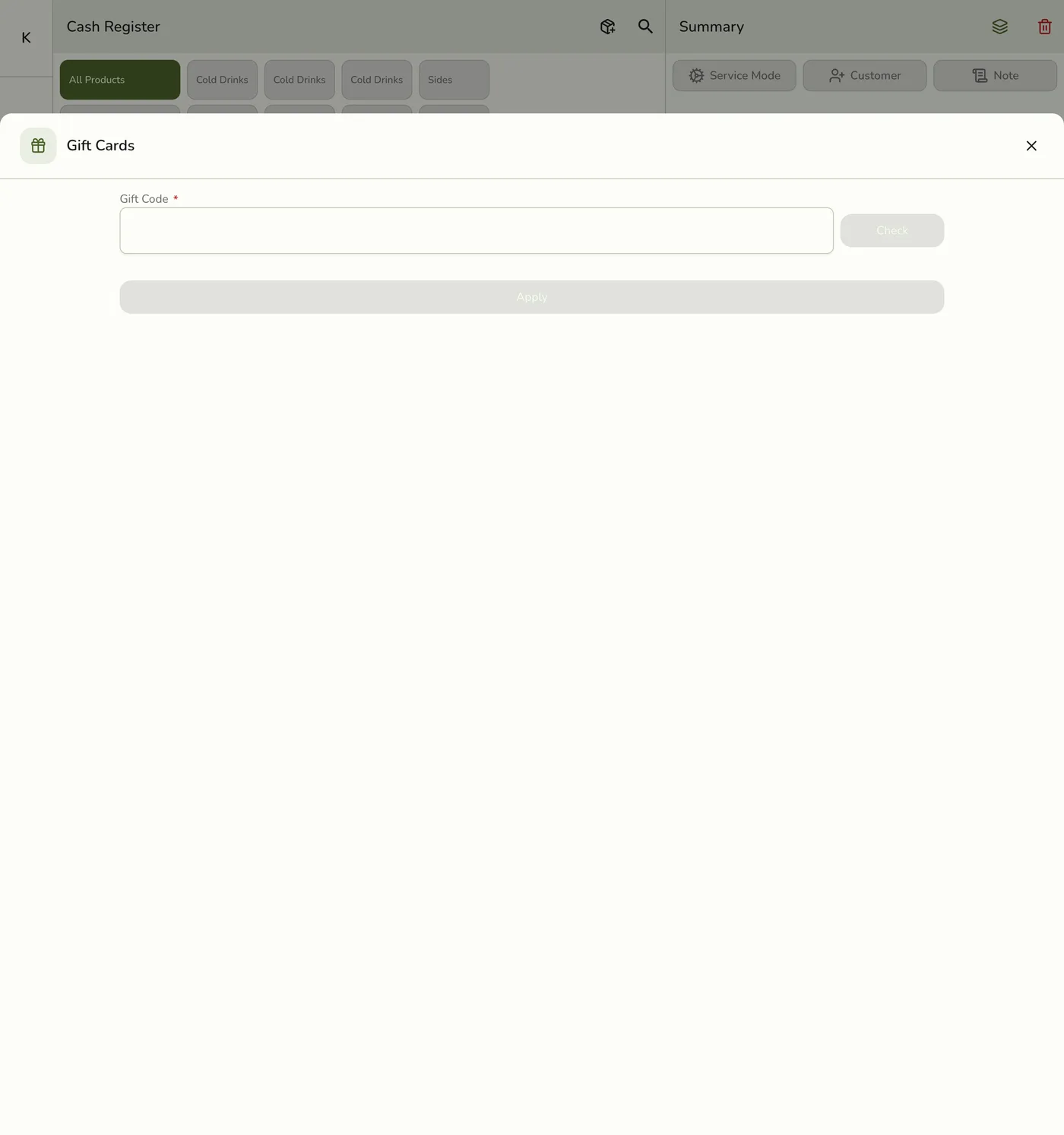
Open Menu → Gift Cards
Tap Menu, then Gift Cards to open the Gift Cards sheet.
3
Enter the code and check it
Type the customer's gift card code into Gift Code and tap Check.
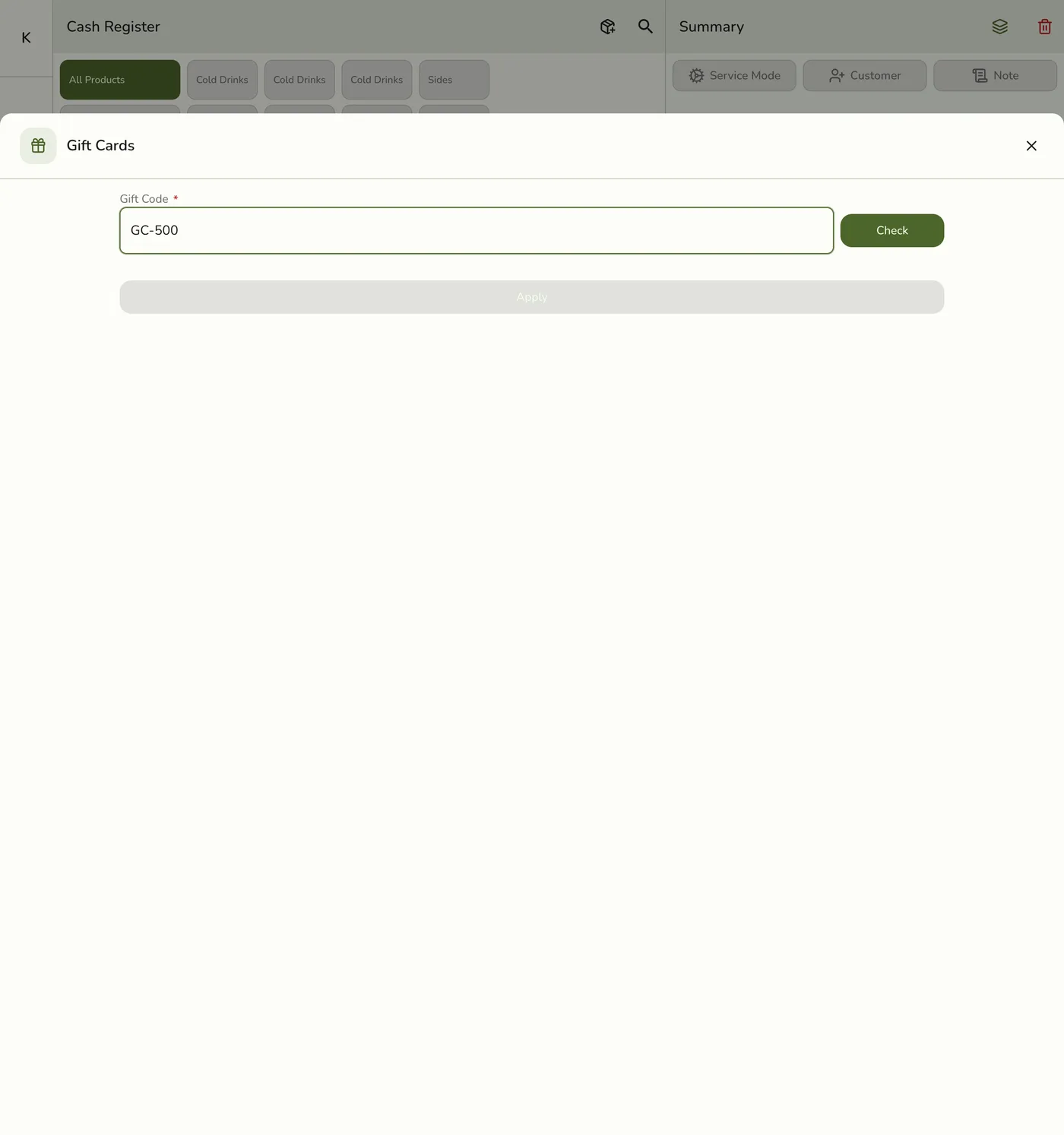
Once the code is verified, the card's balance and status appear and Apply becomes available.
4
Apply and confirm
Tap Apply to use the gift card for this order, then review the order to confirm the total is correct.
5
Complete the sale
Complete the sale. The remaining balance is shown on screen — printed receipts do not itemize gift-card usage yet.
Tips
- Double-check the gift card code before applying.
- You can use more than one gift card on a single order.
- If a gift card does not cover the full amount, choose another payment method for the remainder.
- Check the code and balance before you apply a gift card — once applied it cannot be taken back off the order, so cancel and rebuild the order if you pick the wrong card.
Best Practices
- Train staff on how to apply and check gift card balances at checkout.
- Remind customers to keep their gift card codes safe.
- Track gift card usage to measure promotion performance.
- Keep records of gift card payments for reporting.