

How to Update a Product
Keep your products current so your POS and menus always match what you offer. You can change a product's name, image, color, or any other detail in just a few steps.
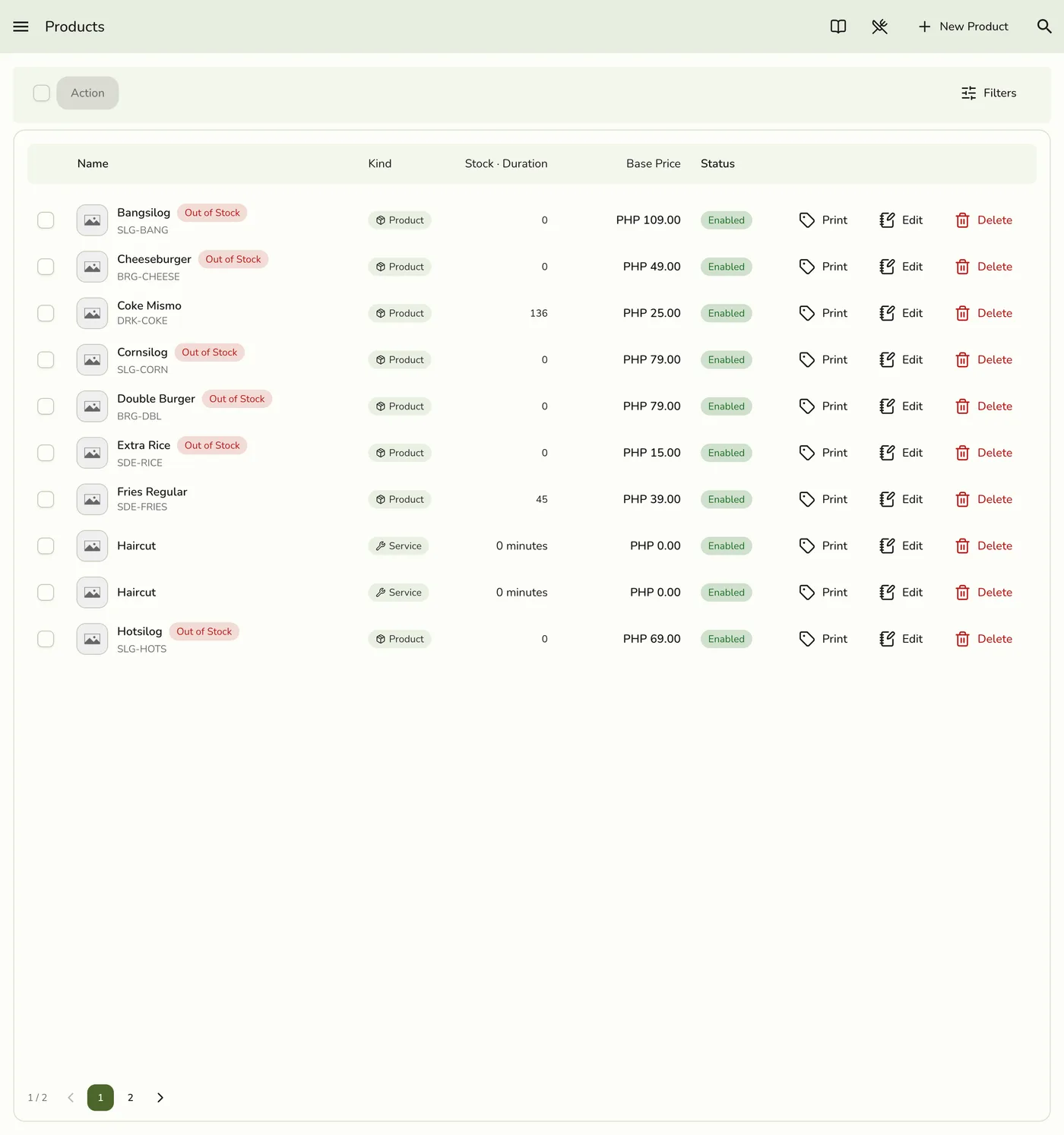
Step-by-Step Guide
1
Open the menu
Click the sidebar menu icon to open navigation.

2
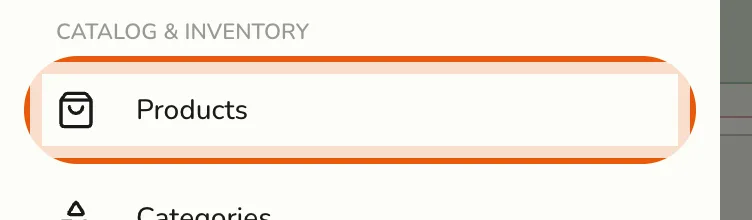
Go to Products
Select Products from the menu list.
3
Choose a product
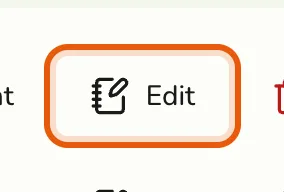
Click the product you want to edit (for example, "Iced Latte").
4
Edit the details
Update any field as needed (including This is a service if you are converting between product and service). See the Field Reference for what each field means.
5
Save
Click Save. Your changes appear instantly in the POS and menus.
Tips
- Changes take effect right away after saving.
- Use clear, descriptive names and images so staff and customers can find items quickly.
- Leave optional fields blank if you are unsure what to enter.
- Make sure each Product Name is unique.
- Group similar items under the same category for easier browsing.