

Setting Up CFD
Follow these steps to get your Customer Facing Display running.
Fuze Store Hub is required
The CFD only works over your local Wi-Fi through Fuze Store Hub — there is
no cloud sync. Before you start, make sure Fuze Store Hub is installed and
running on a store computer and your POS device is paired to it. See
First-Time Setup.
Activate the Add-on
Open the add-on catalog
Go to Account and open Add-ons.
Find the add-on
Find Customer Front Display in the add-on catalog.
Activate
Press Activate and confirm. The add-on is billed per store per month.
During the free trial — and during Early Release — it is included at no
cost.
Enable for the store
Open your store's Add-ons section and enable CFD for that store.
Open the Display
Open the app on the second screen
On your second device (tablet or monitor), open the Fuze Store app or web
browser.
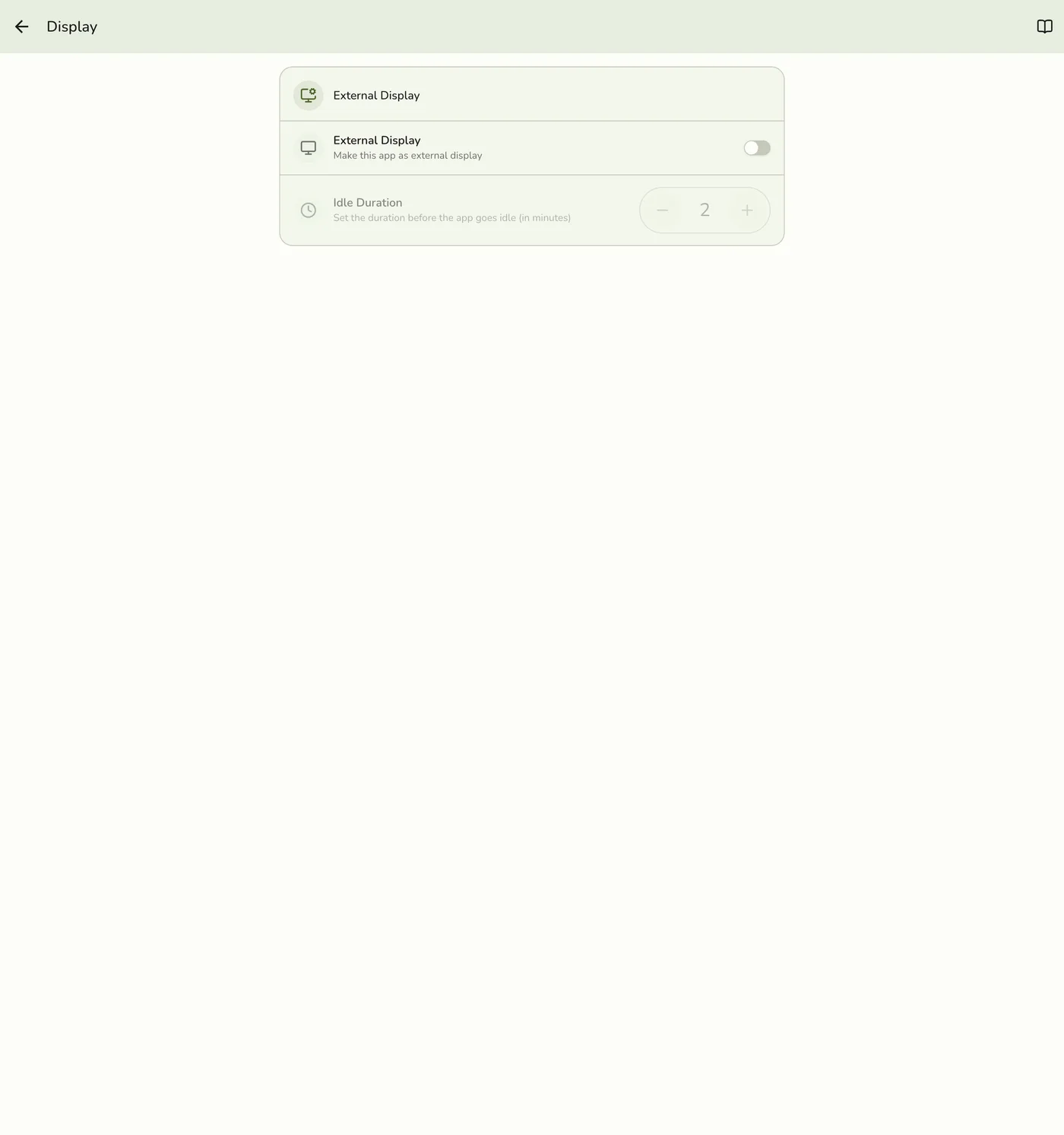
Go to Display settings
Turn on the external display
Enable the external display, then choose the Customer Front Display mode
card.
Confirm the Hub link
The display connects over your local Wi-Fi through Fuze Store Hub. Make
sure the Hub is running and your POS device is paired to it with Use this
Hub turned on.
Optionally use Monitored Terminals on the same screen to limit which register(s) this display follows. Leave it empty to mirror every terminal in the store.
A connection badge in the corner shows whether the display is connected to Fuze Store Hub on your local network.
Display appearance and privacy settings
The display's idle screen, queue visibility, name masking, and post-transaction duration are all supported by the app, but there is no operator screen for them yet — they are configured for you on request. Contact support if you need the idle screen or privacy behavior changed for your store.
Troubleshooting
Display not connecting
- Make sure Fuze Store Hub is running on your store computer and your POS device is paired to it.
- Make sure the CFD device and your POS device are on the same Wi-Fi network as the Hub.
- Check that the CFD add-on is active on your store.
- Confirm Use this Hub is turned on for the POS device, then refresh the display page on the second device.
Cart not updating
- Verify the connection badge shows a green status.
- Make sure you are using the POS register on the same store.
- Try refreshing the display screen.
Display stuck on the payment screen
The customer display stays on the payment details until you clear it. Any of these will return it to the cart:
- In the payment dialog on your register, tap Hide Info from Other Screen (the same button you used to show it). Your payment dialog stays open.
- Close the payment dialog. The display clears on its own.
- If the display is a touchscreen, tap the close button in its top-left corner.
If the register cart is already empty, the display returns to the idle screen instead of the cart — that is expected, there is no order left to show.
Related Guides
- Customer Facing Display Overview
- Waiting List — Customer Display Screen — lobby queue board instead of cart CFD
- Add-ons Overview
- Store Preferences