

Managing Event Services
An event service is the bookable thing a customer schedules an appointment for — "Women's Haircut", "60-min Massage", "Full Detail Wash". You create them once, and they become the choices in the Service picker when a cashier books an appointment.
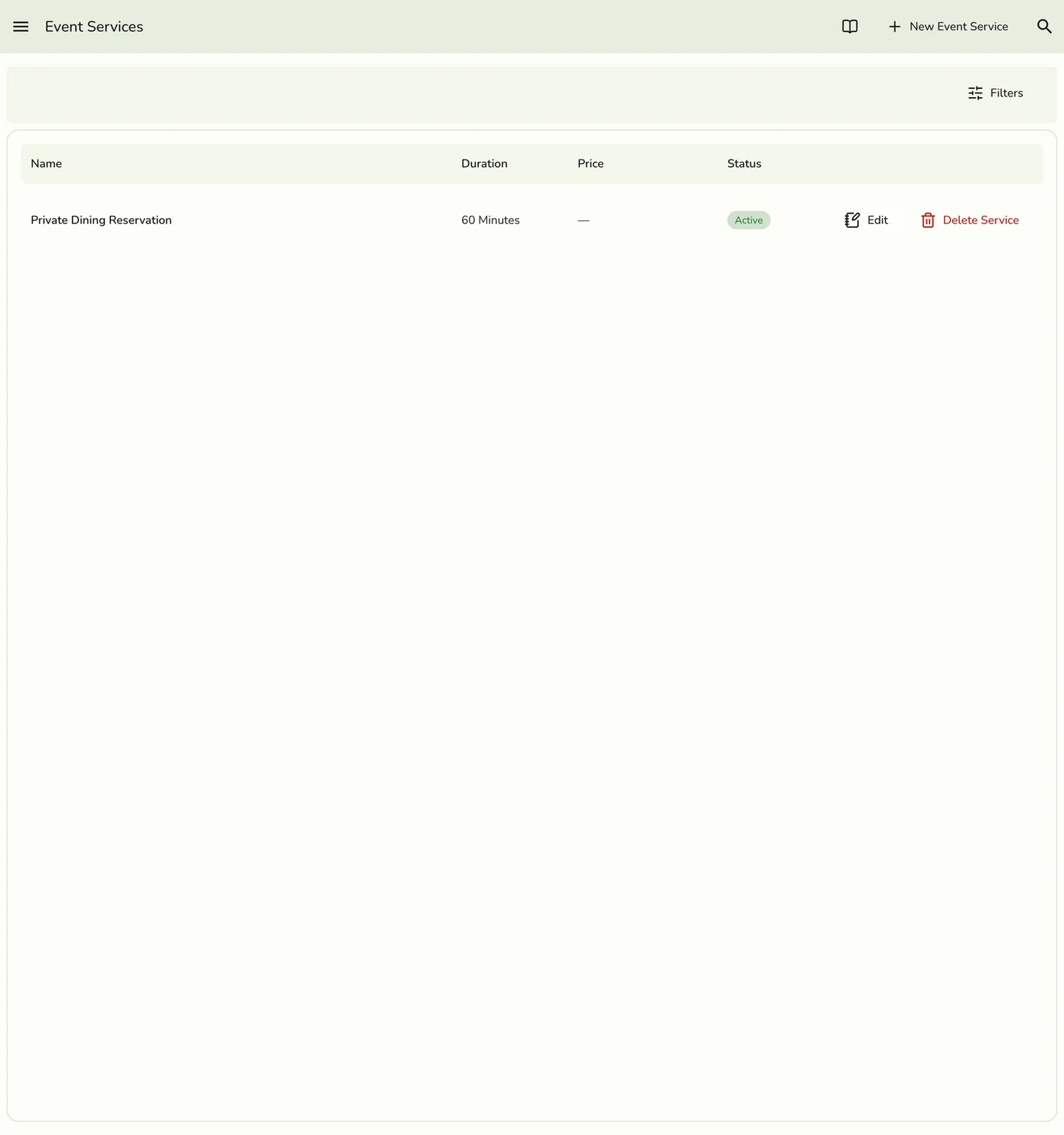
Open them from the drawer menu → Event Services.
Event service vs catalog service
These are two different things with similar names. This is the single most common point of confusion during setup, so read the table before you build anything.
| Event service (this guide) | Catalog service | |
|---|---|---|
| What it is | A bookable slot on the calendar | A sellable line item with a duration |
| Where you manage it | Drawer → Event Services | Drawer → Products (with This is a service on) |
| What it does | Defines duration, buffers, and who can perform it, so the booking system can offer time slots | Rings up on the POS register like any other item |
| Does it have a price? | No — pricing comes from its attached items | Yes — its own price |
| Can a cashier sell it directly? | No. It is booked, then checked in | Yes |
| Plan | Lite and up | Any plan |
The short version: an event service schedules time; a catalog service charges money. Most salons and spas need both — one event service per treatment on the calendar, and one catalog service attached to it that actually rings up.
Set up the catalog first
Attached items point at real catalog rows. Create the products and services
you want to charge for before you build your event services, so they are
available to pick. See Service Overview.
Create an event service
Open Event Services
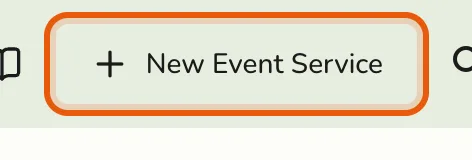
Open the drawer menu → Event Services, then tap New Event Service. You can also open the same create form from an empty Service picker when booking an appointment.
Fill in the details
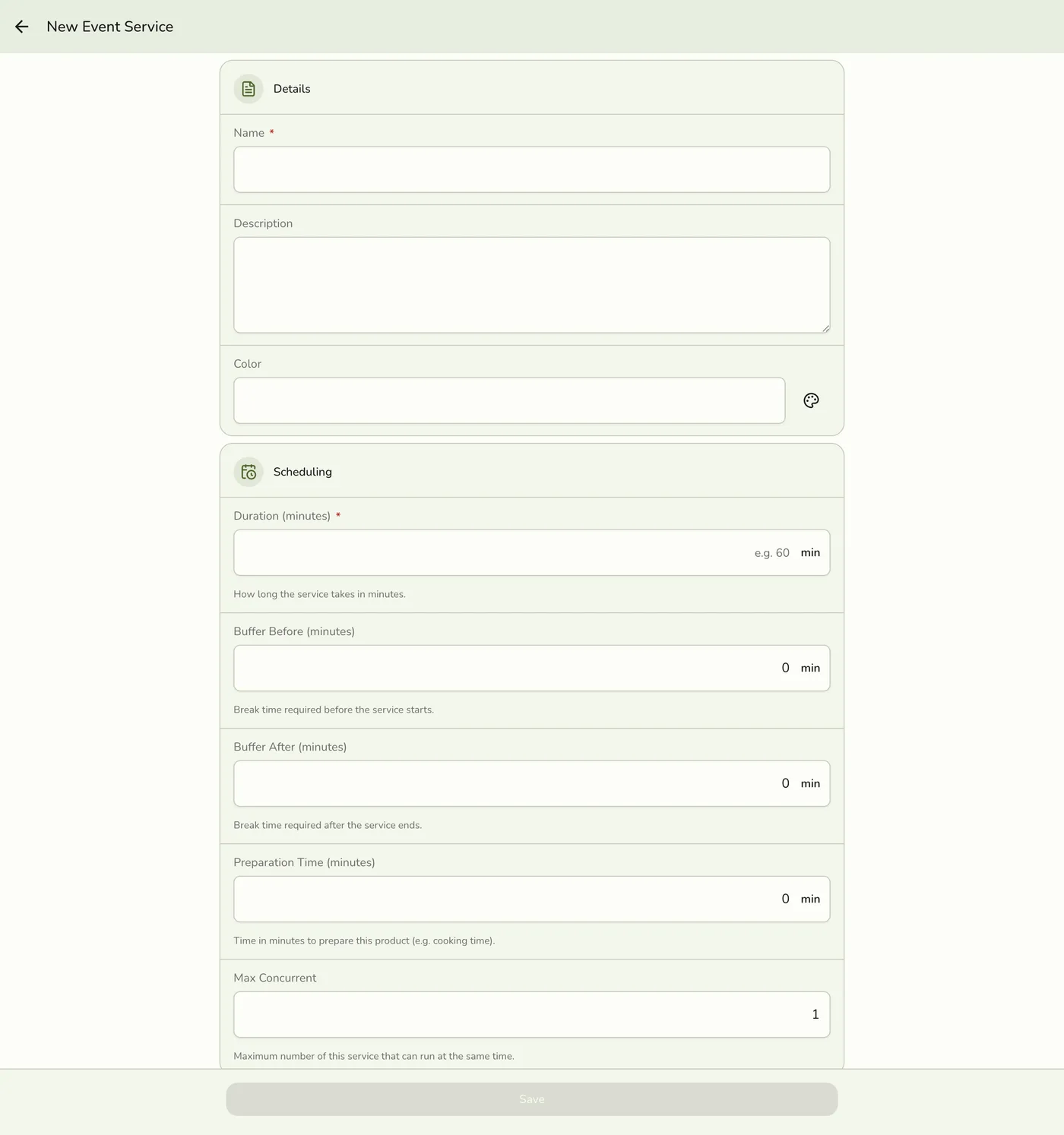
Name is required. Add a Description and a Color if you want the booking to stand out on the calendar.
Set the scheduling fields
Duration is required and drives the time slots offered at booking. The
rest live under Advanced settings, collapsed because most services never
need them — tap it to set buffers, preparation time, or how many can run at
once. If you have set any of them, the closed row shows a summary so nothing
stays hidden. See the table below.
Attach the items that should ring up
In the Attached items section, add the products or services the cashier
should charge for. See Attached items below.
Save
Leave Enable on so the service appears in the booking picker. Sort
order controls its position in the list.
Field reference
| Section | Field | What it means | Required |
|---|---|---|---|
| Details | Name | Shown in the Service picker and used to build the booking title | Yes |
| Description | Internal notes about the service | No | |
| Color | Calendar colour for bookings of this service | No | |
| Scheduling | Duration (minutes) | How long the service takes. Drives the length of every offered slot | Yes |
| Buffer before (minutes) | Setup time reserved before the booking starts | No | |
| Buffer after (minutes) | Clean-up time reserved after the booking ends | No | |
| Preparation time (minutes) | Prep estimate for the service | No | |
| Max concurrent | How many of this service can run at the same time | No | |
| Booking window | Minimum lead time (minutes) | How far ahead a booking must be made. 0 allows bookings that start right away | No |
| Maximum advance (days) | How far into the future the service can be booked. 0 means no limit | No | |
| Cancellation and no-show | Cancellation window (hours) | A cancel this close to the start time counts as late. Use 0 for no window | No |
| Late cancellation fee | Noted on the booking when it is cancelled late. It is not charged automatically | No | |
| No-show fee | Noted on the booking when it is marked No Show. It is not charged automatically | No | |
| Settings | Enable | Off hides the service from the booking picker | No |
| Sort order | Position in the list. Lower numbers appear first | No |
Buffers matter more than they look. A 60-minute massage with a 15-minute buffer after blocks 75 minutes of the therapist's day, and the booking picker will not offer an overlapping slot. Use buffers instead of padding the duration, so the customer still sees the real service length.
There is no Price field
An event service carries no price of its own — set your prices on the
attached items instead. The form used to show a Price field that was
discarded on save; it has been removed.
Attached items
Attached items are the catalog rows that get added to the customer's order automatically when the cashier checks in the appointment at POS. This is what turns a calendar booking into a sale.
Each attached row has:
| Field | What it means |
|---|---|
| Item | The product or catalog service to add. Each item can be attached once |
| Quantity | How many to add. Defaults to 1 |
| Price override | Charge a different price for this item when it comes from this booking. A Required item is added to the order at check-in at this price; enter 0 to include it for free. Leave blank to use the item's normal price. An item the cashier adds by hand rings at its normal price |
| Required | Required items add automatically at check-in. Optional items become toggleable choices for the cashier |
Use Required for the thing the customer is actually paying for (the haircut, the massage). Use optional for the upsells the cashier should be offered but not forced into (a treatment add-on, a take-home product).
If a cashier has already rung up the same product manually, it is not added twice — the manual line wins.
Attaching nothing is allowed
A service with no attached items still books fine. The cashier just rings the
line items by hand at check-in.
Assign staff
On an event service's detail screen, the Staff assignment card controls which staff members are allowed to perform it. Tap Manage, tick the staff, and save.
The assignment is what the appointment booking flow filters on — a staff member who is not assigned to a service will not be offered for it. Their working hours narrow it further; see Booking & Staff Availability.
Edit, disable, or delete
- Edit — open the service from the list and change any field, then save. Edits apply to future bookings; existing bookings keep the details they were created with.
- Enable / Disable — use the ⋯ menu on a service to take it off the booking picker without deleting it. Prefer this if the service might come back seasonally, so past bookings keep a readable service name.
- Delete — removes the service from your list, and it can no longer be booked. Past bookings keep its name. A service that was never booked is removed completely.
Change several at once
Tick the checkboxes on the list, then use the Action menu above it to Enable, Disable, or Delete everything you selected in one step. The select-all checkbox beside it takes the whole page. The checkboxes only appear if your role can run at least one of those actions.
Booking policies
Every event service carries its own booking policies, set on the service form:
- Booking window: the minimum lead time and how many days ahead a customer can book. A booking outside the window is refused.
- Cancellation and no-show: the cancellation window, the late cancellation fee and the no-show fee. When a booking is cancelled inside the window and the service has a fee, the app asks staff to confirm first. Both fees are noted on the booking's history; neither is charged automatically.
Required deposit
A required deposit can be stored on a service through a spreadsheet import,
but the app does not collect or enforce it yet, so the form has no field for
it.
Who can do this
| Action | Permission |
|---|---|
| View event services | Event Service View |
| Create / edit / assign staff | Event Service Modify |
| Delete | Event Service Delete |
Store owners and organization owners/admins have all of these automatically. Cashiers who only need to take bookings do not need any of them — the POS booking board runs on the Point of Sale permission instead.