

How to Manage a Staff Schedule
Setting up staff schedules is what makes the appointment booking system work. The schedule tells Fuze Store who can take a booking, on which days, and during which hours.
Heads up: Staff schedules require the Events (Advanced) feature on your subscription, and the staff member managing schedules must have the Staff Modify permission.
Set the Weekly Schedule
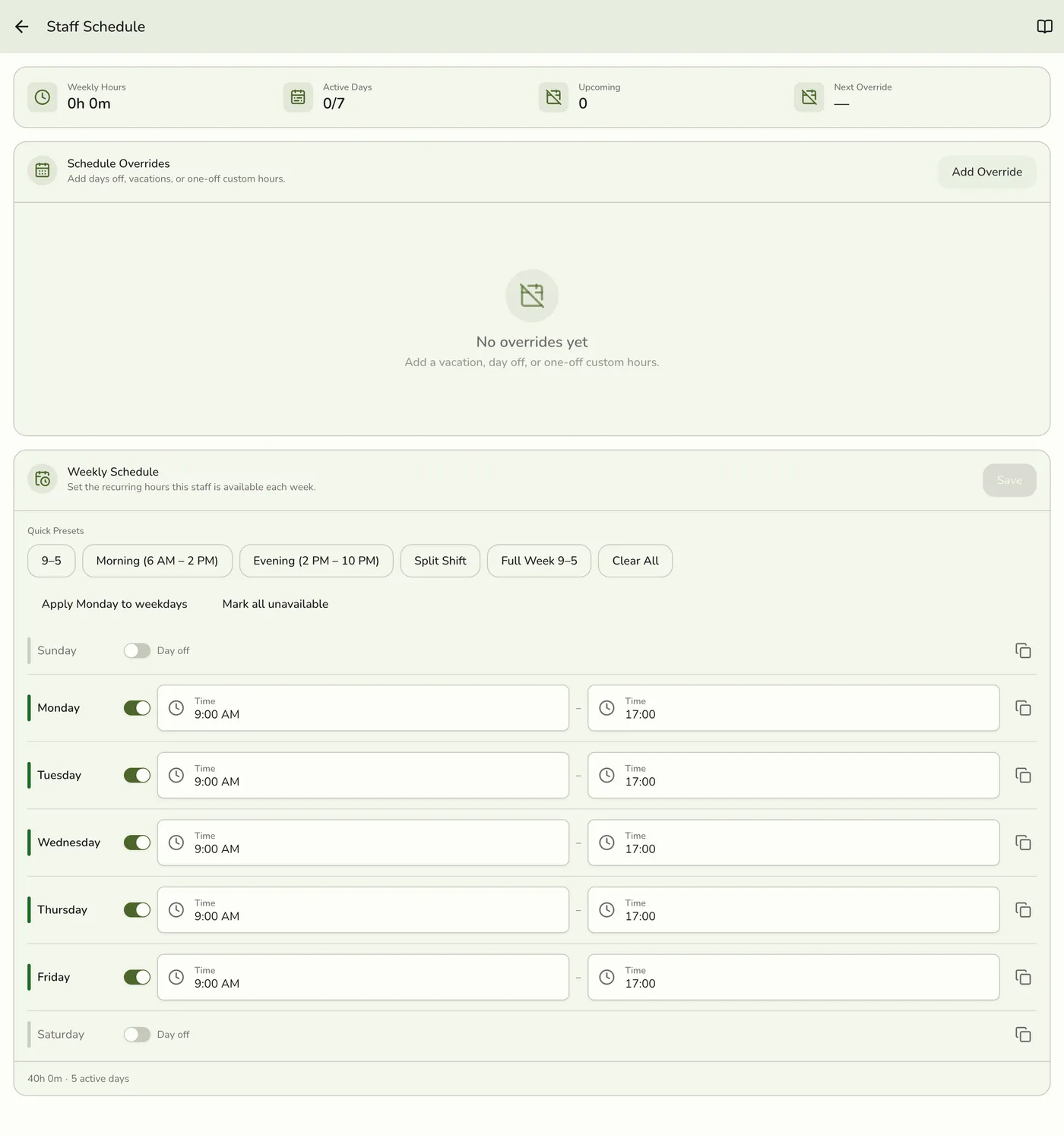
The weekly schedule is the recurring pattern Mon-Sun. Use it for the staff member's normal working week.
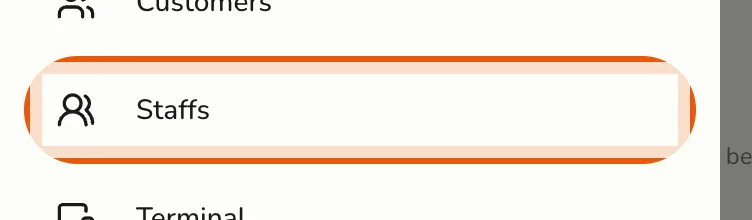
- Open the sidebar menu and select Staff.

- Tap the ⋮ (actions) icon on a staff member's row, then choose Schedule.
- In the Weekly Schedule card, use a Quick Preset (e.g. "9-5" or "Full Week 9-5") or set the Start and End time for each day they work.
- To mark a day off, turn off the toggle next to that day -- it switches to Day off.
- Optional: tap Apply Monday to weekdays after setting Monday's hours to copy them to Tue-Fri.
- Tap Save.
Saved hours apply to every future week until you change them.
Add a One-Off Override
Use overrides for shift swaps, holidays, sick days, or special hours that don't fit the weekly pattern.
- From the same Schedules screen, scroll to the Override Calendar.
- Tap the date you want to change.
- Either:
- Mark the staff member as Unavailable for that day, or
- Enter a different Start and End time for that day.
- Optional: add a Reason (e.g. "Sick", "Trade with Sam", "Holiday hours").
- Tap Save.
Overrides win over the weekly schedule for that exact date. The day's dot on the calendar tells you an override exists.
How Schedules Drive Booking
When a cashier creates an appointment:
- The staff picker disables anyone who is off schedule for the chosen day.
- The picker disables anyone with a conflict (an existing booking that overlaps the chosen time, including the service's buffer before/after).
- If a staff member has no weekly row and no override for the day, they are treated as unavailable. Always set up at least one weekly row.
For more on what cashiers see in the picker, read Booking Staff Availability.
Tips
- Set up the weekly schedule first. Use overrides only for one-off changes.
- Removing a weekly row is the same as marking the day Unavailable — both stop bookings on that day.
- Update overrides as soon as plans change so your schedule stays accurate.
- If two booking conflicts are saved at the same time, only the first wins. Refresh and try again.