

Canceling an Event
Paid plan required. Events is available on any paid plan (Starter and up). It is not included on the free Basic plan. View plans
Cancel a booking from the event detail Actions (or cancel control) — separate from Void, which only affects linked order lines.
How to cancel
- Open Sell → Events and select the booking.
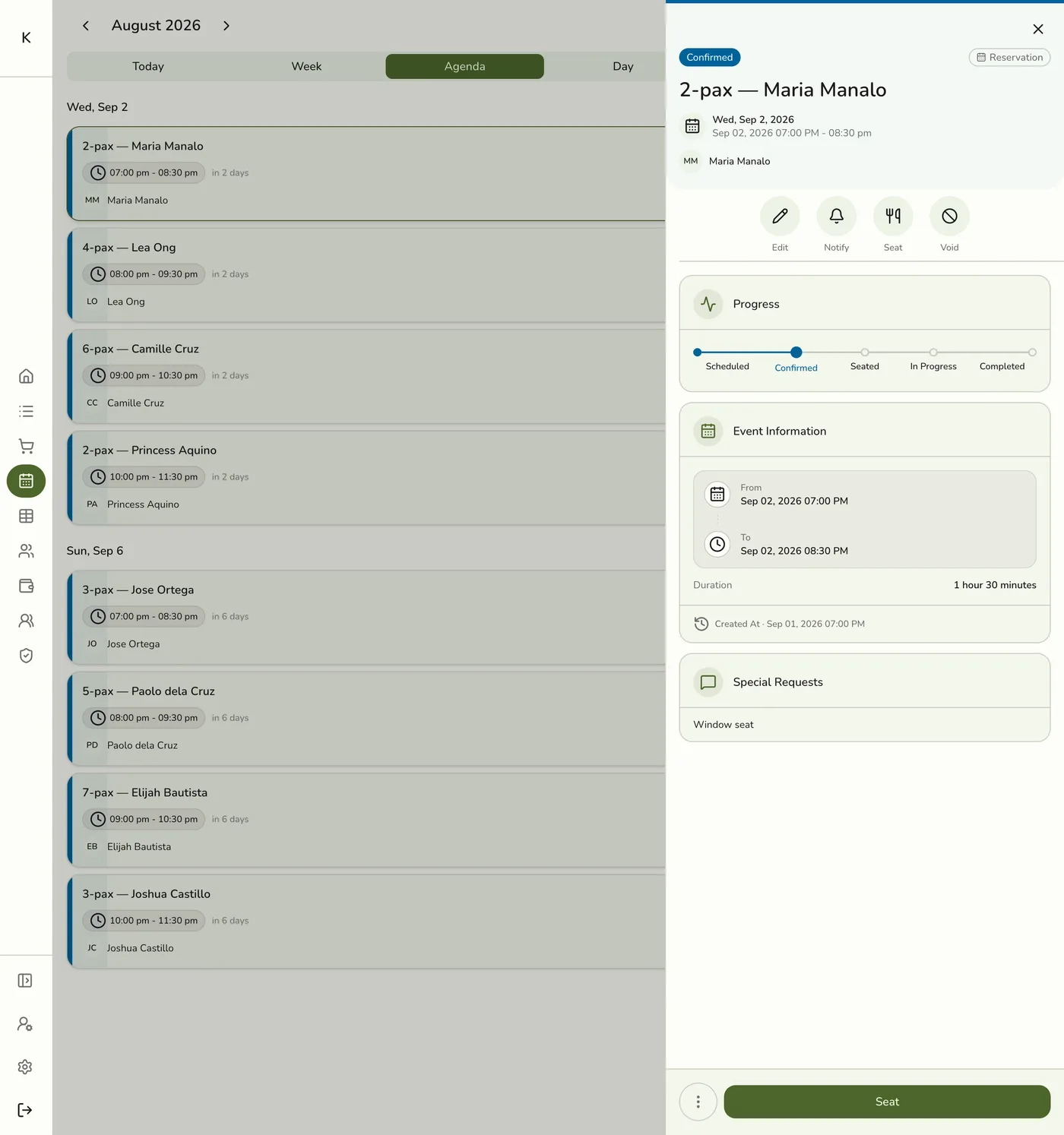
- Open Actions and choose Cancel (not Void).
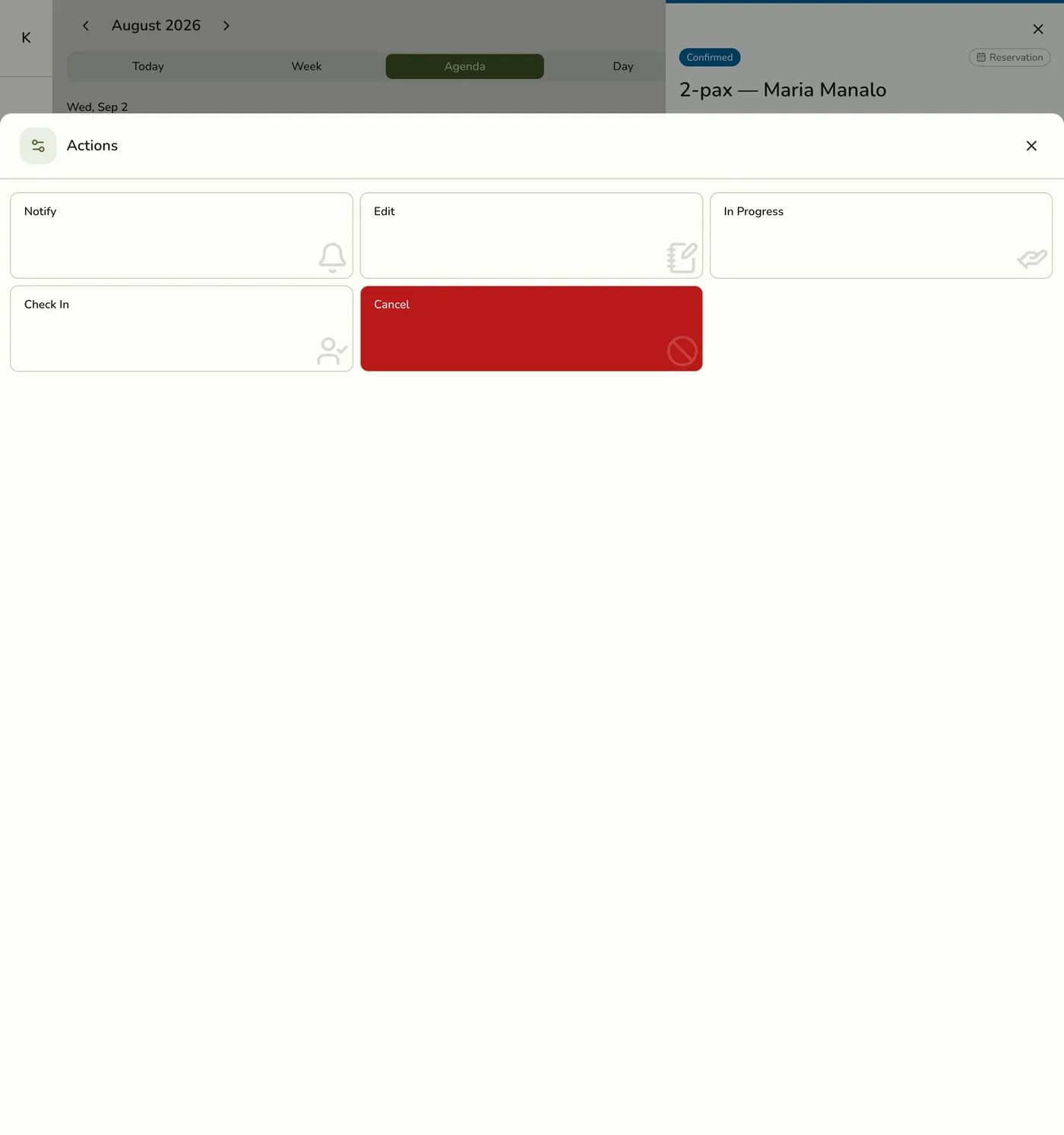
- Confirm. If your store’s cancellation window has passed and a cancellation fee is configured, you may need to acknowledge the fee before the cancel completes.
- The event moves to Canceled. The fee acknowledgment is recorded on the event history for audit.
What cancel does not do
- It does not automatically cancel or refund a linked POS order. Handle the order (void lines, complete payment, or refund) separately as needed.
- It is not the same as No Show — use No Show when the guest simply did not arrive and you are closing that path without a cancel-fee flow.
Policies
Configure lead time, maximum advance booking, and cancellation window / fee in store preferences (booking policies). Past the cutoff with a non-zero fee, cancel is blocked until staff acknowledges the fee.