

Updating an Event
Paid plan required. Events is available on any paid plan (Starter and up). It is not included on the free Basic plan. View plans
Open a booking from Sell → Events, then use Edit, status actions, or Void carefully — Void is for order lines, not canceling the booking.
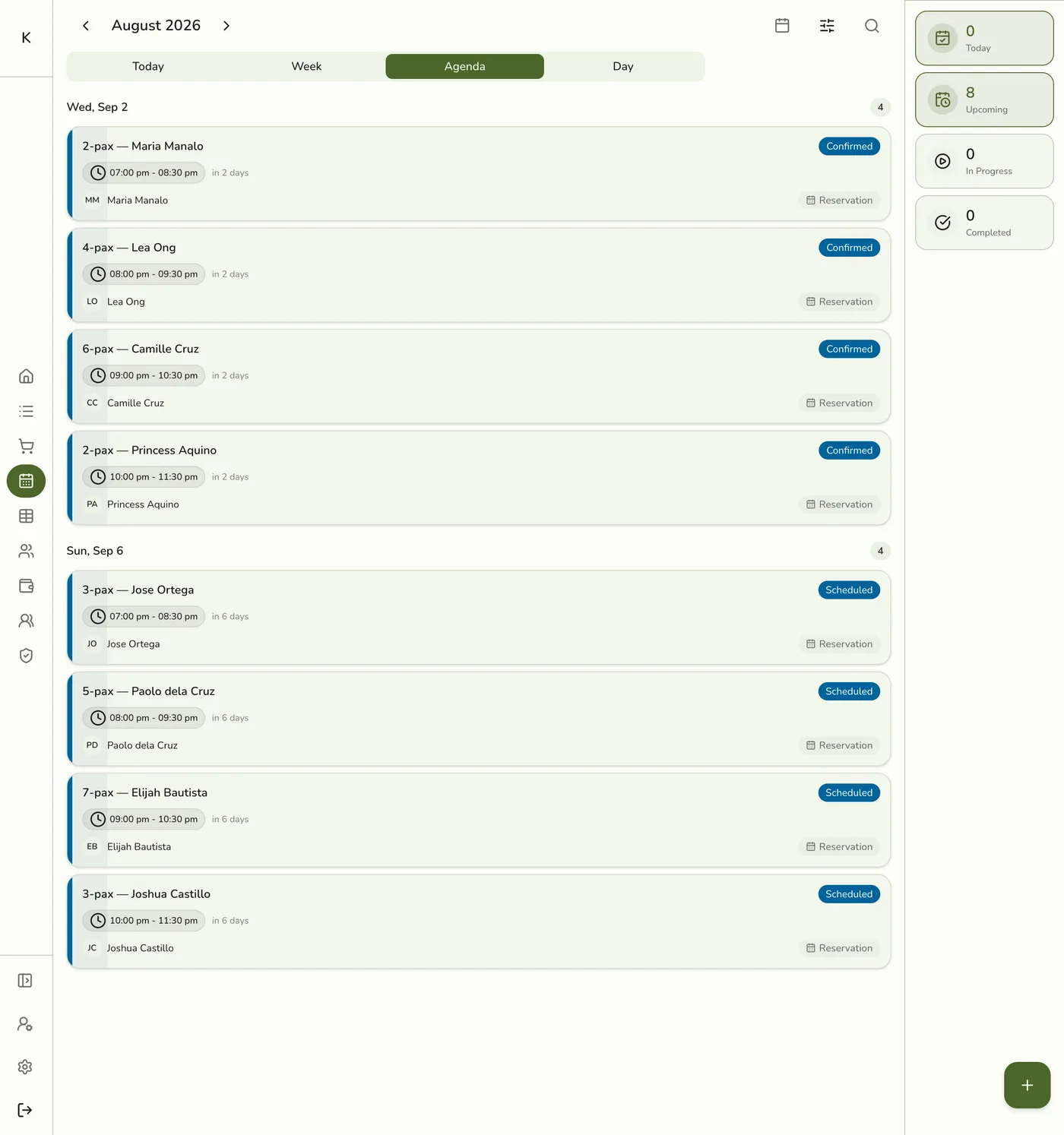
Edit details
- Open the event from the calendar / board.
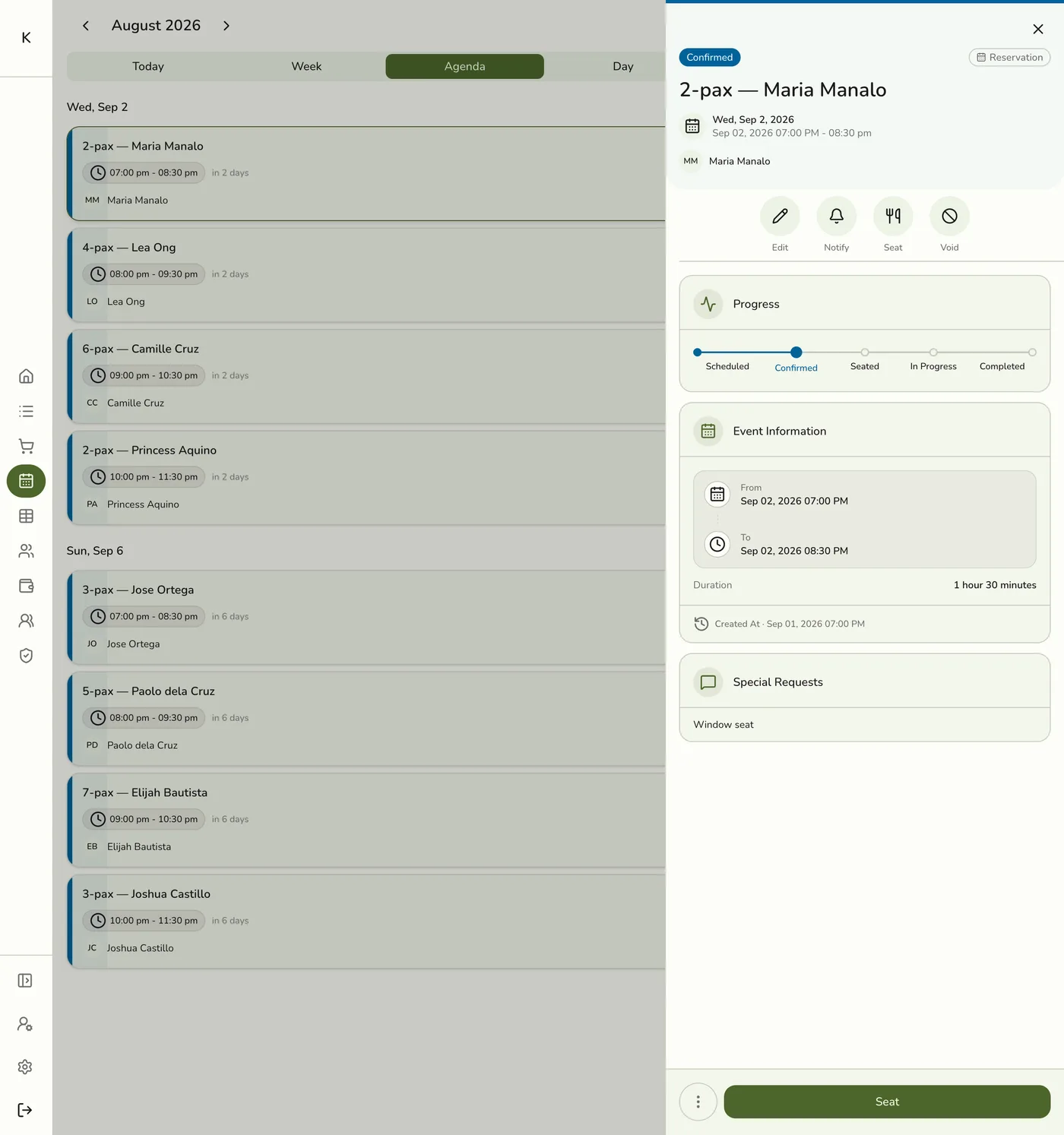
- Tap Edit (or the edit action).
- Update fields allowed for that type (times, party size, unit, staff, customers, notes, and so on).
- Save.
Appointment and reservation edits use the same type-specific rules as create (service required for appointments; party size and customers for reservations). Concurrent edits use version checks — if someone else saved first, you may need to reload and try again.
Status actions
From the event detail or quick actions, you can typically:
| Action | When |
|---|---|
| Confirm / accept-style steps | Early pipeline statuses |
| Check In | Appointments only |
| Seat | Reservations only |
| In Progress | After check-in / seat as applicable |
| Complete | Finish the visit |
| No Show | Guest did not arrive |
| Reschedule | Move the time window |
| Notify | Opens the shared Notify dialog (type chip for the booking). Same gates as order Notify: Email Notifications for email, SMS add-on + Settings + Wallet for SMS. See Managing Orders. |
Only valid next statuses for that type are offered.
Void (order lines — not cancel)
Void on an event opens Void Items for the linked order. It voids selected order line items (pre-payment correction), the same idea as voiding lines on a POS order.
- It does not cancel or delete the event.
- To cancel the booking itself, use Cancel — see Canceling an Event.