

Exporting Reports
Paid plan required. Reports (Advanced) is available on the Lite plan and up. It is not included on the free Basic plan. View plans
Exports are a dedicated hub tool — not a per-report Excel/CSV button on Sales or Transactions. Files are always Excel (.xlsx). There is no CSV format picker on this screen.
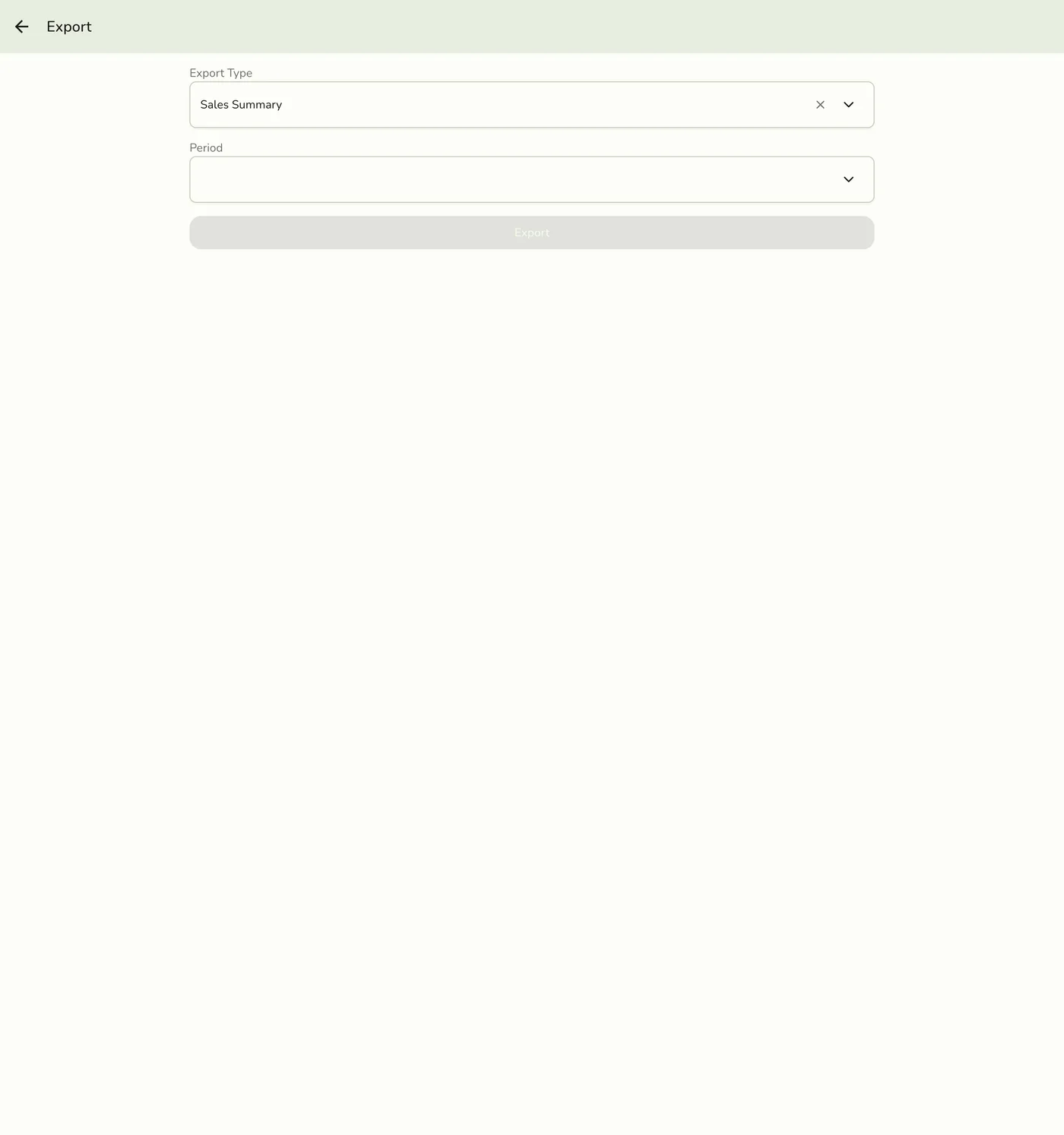
Open Export
- Drawer → Reports.
- Tap Export (shown only when Reports Advanced is available).
- Choose an export type, period (or summary period filters), and any type-specific filters.
- Submit to download the
.xlsxfile to the device.
Export types
| Type | Typical use |
|---|---|
| Sales Summary | Period sales roll-up |
| Best Sellers Summary | Top products summary |
| Transactions Summary | Transaction roll-up |
| Session History Summary | Cashier session Z-style summary — only when the Cashier Session add-on is active |
| Best Sellers | Detailed best-sellers rows |
| Sales by Category | Category sales rows |
| Transactions | Detailed transaction rows |