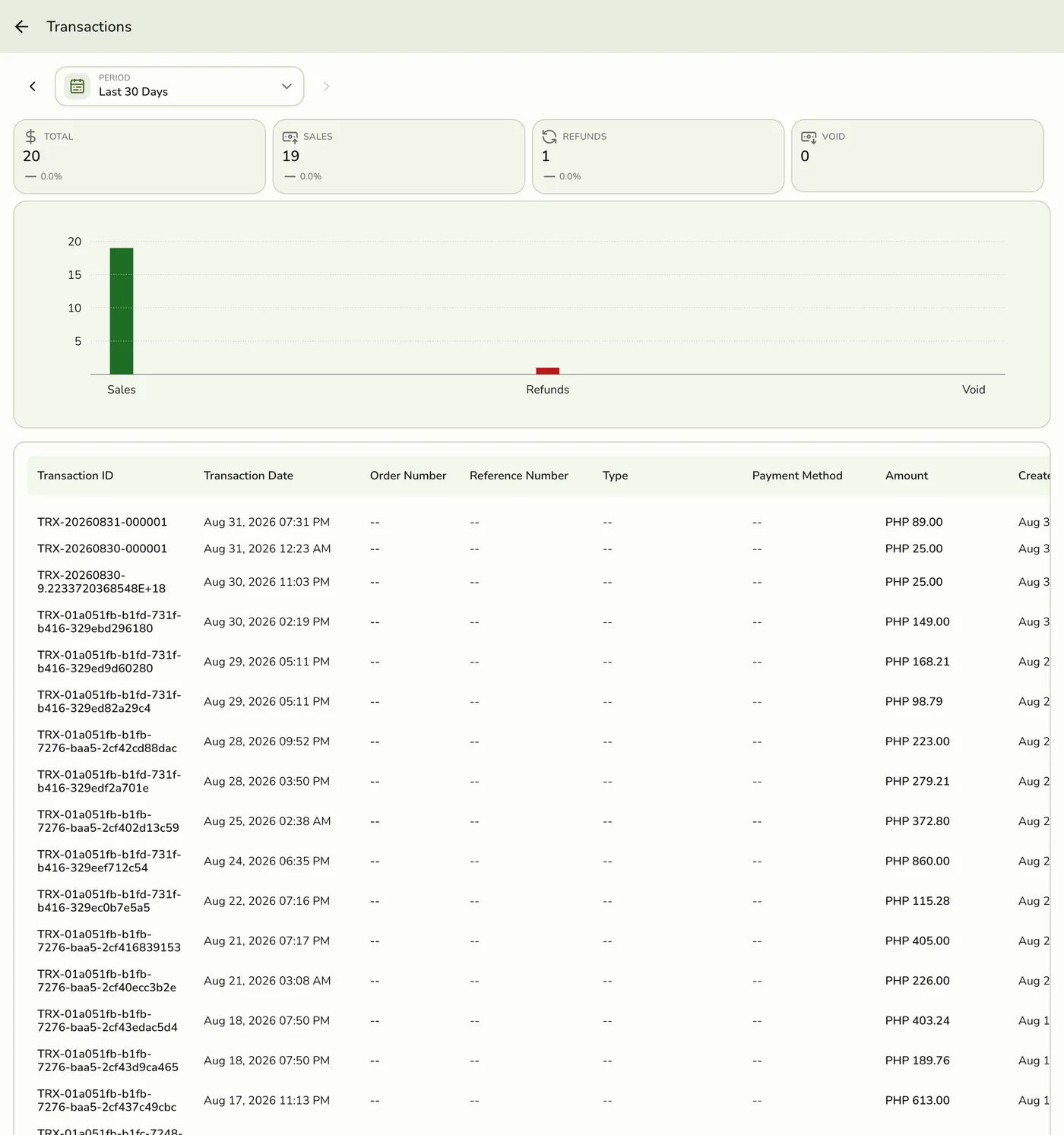
Transaction Report
The Transaction Report lists every payment transaction processed through your store. You can use it to verify payments and reconcile your records.
What the Transaction Report Shows
Each transaction entry includes the following details.
| Column | Description |
|---|---|
| Transaction ID | A unique identifier for the transaction. |
| Date and Time | When the transaction was processed. |
| Amount | The total payment amount. |
| Payment Method | How the customer paid (cash, card, e-wallet, etc.). |
| Status | Whether the transaction is completed, pending, or failed. |
| Order Reference | The order linked to this transaction. |
Understanding Transaction Statuses
- Completed -- The payment was successfully processed.
- Pending -- The payment is still being processed or awaiting confirmation.
- Failed -- The payment did not go through.
How to Use the Transaction Report
- Go to Reports from the sidebar menu.
- Select Transaction Report.
- Set your date range.
- Use filters to narrow results by payment method or status.
Common Uses
- Daily reconciliation. Match transactions against your cash drawer or bank records.
- Dispute resolution. Look up a specific transaction by ID or date.
- Payment method analysis. See which payment methods your customers prefer.
- Audit trail. Keep a record of all payments for accounting purposes.
Tips
- Filter by payment method to reconcile each channel separately.
- Check for failed transactions regularly to catch payment issues.
- Export the report to share with your accountant or bookkeeper.