

How to Remove Staff from Your Store
When a staff member leaves or you want to clean up your team list, you can remove them from your POS system. Follow these steps.
Step-by-Step Guide
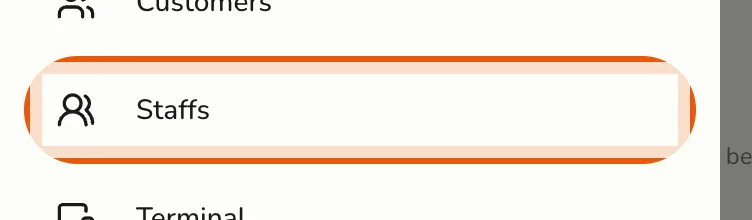
- Open the sidebar menu.

- Select Staff from the menu. You will see all your current team members here.
- Use the search bar or scroll to find the staff member you want to remove.
- Click the ⋮ (actions) icon on their row, then choose View Details to open their details page.
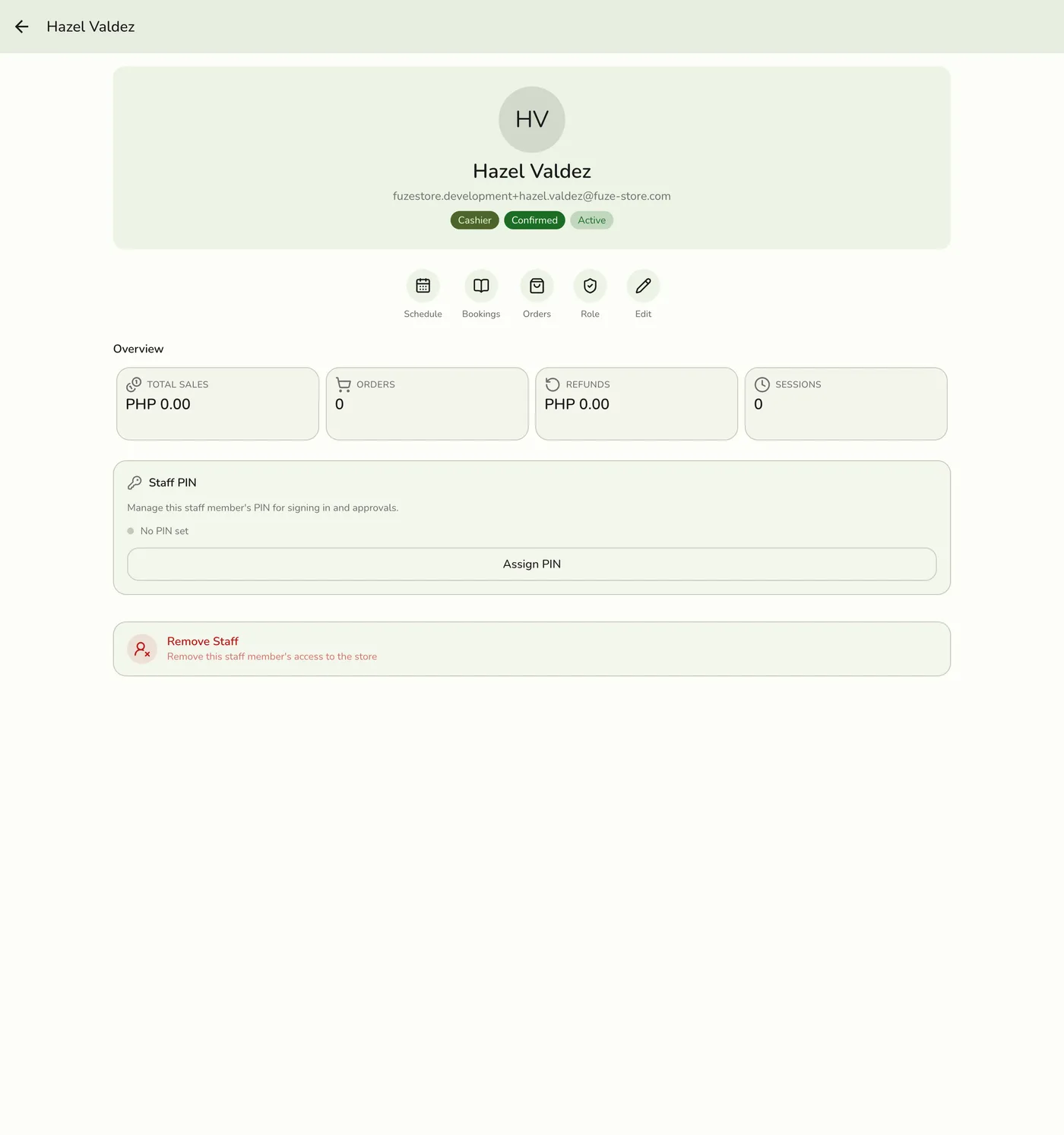
- Scroll to the bottom and tap Remove Staff.
- Confirm by clicking Yes or Confirm. The staff member is permanently removed.
You can also remove a staff member straight from the ⋮ actions menu on their row -- it has its own Remove entry, with the same confirmation.
Tips
- Double-check before removing -- a deleted staff member can no longer access your system.
- Only remove staff who no longer work with you or need access.
- If you are unsure, consider editing their info or changing their role instead.
- You can always add a staff member again later if needed.
Best Practices
- Remove staff promptly when they leave to keep your system secure.
- Only give admin roles to trusted team members.
- Keep your staff list clean for easier scheduling and management.