

Staff Overview
Your staff are the heart of your business. This guide explains how to add, manage, and organize your team so everyone has the tools they need.
Why Add Staff to Your Store?
- Assign roles -- Give each team member the right access level (cashier, manager, or admin).
- Track performance -- See who is making sales, handling orders, or helping customers.
- Improve security -- Limit sensitive actions to trusted staff only.
- Smooth operations -- Make shift changes, permissions, and communication easy.
What You Can Do
- Add new staff -- Quickly add team members as your business grows.
- Edit staff info -- Update names, roles, or contact details anytime.
- Manage schedules -- Set weekly working hours and one-off overrides so the booking system knows when each staff member is available. Requires the Events (Advanced) feature.
- Remove staff -- Remove staff who no longer work with you.
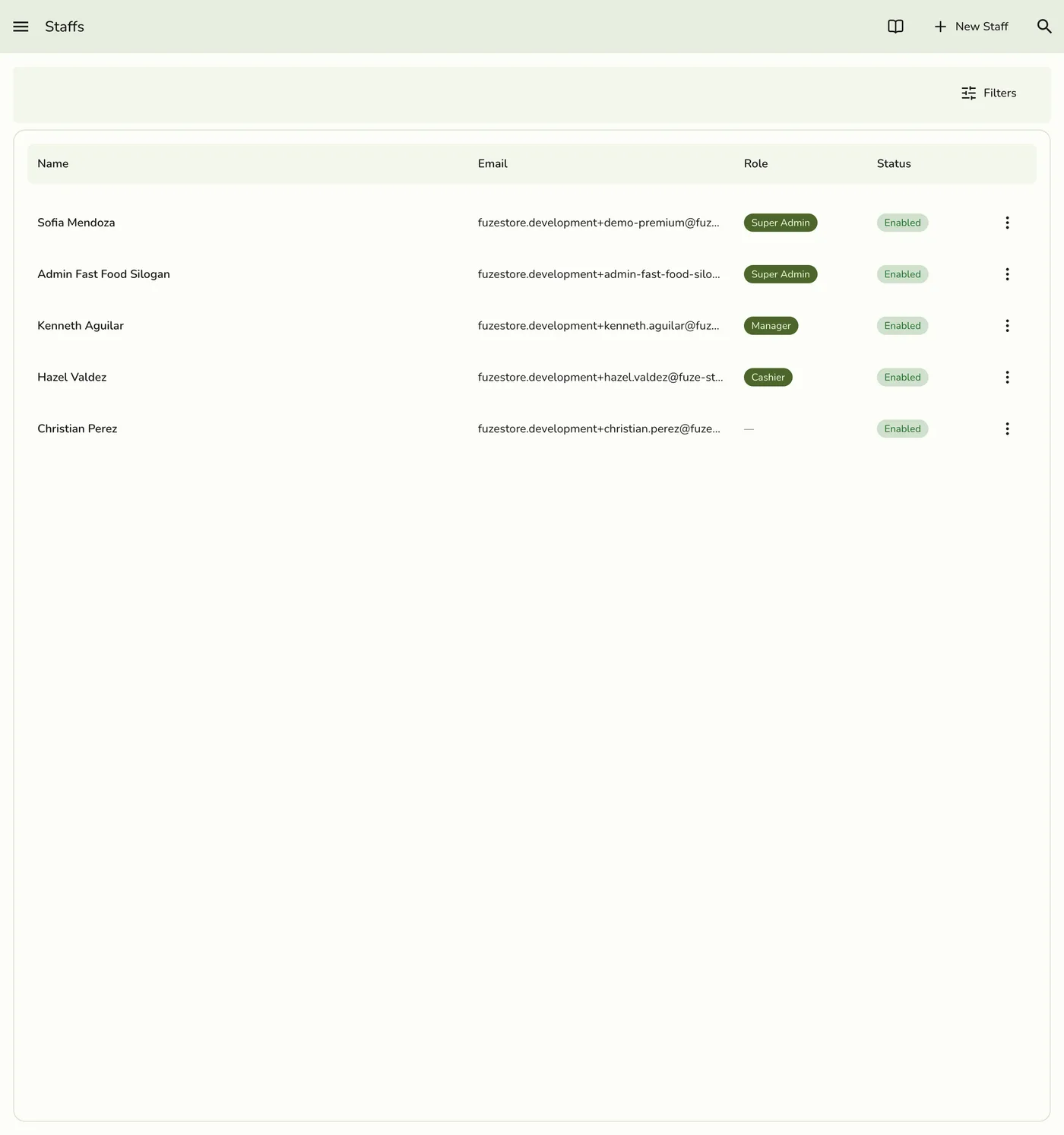
- View your staff list -- See all team members in one place with search and filters.
Field Explanations
| Field | Description | Required | Example |
|---|---|---|---|
| Enable | Whether the staff member is active and can access the store. The store owner is always enabled and cannot be deactivated. | Yes | Yes |
| First Name | The staff member's first name | Yes | Maria |
| Last Name | The staff member's last name | Yes | Santos |
| Store access | How this person reaches your store: Invite to Fuze (they get an email, create an account, and can sign in) or POS only (no login -- they work from the register using a staff PIN). The store owner is always Invite to Fuze. | Yes | POS only |
| Where the invitation is sent for Invite to Fuze staff. For POS only staff it is optional and used for notifications only -- no invitation is sent. | Only for Invite to Fuze | maria@email.com | |
| Role | The staff member's role (cashier, manager, admin, etc.). The store owner's role cannot be changed. | Yes | Cashier |
You only need a name, a store-access choice, and a role to get started. More details help you manage your team better.
Which store access should I pick?
- POS only -- for cashiers, kitchen staff, and anyone who only works at the register. They never sign in to Fuze; they identify themselves with a staff PIN. Pick this when you just want the person on your roster so sales and shifts are recorded under their name.
- Invite to Fuze -- for managers, supervisors, and anyone who needs the app on their own phone or the web. They receive an email invitation and create a Fuze account.
You can change this later. Switching someone from Invite to Fuze to POS only removes their login -- they keep working at the register, but they can no longer sign in.
Tips
- Assign clear roles so everyone knows their responsibilities.
- Keep staff info up to date for smooth scheduling and communication.
- Use notes for special instructions or preferences.
- Remove staff promptly when they leave to keep your system secure.