

How to Resend Staff Email Confirmation
If a teammate missed their invitation email or needs a fresh link, resend the invitation from their staff profile. This is the store invitation email (accept invite), not the owner account “verify email” message.
Before you start
- You need permission to manage staff (modify staff).
- The person's store access must be Invite to Fuze. POS only staff were never invited -- they sign in nowhere -- so there is nothing to resend. Switch their store access first if they now need a login.
- They must still be Pending invite (they have not accepted yet). After they accept, Resend Invitation no longer appears.
- They must have an email address on the staff record.
Step-by-step
- Open the sidebar menu.

- Select Staff. You will see your team list.
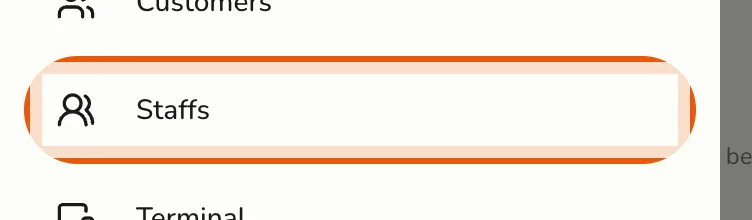
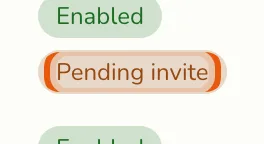
- Find the staff member who needs a new invite (filter or scroll). Pending people show a Pending invite badge.
- Open their name to view the staff profile.
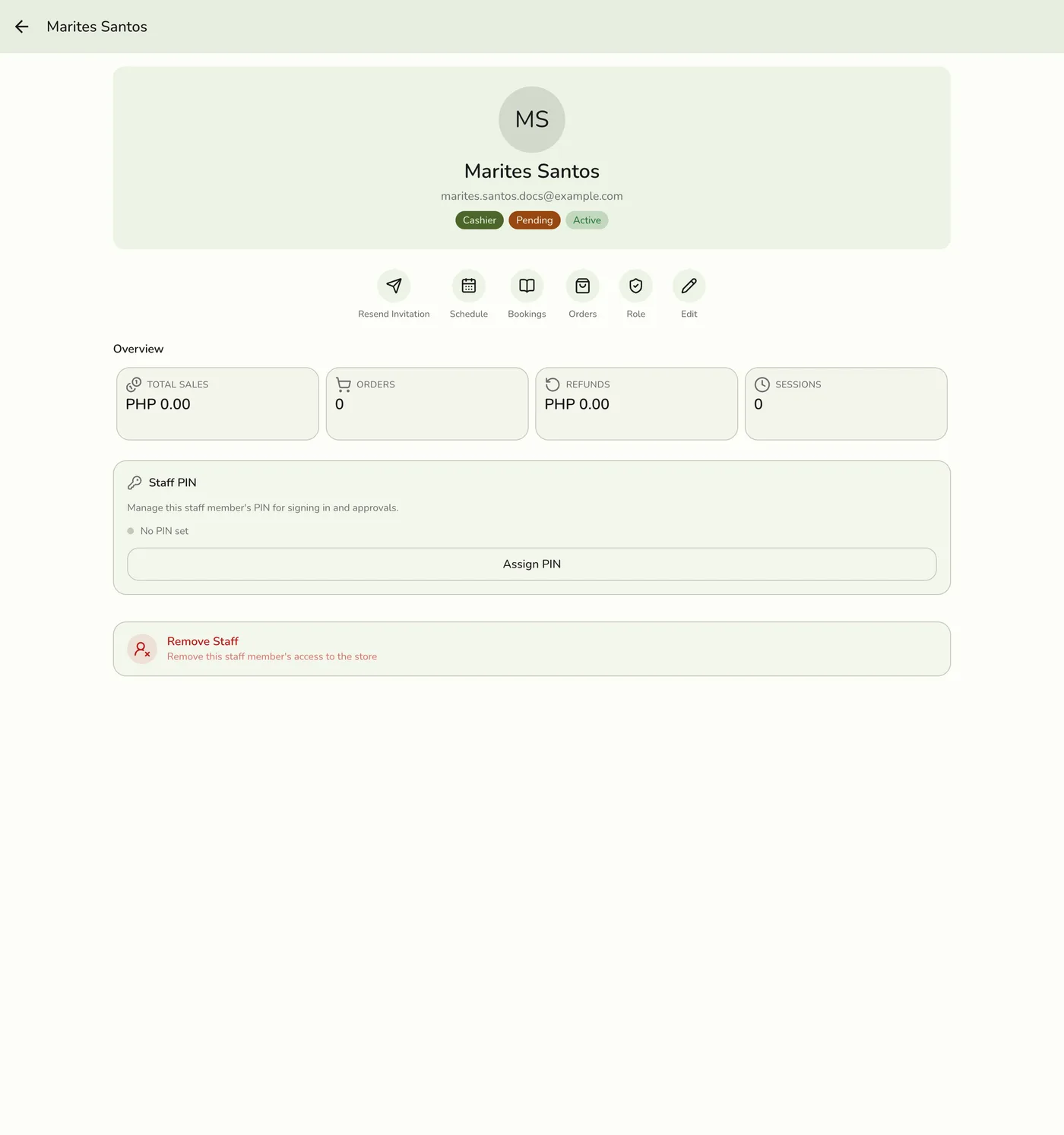
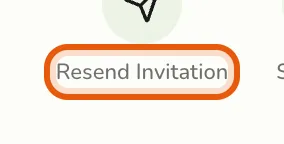
- Tap Resend Invitation in the quick actions.
- They receive a new email (subject includes your store name and “Invitation”) with Accept Invitation. The new link replaces any earlier one and is valid for 24 hours.
Opening Accept Invitation takes them to the Fuze Store invitation page on the web (/invitation) to finish joining the store.
If they do not have a Fuze Store account yet
The invitation page sends them to Register first, then joins them to the store automatically once they finish.
They must register with the exact email address you invited — the
invitation is tied to that address. If they sign up with a different email,
the account is created but the invitation does not attach, and they will not
appear as joined. Fix it by correcting the email on their staff record and
resending, or by having them register again with the invited address.
Tips
- Remind staff to check spam or promotions if they do not see the email.
- Confirm the email address on the staff profile before resending; fix typos, then resend.
- You can resend as many times as needed while they remain pending.
- Walk them through acceptance in person if they are stuck.
Related Guides
- How to Add Staff
- How to Update Staff
- Staff Overview
- How to Change Your Email Address (owner account email, not staff invite)