

Connecting Claude
This guide connects Claude to your Fuze Store account. It takes about two minutes, and you only do it once.
You can use either the Claude desktop app or claude.ai in a web browser — they work exactly the same way, and a connection added in one shows up in the other.
This is the easiest one, and the only one that follows you to your phone
Claude needs no special settings switched on, and no codes to copy. Once you add the connection on a computer, it also works in the Claude app on your phone.
Before You Start
- You are signed in to the Claude desktop app or claude.ai on a computer.
- You have Owner or Admin access to the store you want to connect.
- The AI Connections add-on is active on that store.
Any Claude plan works, including the free one. On the free plan you can have one custom connection at a time — if you already added a different one, remove it first. Paid plans let you add several, so you can connect more than one store.
Get Your Store's Web Address
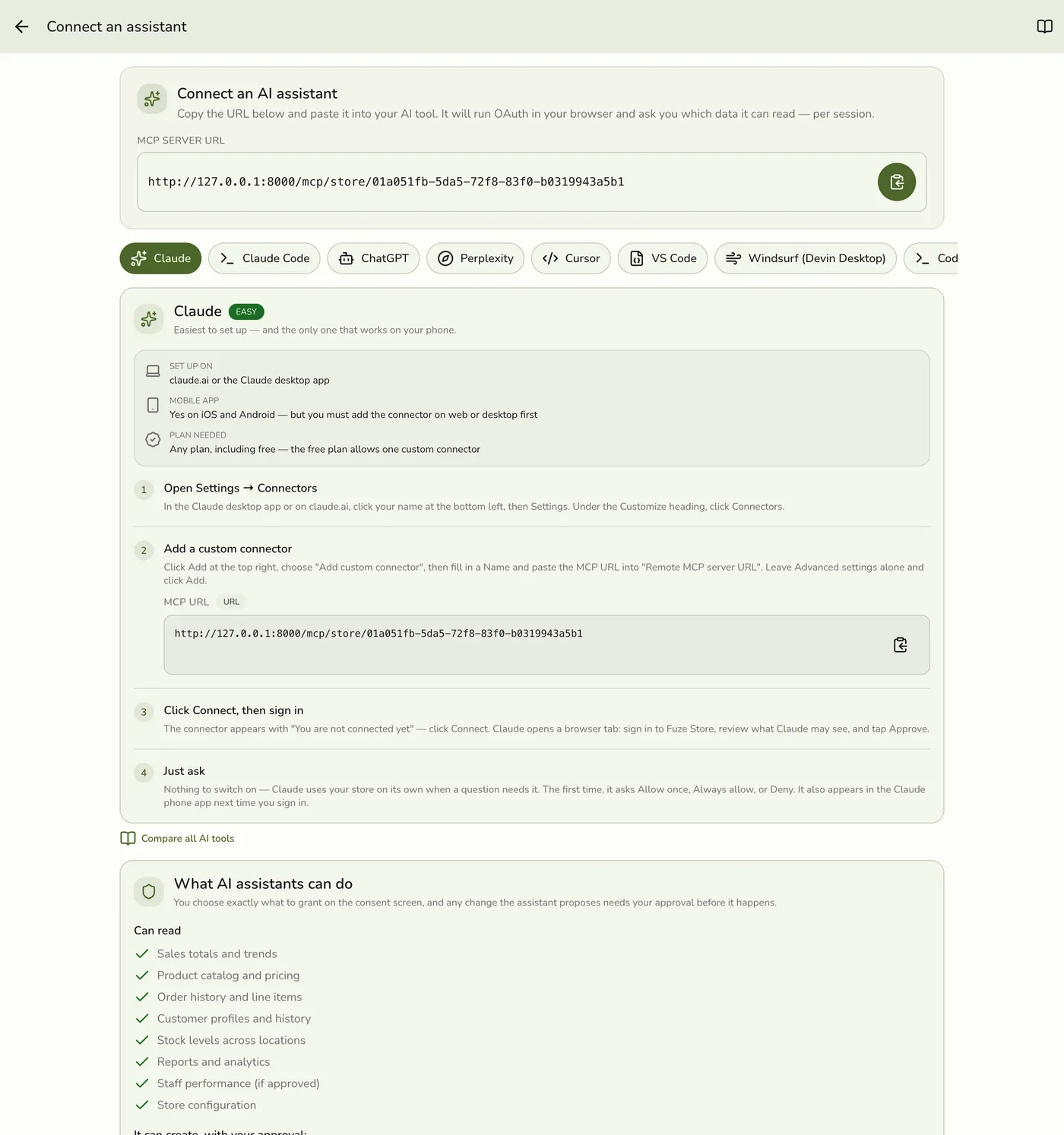
In the Fuze Store app, open Configurations → MCP → Connect an assistant, then tap the copy button next to MCP Server URL. It looks like this:
https://api.fuze-store.com/mcp/store/your-store-id
Keep that copied — you'll paste it in step 3.
Connect
Open your connector settings
Click your name at the bottom left of Claude, then Settings.
In the list on the left of the settings window, look under the Customize heading and click Connectors.
Start a custom connector
At the top right of the Connectors panel, click Add, then choose Add custom connector from the small menu.
(The other option, Browse connectors, is Anthropic's ready-made list — your store isn't in it, because it's yours.)
Fill in two boxes and click Add
- Name — something you'll recognise later. Your store name works well.
- Remote MCP server URL — paste your store's web address from above.
Leave Advanced settings alone. The OAuth Client ID and Secret boxes are optional and you don't need them.
Click Add.
Click Connect
Claude now shows your connector with the message "You are not connected to [your store] yet". Click Connect.
Adding it and connecting it are two separate steps — if you stop here, Claude will say the connector has no tools available.
Sign in to Fuze Store
Claude opens a browser tab. Log in with your Fuze Store email and password if you're asked to.
Approve the permissions
Fuze Store shows you exactly what Claude is asking to see — orders, reports, products, and so on. Untick anything you'd rather not share, then click Approve.
Claude confirms with a "Connected to [your store]" message, and the connector now lists the tools it can use.
Just ask
There's nothing to switch on. Start a new chat and ask your question — Claude brings your store in on its own when the question needs it.
The first time it does, Claude asks permission: Allow once, Always allow, or Deny. Pick Always allow if you don't want to be asked again for that action.
Nothing to copy down
You don't need a client ID, a secret, or any other code. Claude sets itself up from the web address alone — the sign-in screen in your browser is where you grant access.
Choosing What Claude Can Do Without Asking
Open the connector again from Settings → Connectors and you'll see a Tool permissions section — "Choose when Claude is allowed to use these tools."
Each action has three settings: always allow, ask first, or never. Reading your sales is harmless, so letting those run without asking is fine. Anything that writes to your store — importing a menu, recording expenses — is worth leaving on ask first so you see it before it happens.
On Team and Enterprise, an Owner adds it once
Members cannot add a custom connector on Team or Enterprise plans. An Owner adds it under Organization settings → Connectors, then everyone else finds it under their own Settings → Connectors — it carries a Custom label — and clicks Connect.
Using It on Your Phone
Claude is the only AI tool on this list you can use from a phone.
Add the connection on a computer first, using the steps above. Then sign in to the Claude app on iOS or Android and your store is there the next time you log in — no extra setup, nothing to paste on the phone.
Ask Your First Question
- "What were yesterday's sales at my store?"
- "Show me the top 5 products this week."
- "Compare this month's revenue to last month."
- "Which day of the week has the highest average order value?"
Claude reads only the data you approved and answers in plain language.
If Something Goes Wrong
You can't find "Add custom connector". Check you clicked the Add button at the top right of the Connectors panel — it opens a small menu with two choices. On a free plan you can only have one custom connection, so remove the old one first. On a Team or Enterprise plan, only an Owner can add one; ask them.
It says "This connector has no tools available". You added the connector but didn't finish connecting it. Open it from Settings → Connectors, click Connect, and complete the browser sign-in.
Claude answers from memory instead of your store. Ask again and name the store, or check the connector still shows as connected under Settings → Connectors.
The sign-in window doesn't appear, or approval fails. The usual causes are not being signed in to Fuze Store in the browser, the AI Connections add-on being off, or pasting the address for a different store. See the troubleshooting section of Setting Up AI Access.