

Connecting ChatGPT
This guide connects ChatGPT to your Fuze Store account. It takes about five minutes, and you only do it once.
You must do this on a computer, not the ChatGPT phone app
The ChatGPT mobile app cannot add a connection like this one. You need ChatGPT
in a web browser on a computer, and you need to switch on a setting called
developer mode first. Both steps are covered below.
Before You Start
- You are signed in to ChatGPT in a web browser on a computer. Any ChatGPT plan works, including the free one.
- You have Owner or Admin access to the store you want to connect.
- The AI Connections add-on is active on that store.
If you use ChatGPT through a work or school account (Business, Enterprise, or Edu), an administrator may have switched developer mode off for everyone. If you can't find the setting, ask them.
About Developer Mode
ChatGPT keeps custom connections behind a setting called developer mode, and it labels that setting "elevated risk". That sounds alarming, so here is what it actually means:
- OpenAI reviews the connections listed in its own plugin directory. Yours is not in that directory, because it points at your store — so ChatGPT can't vouch for it and asks you to accept that.
- The warning is about custom connections in general, not about Fuze Store. The web address you paste is your own store's address, copied from your own Fuze Store app.
- The real rule is simple: only add addresses you trust. Never paste a link someone sends you and asks you to add here.
You'll see this warning twice — once when switching developer mode on, and once more when creating the connection. Both are expected.
Get Your Store's Web Address
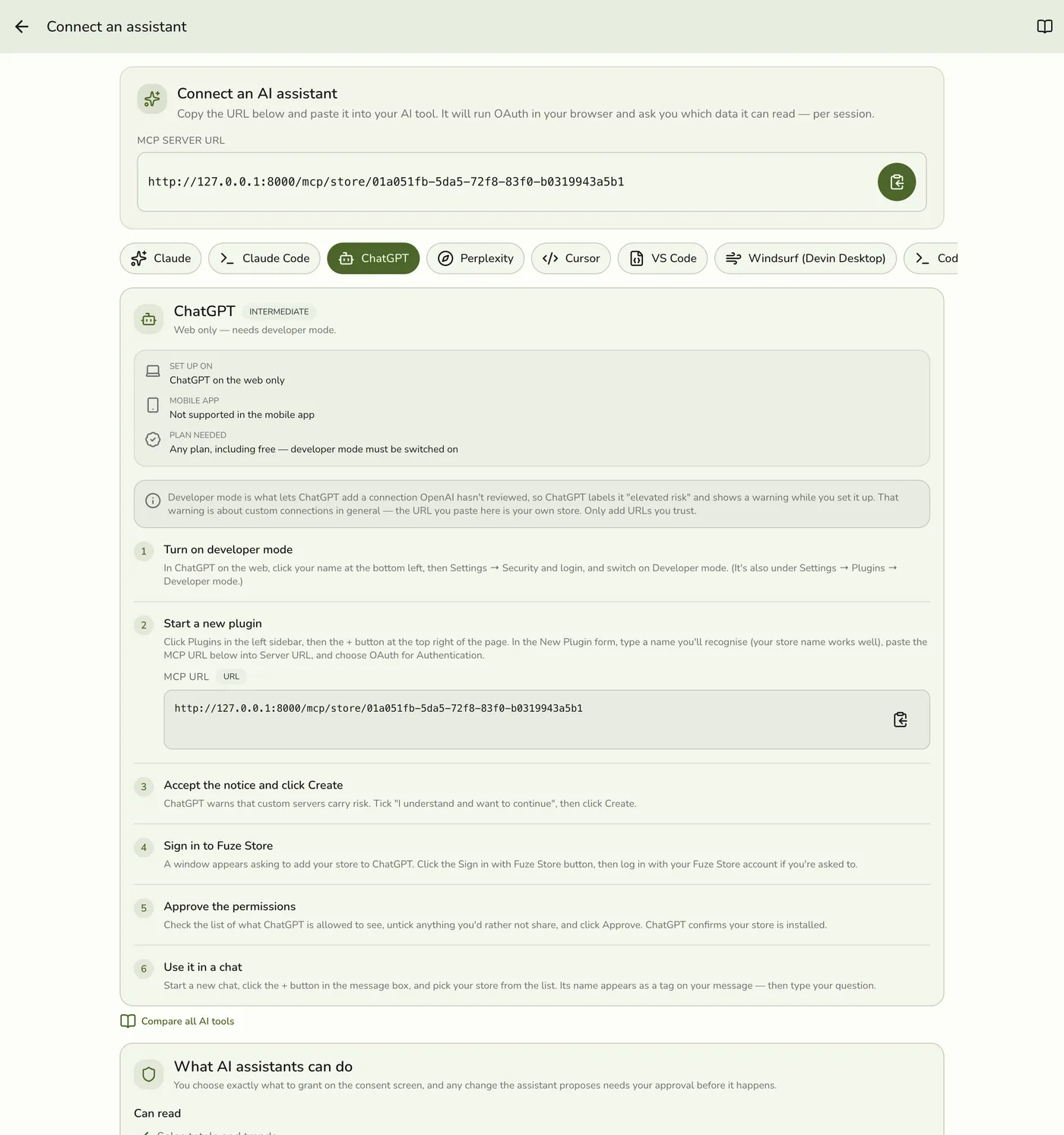
In the Fuze Store app, open Configurations → MCP → Connect an assistant, then tap the copy button next to MCP Server URL. On the ChatGPT tab it looks like this:
https://api.fuze-store.com/mcp/store/your-store-id?profile=compact
Keep that copied — you'll paste it in step 2.
Why ChatGPT's address ends in ?profile=compact
ChatGPT limits how much it will read about a server's tools — everything it is
told about all of them, added together. Fuze Store has more tools than fits, so
the plain address fails to connect.
That ending gives ChatGPT a short list of the everyday tools — sales, orders,
products, stock, customers — plus a search tool it uses to find any of the
rest by name. Nothing is missing; ask for something like importing your menu
and ChatGPT will still find it. Other assistants have no such limit, so their
tabs show the address without the ending.
Connect
Turn on developer mode
In ChatGPT on the web, click your name at the bottom left, then Settings. Choose Security and login in the list, scroll to Developer mode, and switch it on.
You can also reach the same switch from Settings → Plugins → Developer mode.
Start a new plugin
Click Plugins in the left sidebar, then the + button at the top right of the page.
In the New Plugin form, fill in three things and leave the rest alone:
- Name — something you'll recognise later. Your store name works well.
- Server URL — paste your store's web address from the step above.
- Authentication — choose OAuth.
Accept the notice and click Create
ChatGPT shows an orange notice saying custom servers carry risk. Tick "I understand and want to continue", then click Create.
Sign in to Fuze Store
A window appears titled "Add [your store] to ChatGPT". Click Sign in with Fuze Store, then log in with your Fuze Store email and password if you're asked to.
Approve the permissions
Fuze Store shows you exactly what ChatGPT is asking to see — orders, reports, products, and so on. Untick anything you'd rather not share, then click Approve.
ChatGPT confirms with a green "[your store] is installed" message.
Use it in a chat
Start a new chat and click the + button inside the message box. Pick your store from the list — its name appears as a small tag on your message. Now type your question.
You do this each time you want ChatGPT to look at your store. In chats where you haven't picked it, ChatGPT can't see your data at all.
Nothing to copy down
You don't need a client ID, a secret, or any other code. ChatGPT sets itself
up from the web address alone — the sign-in screen in your browser is where
you grant access.
Ask Your First Question
Remember to pick your store with the + button first, then try:
- "What were my sales yesterday?"
- "Which products sold the most this week?"
- "Compare this month's revenue to last month."
If Something Goes Wrong
You can't find the + button on the Plugins page. Developer mode isn't on yet. Go back to step 1.
You can't find developer mode. You're most likely in the ChatGPT phone app — this only works in a web browser on a computer. If you're on a work or school account, an administrator may have disabled it.
ChatGPT says it can't see your store. Check that you picked your store with the + button in that chat. The connection isn't active in every chat automatically.
The sign-in window doesn't appear, or approval fails. See the troubleshooting section of Setting Up AI Access.