

Connecting Claude Code
This guide connects Claude Code (Anthropic's terminal coding assistant) to your Fuze Store account with one command.
Claude Code needs a paid account
Claude Code requires a paid Claude plan (Pro or Max) or an Anthropic API key — there is no free Claude Code tier. This is separate from the paid Fuze Store AI Connections add-on. Pricing and plans are set by Anthropic and can change.
Before You Start
- Claude Code is installed and you are signed in with a paid Claude plan or API key.
- You have Owner or Admin access to the store you want to connect.
- The AI Connections add-on is active on that store.
Get Your MCP URL
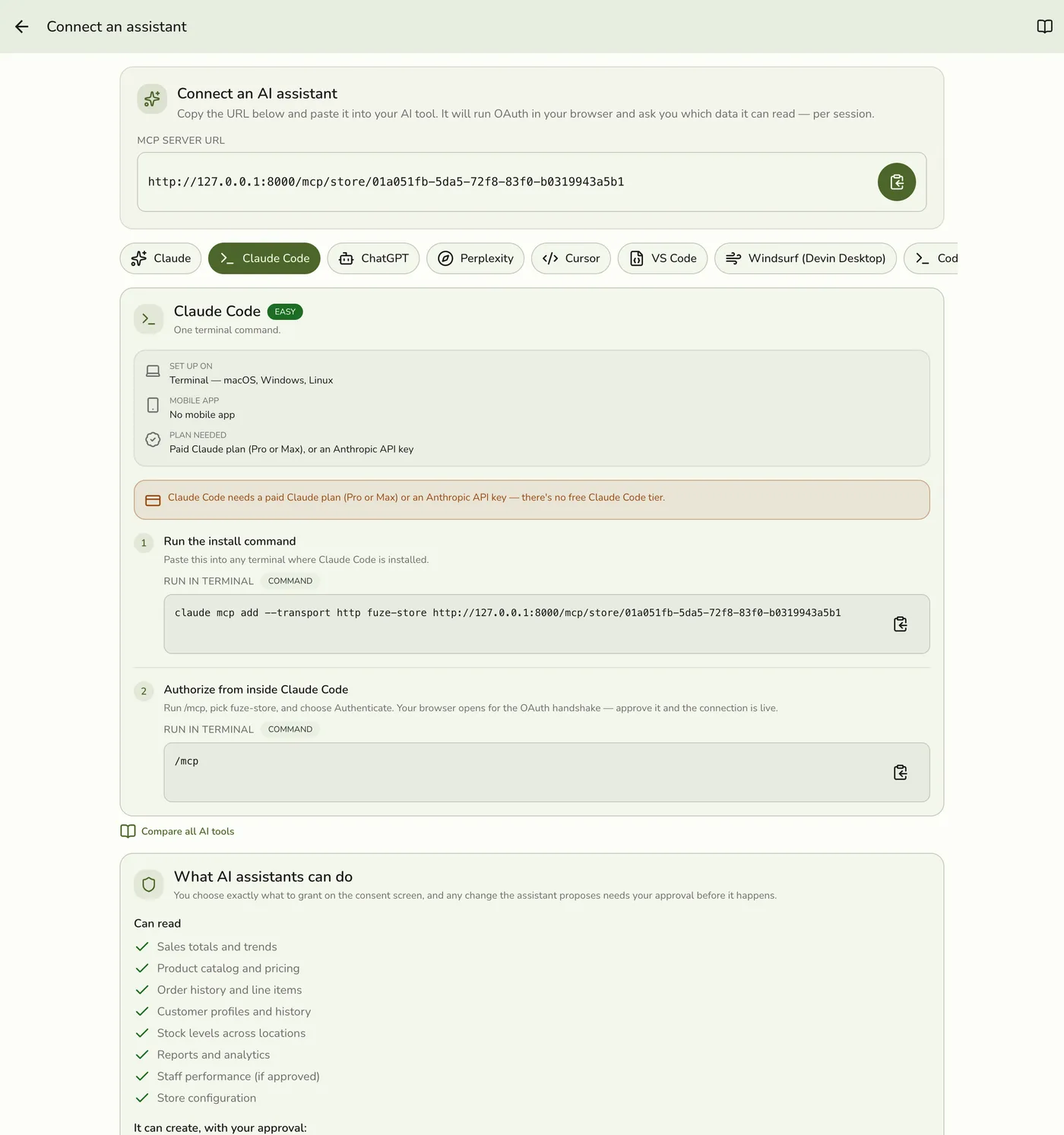
In the Fuze Store app, open Configurations → MCP → Connect an assistant and copy the MCP Server URL:
https://api.fuze-store.com/mcp/store/<your-store-id>
Connect
1. Run the install command in any terminal where Claude Code is installed (substitute your MCP Server URL):
claude mcp add --transport http fuze-store https://api.fuze-store.com/mcp/store/<your-store-id>
2. Authorize from inside Claude Code. Run claude mcp list and you'll see fuze-store marked Needs authentication — that's expected. Start Claude Code, run /mcp, select fuze-store, and choose Authenticate. Your browser opens for the OAuth handshake. Sign into Fuze Store if prompted, review the permissions, and Approve. Back in Claude Code the server flips to connected.
Managing the connection later
Tokens are stored securely and refreshed automatically. To disconnect, run /mcp, select the server, and choose Clear authentication.
Ask Your First Question
- "What were my total sales last week?"
- "List my best-selling products this month."
- "How many orders did I process today?"
If Something Goes Wrong
If the command fails or the browser approval does not complete, see the troubleshooting section of Setting Up AI Access. Confirm you are signed into a paid Claude plan and into Fuze Store in the browser.