

Connecting Codex & ChatGPT Desktop
Codex CLI, the ChatGPT desktop app, and the Codex IDE extension all read the same configuration file. Set the connection up once and every one of them can use it.
Codex needs a paid account
Codex requires a paid ChatGPT plan (Plus, Pro, Business, Edu, or Enterprise) or an OpenAI API key with billing enabled — there is no free path. This is separate from the paid Fuze Store AI Connections add-on. Plans are set by OpenAI and can change.
Before You Start
- Codex CLI, the ChatGPT desktop app, or the Codex IDE extension is installed and you are signed in with a paid ChatGPT plan or an API key.
- You have Owner or Admin access to the store you want to connect.
- The AI Connections add-on is active on that store.
Get Your MCP URL
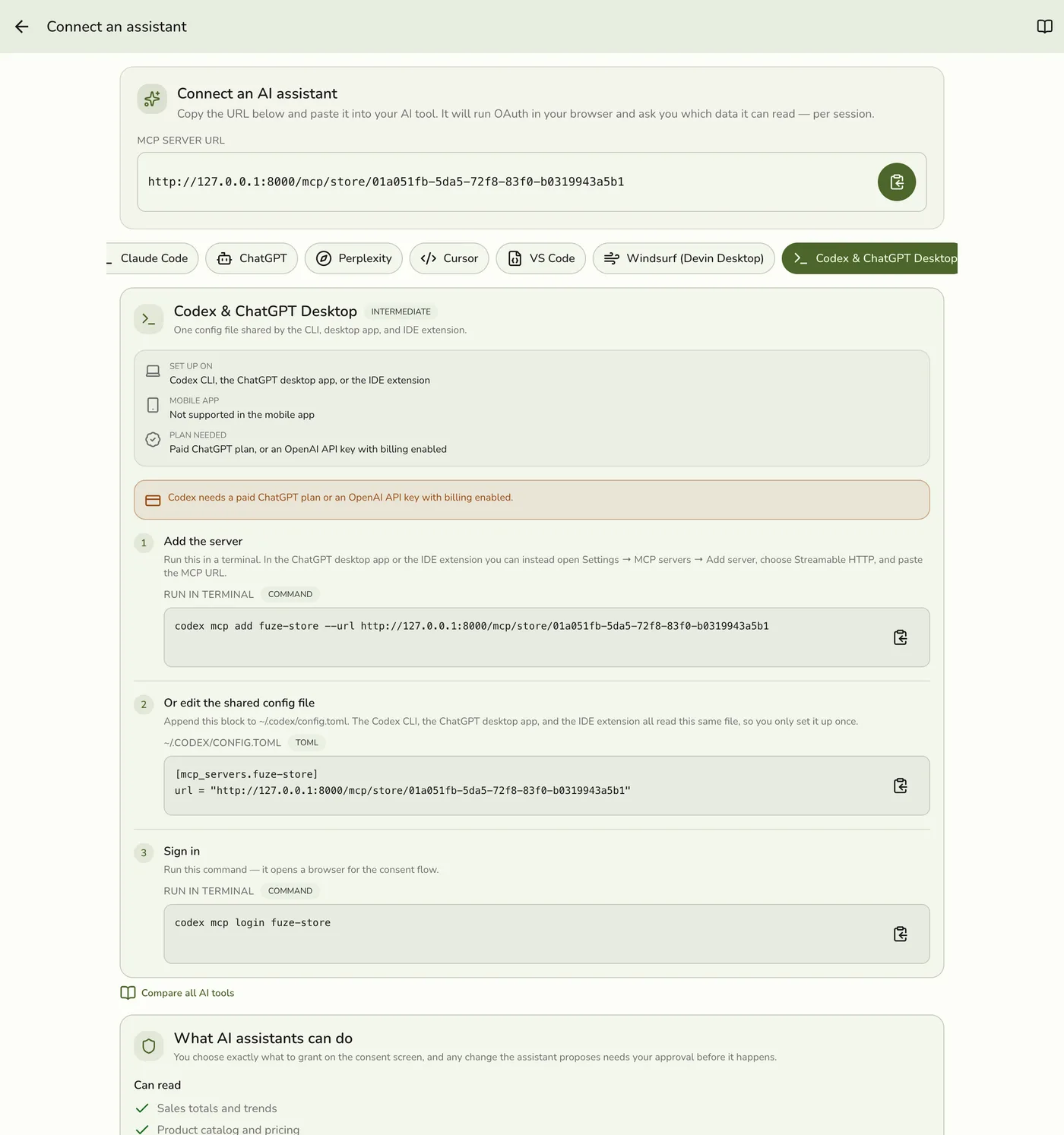
In the Fuze Store app, open Configurations → MCP → Connect an assistant and copy the MCP Server URL:
https://api.fuze-store.com/mcp/store/<your-store-id>
Connect from the Terminal
Add the server
Run this in any terminal, substituting your MCP Server URL.
codex mcp add fuze-store --url https://api.fuze-store.com/mcp/store/<your-store-id>
Sign in
Run the login command — it opens a browser for the consent flow.
codex mcp login fuze-store
Approve the permissions
Sign in to Fuze Store if prompted, review the permissions, and Approve.
Check the connection
Inside a Codex session, run /mcp to see connected servers and the tools they expose.
Connect from the ChatGPT Desktop App or IDE Extension
If you would rather not touch a terminal, both apps have a settings screen:
Open MCP settings
In the ChatGPT desktop app, go to Settings → MCP servers → Add server. In the IDE extension, open the gear menu, then MCP servers → Add server.
Add the server
Choose Streamable HTTP, paste your MCP Server URL, and save.
Approve the permissions
Authenticate via OAuth when prompted, then restart to apply.
Editing the Config File Directly
All three surfaces share ~/.codex/config.toml. You can add the server by hand instead:
[mcp_servers.fuze-store]
url = "https://api.fuze-store.com/mcp/store/<your-store-id>"
No transport key needed
Codex works out the transport from which keys you set — a url key means Streamable HTTP. Authentication defaults to OAuth, which is what Fuze Store uses, so there is nothing else to configure.
Ask Your First Question
- "What were my sales yesterday?"
- "List my best-selling products this month."
- "How many orders are open right now?"
If Something Goes Wrong
If login fails, confirm you are signed into a paid ChatGPT plan or have an API key with billing on. If you edited the config file by hand, check the TOML is valid and that the section header reads exactly [mcp_servers.fuze-store]. For Fuze-side issues, see the troubleshooting section of Setting Up AI Access.