

Connecting Gemini CLI
This guide connects Gemini CLI to your Fuze Store account by adding the MCP server to your settings file.
Google is replacing Gemini CLI
Google has announced that Gemini CLI is being replaced by Antigravity CLI for free and Google One users. If you are setting up a new machine, check which one Google is shipping to your account before you follow these steps.
Before You Start
- Gemini CLI is installed and you can run
geminiin a terminal. - You have Owner or Admin access to the store you want to connect.
- The AI Connections add-on is active on that store.
Gemini CLI works on any plan, including the free tier.
Get Your MCP URL
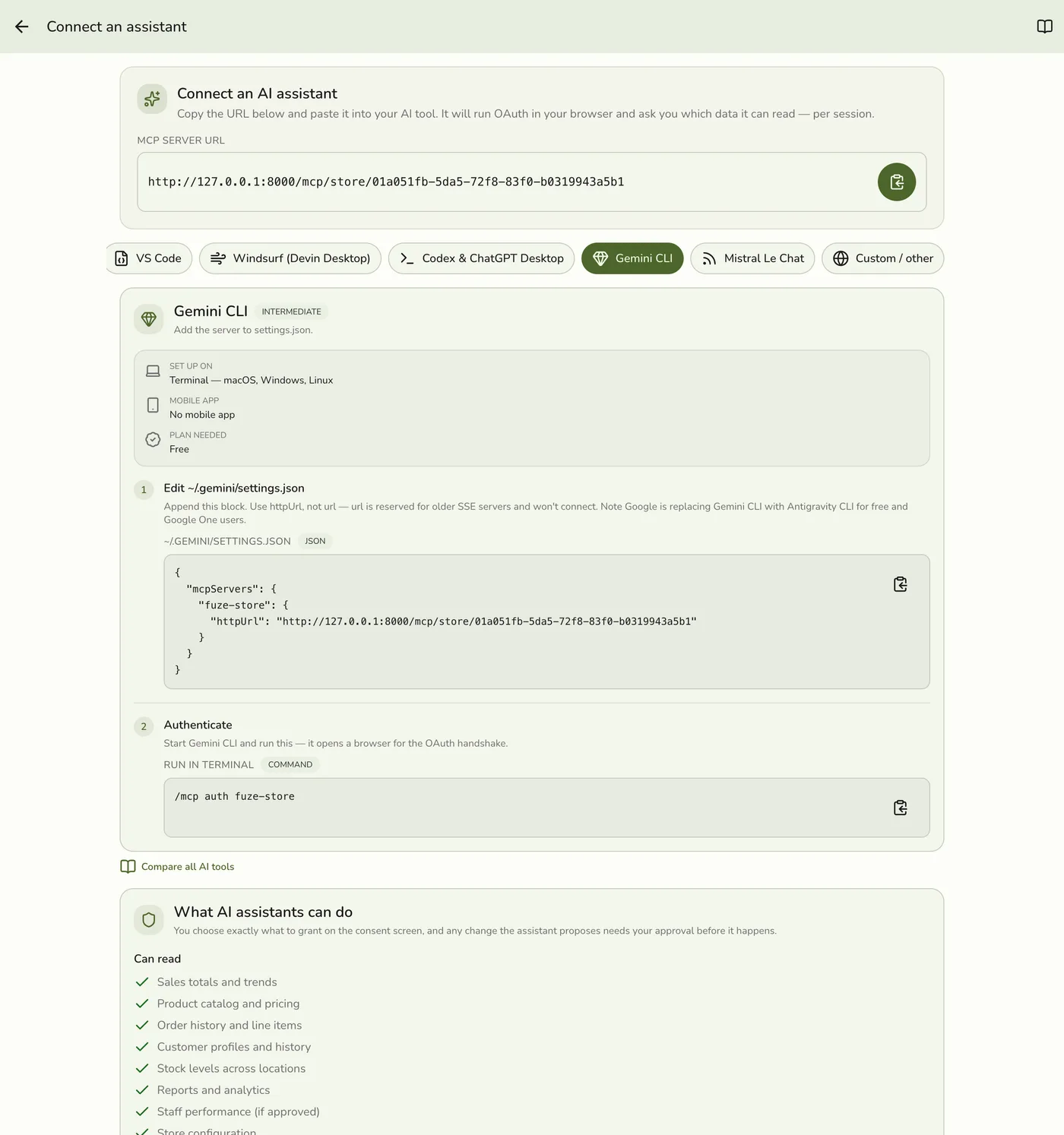
In the Fuze Store app, open Configurations → MCP → Connect an assistant and copy the MCP Server URL:
https://api.fuze-store.com/mcp/store/<your-store-id>
Connect
Edit your settings file
Open ~/.gemini/settings.json and add the server under mcpServers. Create the file if it doesn't exist yet.
{
  "mcpServers": {
    "fuze-store": {
      "httpUrl": "https://api.fuze-store.com/mcp/store/<your-store-id>"
    }
  }
}
Authenticate
Start Gemini CLI and run the auth command. Your browser opens for the OAuth handshake.
/mcp auth fuze-store
Approve the permissions
Sign in to Fuze Store, review the requested permissions, and Approve.
Check the connection
Run /mcp to list connected servers and confirm fuze-store appears with its tools.
Use httpUrl, not url
Gemini CLI keys a modern Streamable HTTP server off httpUrl. The plain url key is reserved for older SSE servers and will not connect to Fuze Store.
Ask Your First Question
- "What were my sales yesterday?"
- "Which products are running low on stock?"
- "Compare this month's revenue to last month."
If Something Goes Wrong
If fuze-store doesn't appear in /mcp, check that your JSON is valid and that you used httpUrl. OAuth needs to open a browser on the same machine and receive a redirect on localhost, so this won't work over a plain SSH session without port forwarding. For Fuze-side issues, see the troubleshooting section of Setting Up AI Access.