

Connecting Mistral Le Chat
This guide connects Le Chat, Mistral's assistant, to your Fuze Store account. It takes about two minutes, and you only do it once.
Le Chat works the same way Claude does: you paste one web address, approve the permissions in your browser, and there is no code to copy down.
Written from Mistral's documentation
We verified this against Mistral's official guide rather than a live walkthrough, so a button may sit somewhere slightly different. The shape of the flow — add a custom connector, paste the address, approve — is what matters. Tell us if something doesn't match and we'll fix it.
Before You Start
- You are signed in to Le Chat in a web browser.
- You have Owner or Admin access to the store you want to connect.
- The AI Connections add-on is active on that store.
Adding a custom connector is an administrator action in Le Chat. On the Free, Pro, and Student plans the account owner is the administrator, so if the account is yours you can already do this. On a Team or Enterprise workspace, ask whoever administers it.
Get Your Store's Web Address
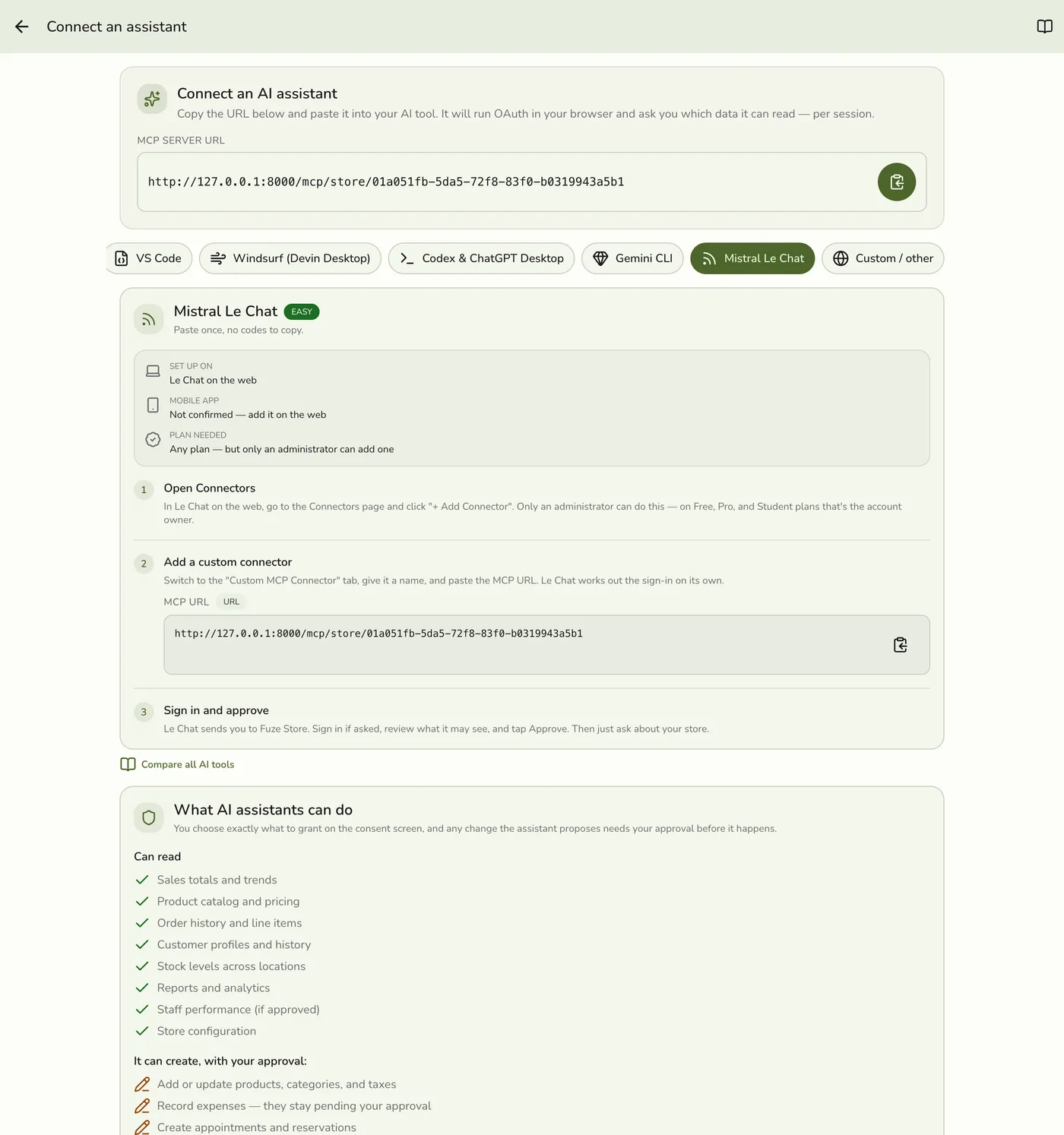
In the Fuze Store app, open Configurations → MCP → Connect an assistant, then tap the copy button next to MCP Server URL. It looks like this:
https://api.fuze-store.com/mcp/store/your-store-id
Keep that copied — you'll paste it in step 2.
Connect
Open your connectors
In Le Chat, go to the Connectors page, then click + Add Connector.
Switch to the custom tab
In the window that opens, switch to the Custom MCP Connector tab.
The other tab is Mistral's ready-made list — your store isn't in it, because it's yours.
Fill in the name and address
- Name — something you'll recognise later. Your store name works well.
- URL — paste your store's web address from above.
Le Chat works out on its own that your store needs a sign-in, so there is nothing else to fill in.
Sign in and approve
Le Chat sends you to Fuze Store. Log in if you're asked to, review what Le Chat is asking to see, untick anything you'd rather not share, and click Approve.
Ask your first question
Back in Le Chat, start a conversation and ask about your store.
Nothing to copy down
You don't need a client ID, a secret, or an API key. Le Chat registers itself from the web address alone — the sign-in screen in your browser is where you grant access.
Only add addresses you trust
Mistral doesn't review custom connectors, so it asks you to take responsibility for the ones you add. The address you paste here is your own store's, copied from your own Fuze Store app. Never paste a link someone sends you and asks you to add.
Ask Your First Question
- "What were my sales yesterday?"
- "Which products sold the most this week?"
- "Compare this month's revenue to last month."
If Something Goes Wrong
You can't find "Add Connector". Adding a custom connector is an administrator action. On a Team or Enterprise workspace, ask your administrator to add it.
The sign-in doesn't appear, or approval fails. The usual causes are not being signed in to Fuze Store in the browser, the AI Connections add-on being off, or pasting the address for a different store. See the troubleshooting section of Setting Up AI Access.