

Connecting VS Code
This guide connects VS Code to your Fuze Store account through GitHub Copilot's MCP support. It works with Copilot Free.
Before You Start
- VS Code (version 1.99 or later) with GitHub Copilot enabled.
- You have Owner or Admin access to the store you want to connect.
- The AI Connections add-on is active on that store.
Get Your MCP URL
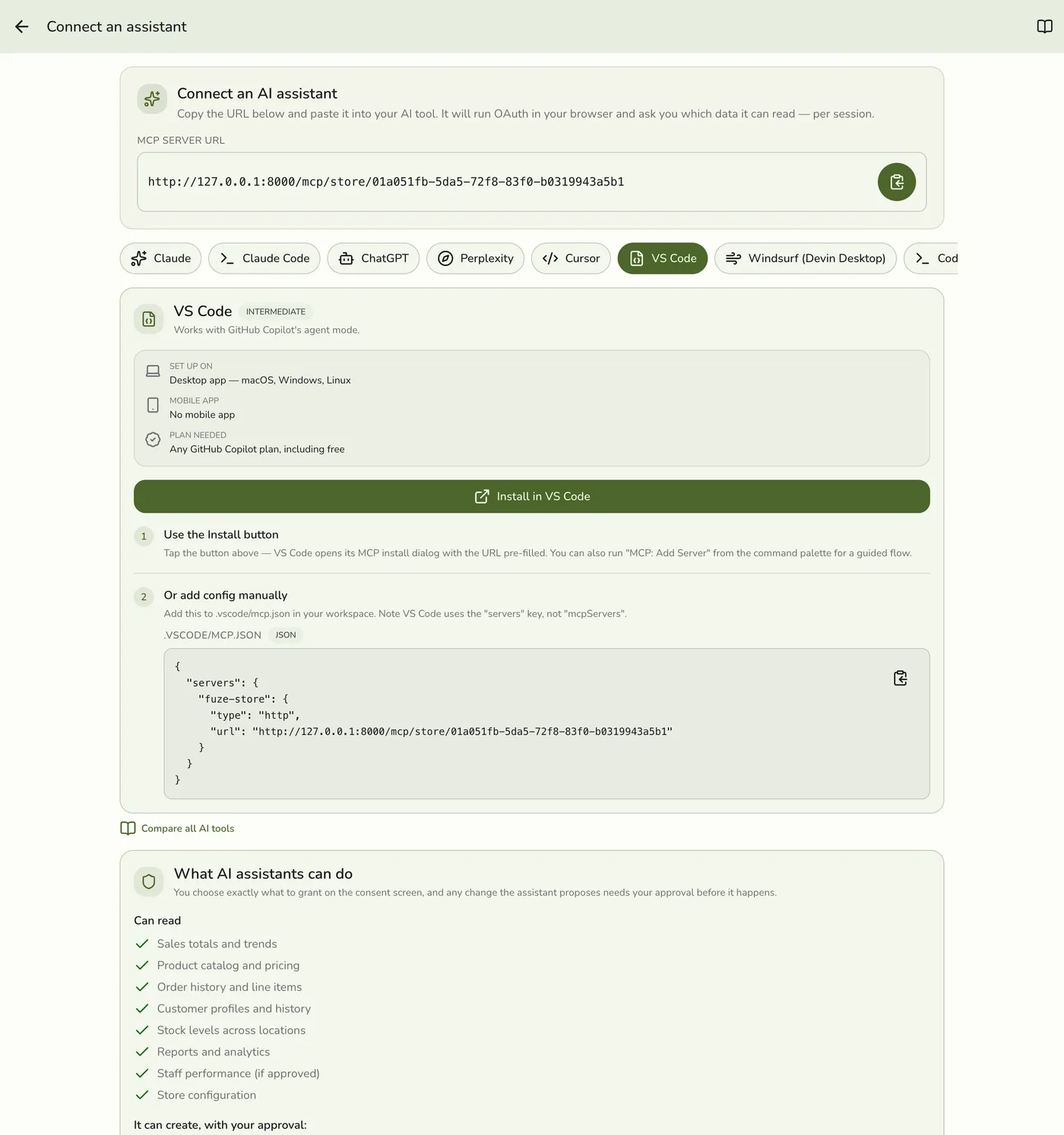
In the Fuze Store app, open Configurations → MCP → Connect an assistant and copy the MCP Server URL:
https://api.fuze-store.com/mcp/store/<your-store-id>
Connect
The quickest path is the Install in VS Code button on the Connect screen in the Fuze Store app — it opens VS Code's MCP install dialog with the URL pre-filled. To set it up by hand instead:
1. Add the server. Run MCP: Add Server from the command palette for a guided flow, choosing Workspace or Global. Or add the block below to .vscode/mcp.json in your workspace by hand (substitute your MCP Server URL):
{
  "servers": {
    "fuze-store": {
      "type": "http",
      "url": "https://api.fuze-store.com/mcp/store/<your-store-id>"
    }
  }
}
VS Code uses `servers`, not `mcpServers`
Unlike Claude Desktop and Cursor, VS Code's mcp.json uses servers as the top-level key. Copying a config from another tool without changing that key is the most common reason the server never appears.
2. Start the server. Run MCP: List Servers from the command palette and start the Fuze Store server.
3. Approve in the browser. VS Code opens a browser for the OAuth handshake. Sign into Fuze Store if prompted, review the permissions, and Approve.
Ask Your First Question
In Copilot Chat (agent mode), try:
- "What were yesterday's sales?"
- "List my low-stock products."
- "Which staff member had the most sales this week?"
If Something Goes Wrong
If the server does not appear, confirm the JSON is valid and that Copilot agent mode is enabled. For Fuze-side issues, see the troubleshooting section of Setting Up AI Access.