

Setting Up AI Access
This guide walks you through creating a new AI Connection, approving it from your browser, and connecting it to your AI tool. For a dedicated Claude walkthrough, see Connecting Claude.
Before You Start
- You need Owner or Admin access to the store you want to connect.
- You need the AI tool's redirect URI. This is a URL the AI tool gives you for its own connector (look in its documentation — Claude Desktop and ChatGPT both list theirs).
- The AI Connections add-on must be active on your store.
Creating a New Connection
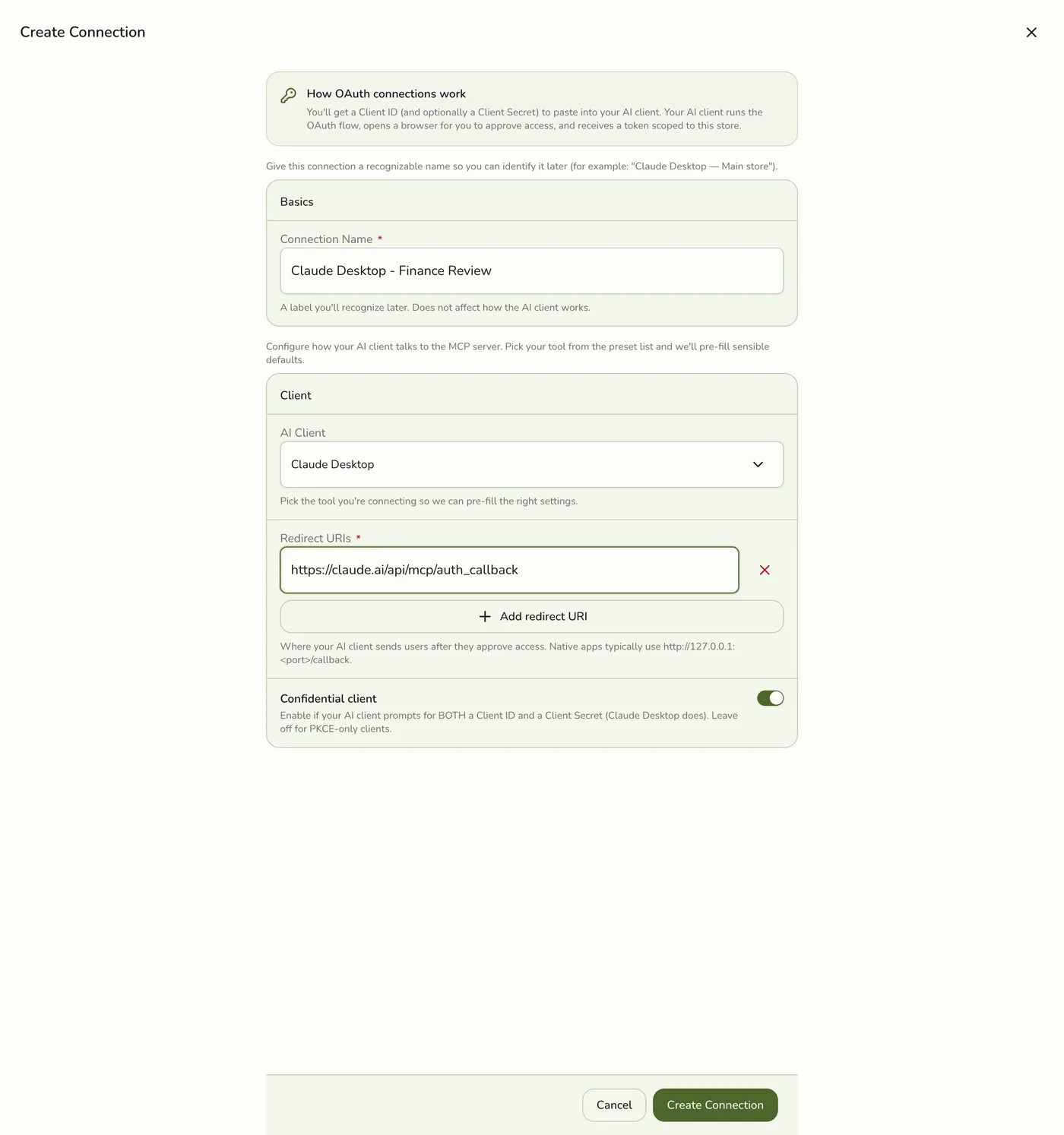
What does the Preset do?
For Claude Code and Cursor, the preset fills in a http://127.0.0.1:<port>/callback loopback redirect URI that both CLI tools use out of the box, and sets the connection to Public (PKCE). For Claude Desktop and ChatGPT, the preset leaves the redirect URI blank so you can paste the URL their "Add custom connector" dialog gave you. Pick Custom if your AI tool is not in the list, and switch the connection type yourself if the preset's default doesn't suit you.
Public vs Confidential in plain terms
Public connections use PKCE (a cryptographic proof-key exchange) and do not issue a client secret — they are simpler and fully supported by every modern AI tool. Confidential connections issue a client secret you paste alongside the Client ID; they are meant for server-to-server scripts and backend integrations that can safely store a secret. The preset picks a sensible default for each AI tool; you can always toggle it.
Secrets are shown only once
If you chose Confidential, the Client Secret is displayed exactly once after you create the connection. Copy it immediately and store it somewhere safe. If you lose it, you must delete the connection and create a new one.
Form Field Reference
A descriptive label so you can identify the connection later.
Example: Claude Desktop - Finance Review
Pick the AI tool you are connecting. Auto-fills the redirect URI and connection type. Pick Custom for tools not in the list.
Example: Claude Desktop
1 to 5 URLs the AI tool uses to receive the authorization code. The preset pre-fills this for CLI tools (Claude Code, Cursor) with a loopback URL. Desktop AI apps accept http://localhost and http://127.0.0.1 URLs; other URLs must be https:// in production.
Example: http://127.0.0.1:33418/callback
Public (PKCE, no secret) or Confidential (issues a client secret). The preset picks a sensible default; you can toggle it.
Example: Public
One or more scopes — the nine read scopes, plus optional Catalog Import (`write:catalog`). Grant only what the AI needs.
Example: read:orders, read:reports
Approving the Connection
After the connection exists in Fuze Store and you have your Client ID, switch to your AI tool to finish the handshake.
Sign into Fuze Store first
If the consent screen asks you to log in, enter your Fuze Store credentials. Once you are signed in, the consent flow resumes automatically. You only need to do this once per session.
Managing Your Connections
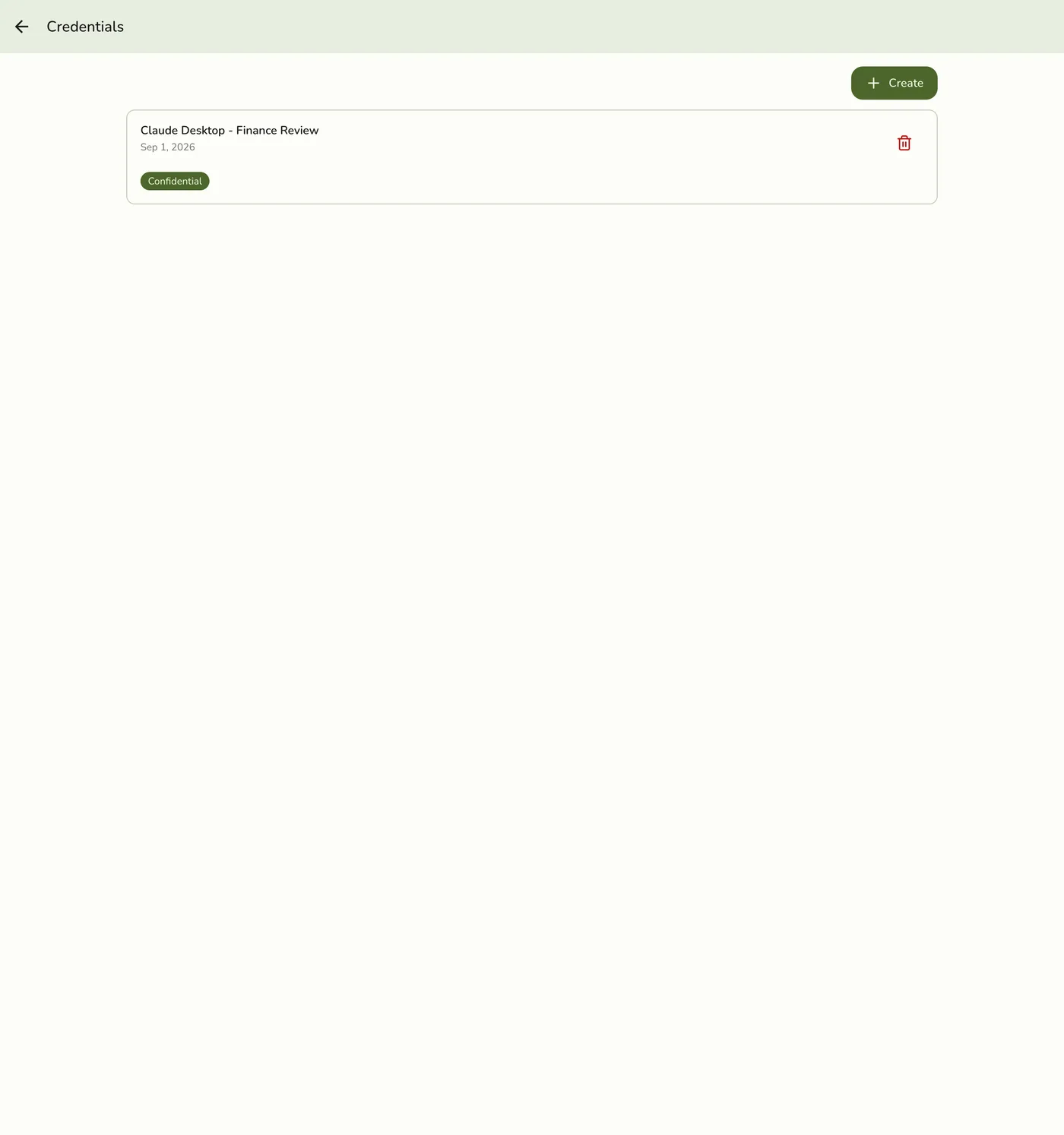
The AI Connections list shows every connection you have created. Each entry includes the name, connection type, and a badge list of its permissions.
Revoking a Connection
Revoking removes all access tokens immediately. The AI tool will lose access within seconds. You can always create a new connection later.
When to Revoke
- The AI tool is no longer in use.
- You suspect credentials have been compromised.
- You want to grant different permissions — revoke and create a new connection.
- A staff member who set up the connection has left the team.
Troubleshooting
"Invalid client" in the AI tool
Your Client ID is wrong. Double-check it matches exactly what Fuze Store shows in the AI Connections list.
"redirect_uri mismatch"
The redirect URI you entered in the AI tool must exactly match one of the URIs you saved on the Fuze Store side. Check for typos, trailing slashes, and http vs https.
"No eligible stores" or an add-on banner on the consent screen
The store this connection points to does not have the AI Connections add-on active. Add it to that store from Account → Add-ons, then try connecting again.
Nothing happens when the AI tool opens a browser window
You need to be signed into your Fuze Store account in the browser. Open fuze-store.com in a new tab, sign in, then retry the connection.
The consent screen shows the wrong account, and signing out does not change it
The consent screen keeps its own short-lived sign-in, separate from the rest of the site, so signing out elsewhere does not always reach it. Tap Not you? Switch account on the consent screen itself — that signs you out and brings you back to the same connection request as the account you choose next.
"Your role can't connect an AI assistant"
Your staff role does not include the AI Connections → Connect permission. Ask a store owner or manager to grant it, or to set the connection up for you. If you expected to be an owner here, check the Signed in as line first — you may be signed in as a different account.