

Connecting Windsurf (Devin Desktop)
This guide connects Windsurf to your Fuze Store account. Windsurf supports MCP on its free tier (subject to its own agent quota).
Windsurf is now also called Devin Desktop
Cognition has been renaming Windsurf to Devin Desktop, and its documentation now uses both names. Nothing in this guide changes because of it — the app, the config file, and the steps below are the same.
Before You Start
- Windsurf is installed.
- You have Owner or Admin access to the store you want to connect.
- The AI Connections add-on is active on that store.
Get Your MCP URL
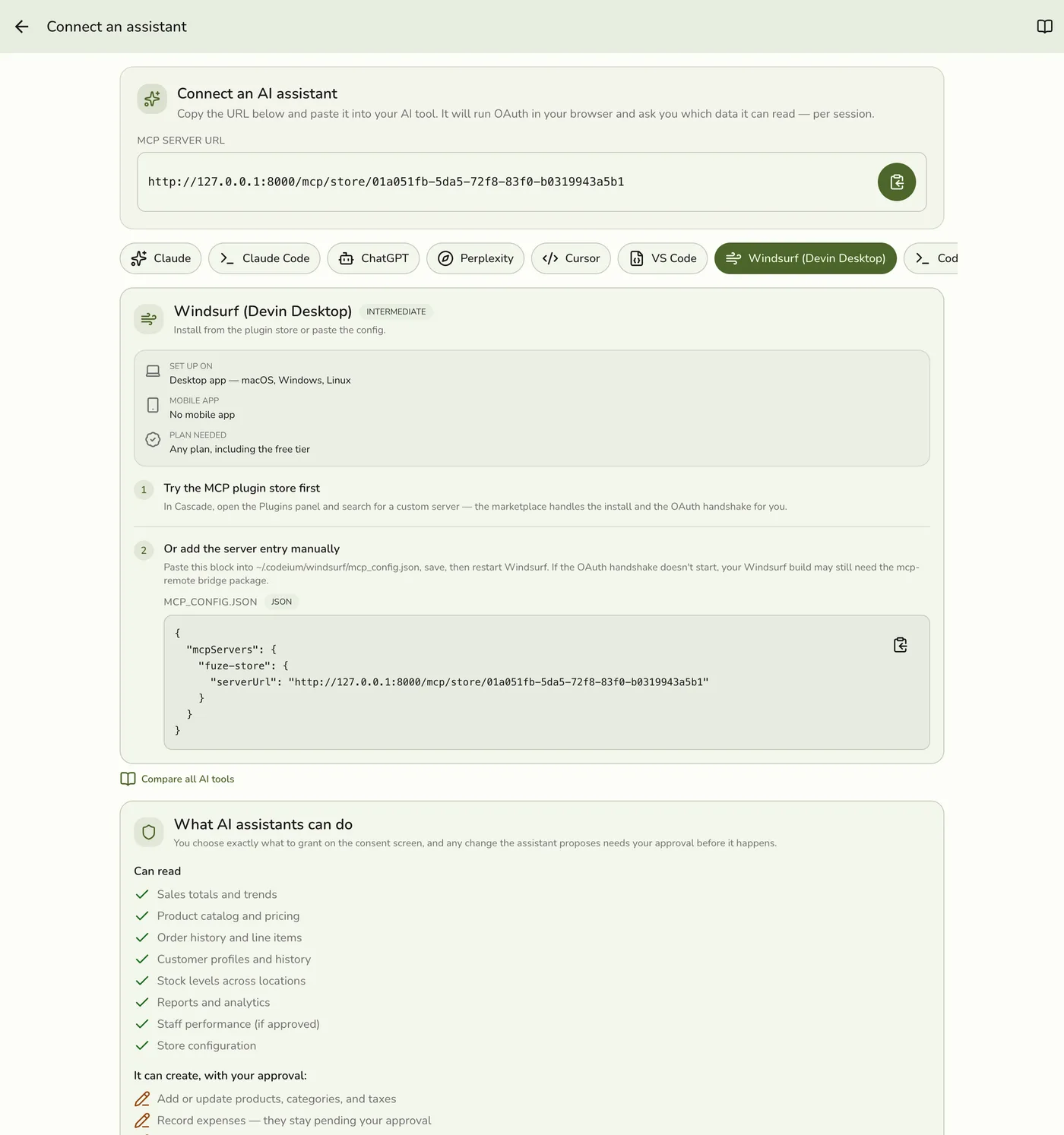
In the Fuze Store app, open Configurations → MCP → Connect an assistant and copy the MCP Server URL:
https://api.fuze-store.com/mcp/store/<your-store-id>
Connect
Your store is not in Windsurf's MCP marketplace — that store only lists servers Windsurf already knows about, and yours is private to you. So you add it by hand, which is three short steps:
1. Open the raw config. In Cascade, click the MCP icon, then Configure. Windsurf stores servers in mcp_config.json — at ~/.codeium/windsurf/mcp_config.json on macOS and Linux, or %USERPROFILE%\.codeium\windsurf\mcp_config.json on Windows. Create the file if it doesn't exist; Windsurf doesn't generate it on first launch.
2. Add the server. Paste the block below (substitute your MCP Server URL), save, then restart Windsurf:
{
  "mcpServers": {
    "fuze-store": {
      "serverUrl": "https://api.fuze-store.com/mcp/store/<your-store-id>"
    }
  }
}
3. Approve in the browser. Windsurf opens a browser for the OAuth handshake. Sign into Fuze Store if prompted, review the permissions, and Approve.
Ask Your First Question
- "What were my total sales last week?"
- "Show me my top products this month."
- "How many new customers did I add today?"
If Something Goes Wrong
If the server does not connect, confirm the JSON is valid and that you restarted Windsurf.
If the browser sign-in never starts
Windsurf supports the browser sign-in for remote servers, so this usually means the config wasn't picked up. Check the JSON is valid, that the file is at the exact path above, and that you fully quit and reopened Windsurf rather than just closing the window.
For Fuze-side issues, see the troubleshooting section of Setting Up AI Access.