

Connecting Perplexity
This guide connects Perplexity to your Fuze Store account with a custom remote connector.
Perplexity needs a paid account
Custom connectors require a Pro, Max, or Enterprise plan. This is separate from the paid Fuze Store AI Connections add-on. Plans and availability are set by Perplexity and can change.
Before You Start
- You are signed into Perplexity on the web with a Pro, Max, or Enterprise plan. Custom connectors are managed in the web settings, not the mobile app.
- You have Owner or Admin access to the store you want to connect.
- The AI Connections add-on is active on that store.
Get Your MCP URL
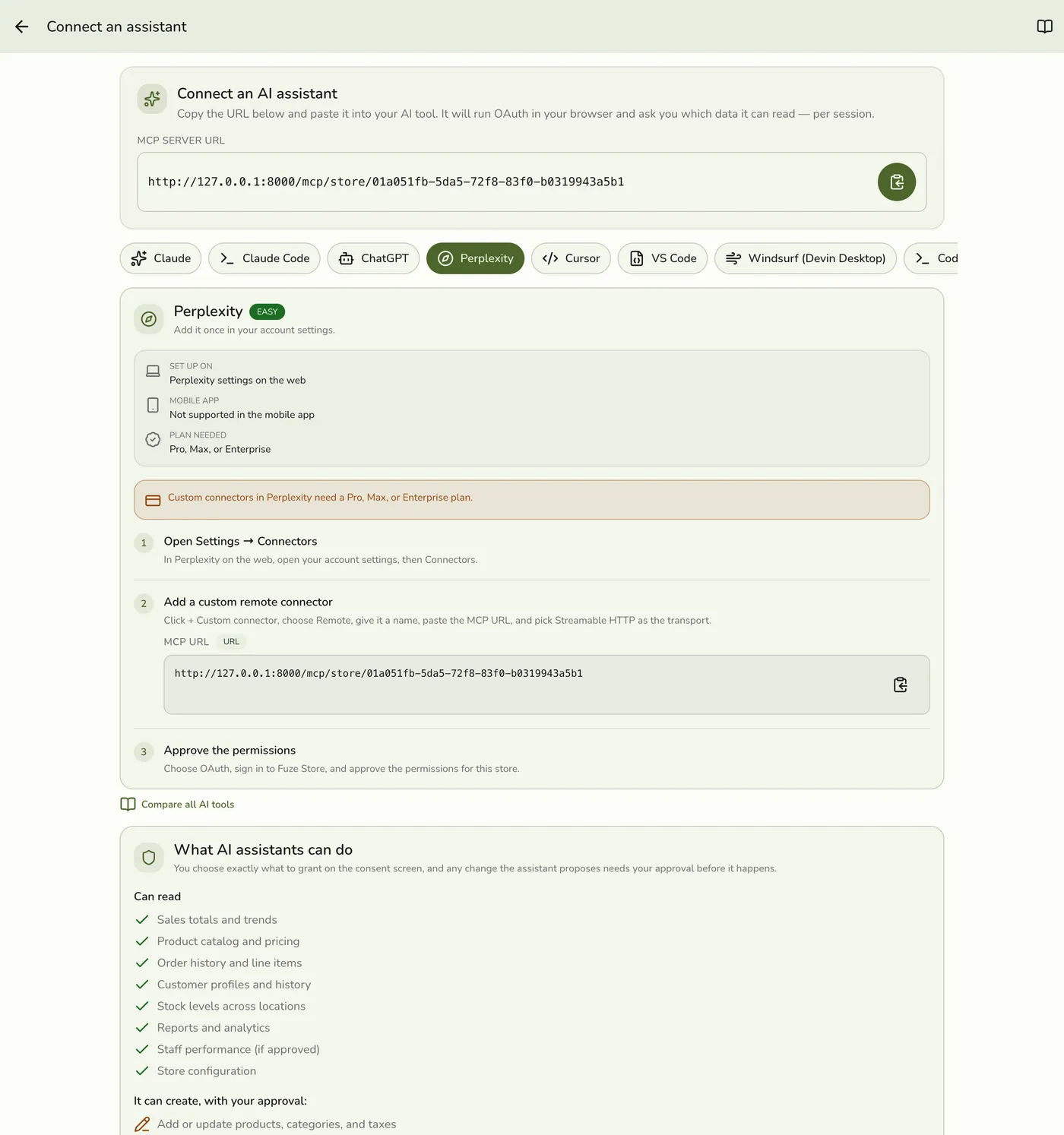
In the Fuze Store app, open Configurations → MCP → Connect an assistant and copy the MCP Server URL:
https://api.fuze-store.com/mcp/store/<your-store-id>
Connect
Open your connector settings
In Perplexity on the web, open your account settings, then Connectors.
Add a custom remote connector
Click + Custom connector and choose Remote. Give it a name like "Fuze Store", paste your MCP Server URL, and pick Streamable HTTP as the transport.
Approve the permissions
Choose OAuth as the authentication type. Sign in to Fuze Store when prompted, review the requested permissions, and Approve.
Start asking
The connector shows as connected. Perplexity can now read the store data you approved.
No credentials to copy
You don't need to create a Client ID or Secret. Perplexity registers itself automatically from the URL — the OAuth screen in your browser is where you approve access.
Ask Your First Question
- "What were my sales yesterday?"
- "Which products sold the most this week?"
- "How many orders did I process today?"
If Something Goes Wrong
If the connector won't save, confirm your Perplexity plan supports custom connectors and that you chose Remote rather than a local server. Check that the URL you pasted ends with your store ID and has no trailing spaces. For Fuze-side issues, see the troubleshooting section of Setting Up AI Access.