

A normal AI connection is tied to one store. An account-level connection is tied to you — it can see and manage every store you own, including stores you create later. It exists for account-level work a store connection cannot do: creating a new store, loading a catalog into a store you just created, and handing a store over to a new owner.
It is the connection to use for live demos: create a fully configured store in front of a prospect, import their menu from a photo, and hand them a claim QR — all inside one AI conversation.
The account connection only ever touches stores you own. Stores where you
are a staff member are invisible to it. For day-to-day questions about one
store (sales, orders, inventory), keep using that store's own connection.
Where to find it in the app
In the Fuze Store app, go to Account → Account Details and open AI
Connection near the bottom of the screen. It is deliberately not on the main
Account list next to Subscription and Add-ons — that spot is one tap from a
store's AI connection (Configurations → MCP), and the two are easy to
confuse. The row on Account Details is labeled as account-level so you always
know which one you are setting up.
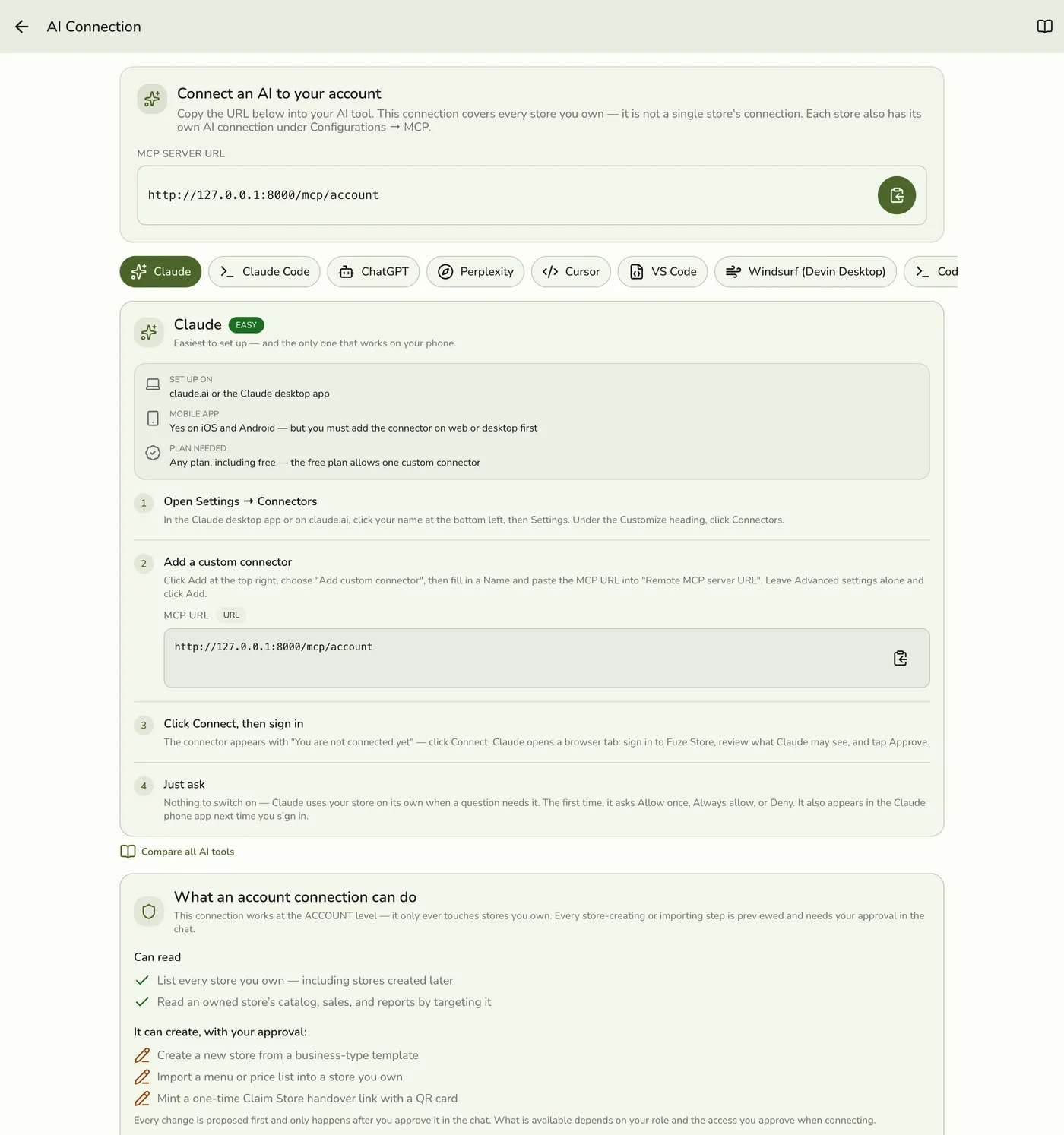
Connecting
The account endpoint URL is your API host followed by /mcp/account:
https://api.fuze-store.com/mcp/account
Add it to your AI tool exactly the way you add a store connection — the same tools and steps in Connecting Claude Desktop and its siblings apply; only the URL differs. During consent you approve access for your account — all stores you own, and you will see two extra permissions:
Lets the AI prepare a new store (always previewed first) and mint store claim handover links. Nothing is created until you approve the preview in the chat.
The same two-phase catalog import as a store connection, aimed at any store you own by name.
What it can do
Create a store from a template
Tell the AI the business name and type. It prepares the store from the
matching setup template and shows you a preview of everything that will be
seeded — roles, taxes, charges, order tabs, service modes — plus whether
the store will start on your free trial or on the Basic plan. The store is only created after you
approve.
Import a menu or price list
Share a menu photo or price list and the AI runs the standard two-phase
catalog import into the new store — preview first, write after your
approval. See Importing your
catalog.
Hand the store over
When the new owner is ready, the AI mints a Claim Store link and shows a QR
card right in the chat for them to scan. They sign up in their browser and
press Claim Store; you approve the handover in your Fuze Store mobile
app — the AI can check progress, but the final approval never happens in
the chat.
The claim link is shown once and expires after 20 minutes. If it lapses, ask
the AI to mint a fresh one.
Seeing and disconnecting your connections
The AI Connection screen also lists your Active connections under the link. It shows every assistant you connected to your account, and every assistant you connected to an organization. Each row shows the tool, what it can do, when it was connected, and whether it is for Your account or for an organization (by name).
To cut one off, tap the bin (Revoke) on its row and confirm. The assistant loses access at once and cannot sign itself back in. To use it again, connect it again and approve it.
Only you see this list. Connections to a single store are not here; they are on that store's AI Assistants screen (Configurations → MCP).
Who can connect
The account connection is available while your subscription is on a free trial, or once any store you own has the AI Connections add-on active. If neither applies, the consent screen explains what to enable.