

Connecting Cursor
This guide connects Cursor to your Fuze Store account. Cursor supports MCP on all plans, including the free tier.
Before You Start
- Cursor is installed.
- You have Owner or Admin access to the store you want to connect.
- The AI Connections add-on is active on that store.
Get Your MCP URL
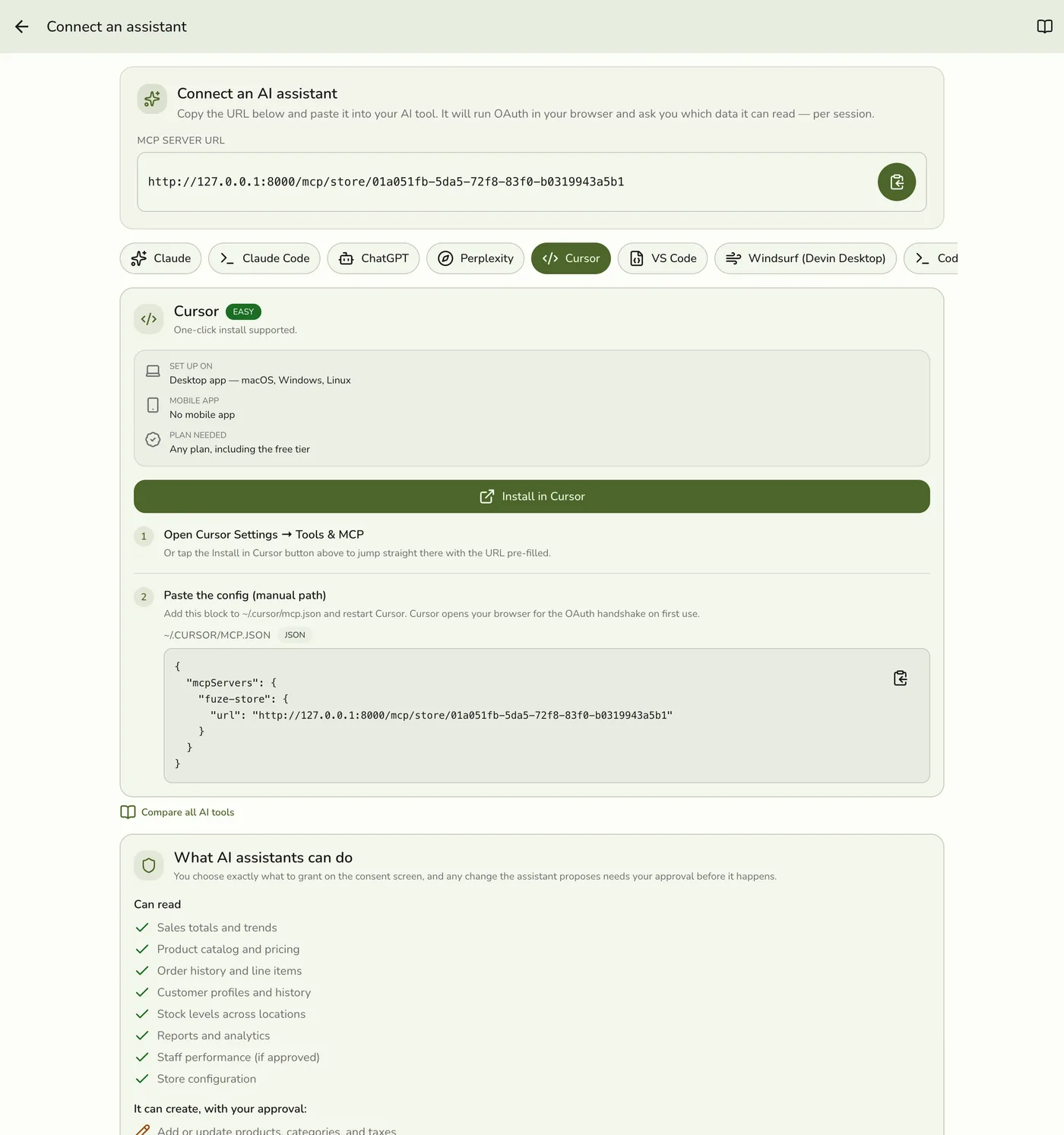
In the Fuze Store app, open Configurations → MCP → Connect an assistant and copy the MCP Server URL:
https://api.fuze-store.com/mcp/store/<your-store-id>
Connect
The quickest path is the Install in Cursor button on the Connect screen in the Fuze Store app — it opens Cursor with the URL pre-filled. To set it up by hand instead:
1. Open Cursor Settings → Tools & MCP and click New MCP Server. That drops you into mcp.json.
2. Add the server. Add the block below to ~/.cursor/mcp.json for every project, or .cursor/mcp.json inside a single project (substitute your MCP Server URL), then restart Cursor:
{
  "mcpServers": {
    "fuze-store": {
      "url": "https://api.fuze-store.com/mcp/store/<your-store-id>"
    }
  }
}
3. Approve in the browser. Cursor opens a browser for the OAuth handshake. Sign into Fuze Store if prompted, review the permissions, and Approve.
Ask Your First Question
- "What were my top-selling products this week?"
- "How many orders did I process today?"
- "What's my average order value this month?"
If Something Goes Wrong
If Cursor does not list the server, confirm the JSON is valid and that you restarted Cursor. For Fuze-side issues, see the troubleshooting section of Setting Up AI Access.